QAD 2017 Enterprise Edition
>
User Guides
>
Warehousing
>
Labor Management
>
Setting Up Labor for Users
Setting Up Labor for Users
You can use the programs in the Labor Management Users Menu (4.11.3) to add warehouse data to user and user groups within a warehouse.
Note: These groups are not the same as user roles used throughout the system.
User Warehouse Data Maintenance
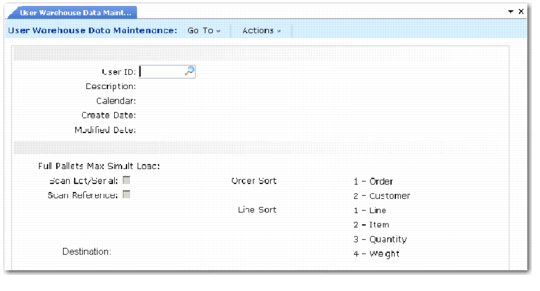
Use User Warehouse Data Maintenance (4.11.3.1) to define tasks that are best suited for warehouse staff. You can also define the calendar for each user.
User Warehouse Data Maintenance (4.11.3.1)
Complete the User Warehouse Data Maintenance fields as follows:
User ID
Indicate the ID of the warehouse staff. An entry should be made for each warehouse staff.
Note: This must be a valid user defined in User Maintenance (36.3.1).
Description
Enter a brief description (maximum 24 characters) of the associated user. Typically, description is related to labor management.
Calendar
Indicate the calendar for this user. You define calendars in Warehouse Calendar Maintenance (4.11.3.9).
Full Pallets Max Simult Load
Enter the maximum number of full pallets this user handles simultaneously in the warehouse. For example, if you specify 3, the user can move three pallets at the same time with his forklift or other equipment.
Scan Lot/Serial
Indicate whether this user scans lot/serial numbers while completing tasks in the warehouse.
No (the default): The user does not scan lot/serial numbers.
Yes: The user scans lot/serial numbers and the lot/serial field displays on the RF device.
Scan Reference
Indicate whether this user scans the destination reference when performing tasks in the warehouse.
No: The user does not scan the reference ID.
Yes: The user scans the reference ID and the Reference field displays on the RF device.
Order Sort
Indicate how the system sorts orders for this user:
1 (the default): The system sorts orders by order number
2: The system sorts orders by customer code.
Line Sort
Indicate how the system sorts lines for this user:
1 (the default): The system sorts lines by line number.
2: The system sorts lines by item number.
3: The system sorts lines by quantity number.
4: The system sorts lines by item weight.
Destination
Specify a location within the warehouse that this is typically used when this user moves items. You can specify any valid location that you define within QAD Warehousing, such as a storage location, warehouse location, or a warehouse.
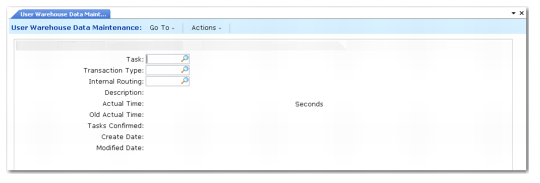
User Warehouse Data Maint, Tasks
Task
Indicate the task. The values entered in this frame are used by the Labor Management Workbench to calculate the most efficient warehouse staff to allocate tasks. This frame is optional and is populated and updated automatically upon completion of every task.
Type
Indicate the type of task.
Internal Routing
Indicate the internal routing associated with this task.
Description
Indicate the description of this task.
Actual Time (Seconds)
Indicate the actual time taken to complete this task. This field is updated automatically upon completion of this task by this user.
Tasks Confirmed
Displays the number of tasks this user has confirmed.
Note: Task and Type are internal routing specific.