Selecting Tasks on the RF
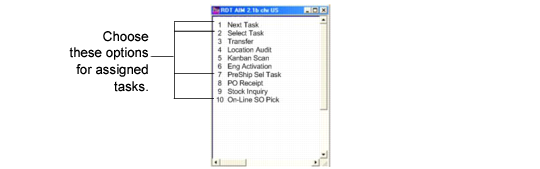
When the proper setup is complete for a user, tasks are automatically assigned to that user. Users select tasks from the RF Work Menu (1.). Users can select from any of the following:
• Next Task: The RF automatically displays the next task assigned to the user once the user confirms completion of the current task.
• Select Task: Users can select the next task to perform from a list of tasks.
• PreShip Sel Task: Lets users select all tasks from an SO pre‑shipper.
• On-Line SO Pick: Lets users pick and allocate sales orders dynamically.
Note: Users can also enter the current task assigned to them in the Task field that displays in the RF login screen.
Batch picking tasks are available through the RF Picking/Container (3) menu option.
The screen layout for the Select Task function varies, depending on the setting of the OS variable. If no value is specified, then users select a task from scrolling window.
RF Tasks