 In
In 
Browse, Browse Collection, or Menu Collection Name | Elements | Fields Displayed |
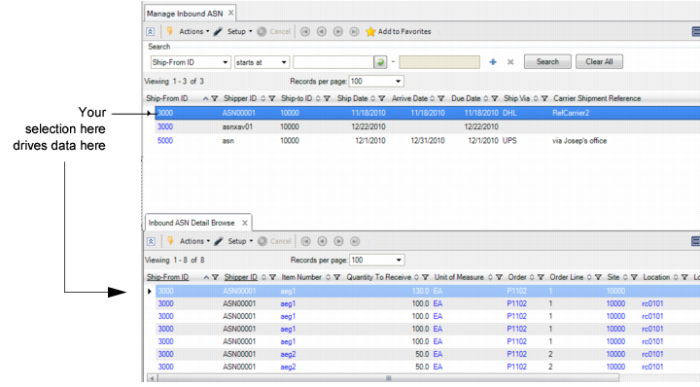
Inbound ASN Detail Browse | Ship-from, shipper ID, item number, quantity to receive, UM, order number and line, site, location, lot/serial, reference | |
Inbound Order Warehouse Browse | Site, warehouse, address, description, type, order, line, item number, open quantity, UM, carrier, due date | |
Inventory Detail by SLG | Item number, site, warehouse, SLG, location, QOH, UM, lot/serial, reference, alternate UM, quantity expected in/out | |
Manage Inbound ASN | Inbound ASN Detail Browse | Ship-from/to, shipper ID, ship date, arrive date, due date, ship via, carrier shipment reference |
Manage Work Centers | Work Order Operations Put Away Transactions Inventory Detail by SLG Browse Picking Transactions Browse | Site, warehouse, work center, machine, description, department, queue time, wait time, setup crew, run crew, work order status, quantity completed/ordered/rejected, UM, order date, due date, release date |
Manage Work Orders | Work Order Bill Browse Put Away Transactions Browse Picking Transactions Browse Inventory Detail by SLG Browse | Site, warehouse, type, work order and ID, item number, type, production line |
Put Away Transactions Browse | Site, warehouse, transaction number, transaction type, task, create date/time, priority, current user ID, hard assignment, status, item number, quantity expected, UM, from-/to-location, To refererence/lot, type, order, line ID. | |
Picking Transactions Browse | Site, warehouse, transaction number, transaction type, create date/time, priority, current user ID, hard assignment, status, item number, quantity expected, UM, to-/from-location, from reference, from lot/serial, type, order, order line | |
Warehousing Manufacturing | Manage Work Orders • Work Order Bill Browse • Put Away Transactions Browse • Picking Transactions Browse • Inventory Detail by SLG Browse Manage Work Centers • Work Order Operations • Put Away Transactions Browse • Inventory Detail by SLG Browse | . |
Warehousing Receipts | Inbound Order Warehouse Browse Manage Inbound ASN • Inbound ASN Detail Browse Manage Inspection Samples • Inventory Inspection Detail Browse • Inventory Shortage Detail Browse Put Away Transactions Browse | |
Work Order Bill Browse | Type, work order/ID, location, item number, status, line, reference, lot/serial, quantity required/allocated/picked, UM, issue date | |
Work Order Operations | Work center, type, work order ID, item number, operation, machine, quantity ordered, quantity WIP, quantity completed, quantity rejected, UM | |