Multi-Lot/Item Pallet Receipt
When staff receive a multi-item or multi-lot pallet, they typically want a single task to move the pallet to the destination location. The put-away process finds a single location for the entire pallet and does not send different pallet components to different locations.
Setting Up Multi-Lot/Item Pallet Receipt
Additional setup is required when staff put away multi-lot/item pallets as a single movement.
For more information on defining multiple items, see
QAD Master Data User Guide.
Before you receive multi-lot/item pallets, ensure the following:
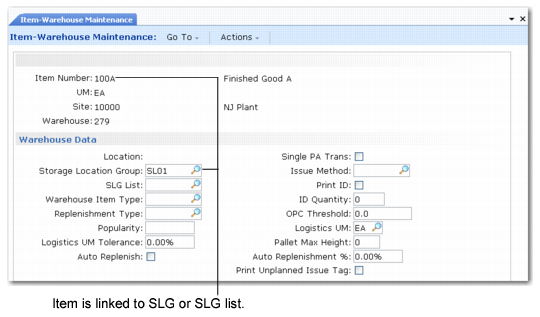
• Storage location groups (SLGs) or a list of SLGs are defined and linked to the pallet items.
Since staff perform the put-away in the SLG or an SLG list linked to an item, if multiple items exist, each can go to a different area. To avoid this situation, you must set up the SLG or SLG list so that they link to the pallet item.
The pallet item is the item you define in:
• Alternate Unit of Measure Maintenance (4.5.1)
• Item Master Maintenance (1.4.1)
• Item-Warehouse Maintenance (4.4.11)
The system uses the SLG or the SLG list linked to the combination of item and warehouse in Item-Warehouse Maintenance to determine which SLG should be used for the multi-lot/item pallet put-away.
Item-Warehouse Maintenance (4.4.11)
Receiving Multi-Lot Pallets
Use the RF Receipt menu (1.8) to receive multi-item pallets; see
Processing Receipts.
Displaying Multi-Lot/Item Pallet Data
The warehousing system creates a task for multi-lot/item pallets that is different than those created for single-item pallets. For multi-lot/item pallets, the task item number is the pallet item number.
Also, since the system does not display the total amount of units for all items on the pallet, the quantity that displays in warehouse reports and inquiries is one pallet.
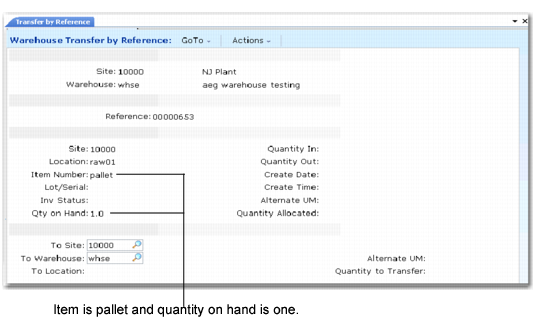
Also, when you select a multi-item pallet for a transfer using Warehouse Transfer by Reference (4.17.1), the item that displays is the pallet item and the quantity is a single pallet. When you select the reference, a warning indicates that the pallet is a multi-item pallet.
Warehouse Transfer by Reference (4.17.1)
Finally, the RF Transfer (1.3) option lets staff perform on-the-fly transfers. When they do, the RF indicates that the pallet is a multi-item pallet.
RF On-the-Fly Transfer