Location Forecasts
Some warehousing situations require that locations are prepared for a specific receipt before the inventory is actually received. Such locations need to be reserved ahead of time to prevent their use for any other purpose. In other situations, running the put-away algorithms at the moment of receipt may not provide optimum system performance; for example, if receipts tend to occur during the day time when the system usage is highest.
If details of receipts are known in advance, locations can be identified and reserved ahead of time during periods when system use is low, such as at night. When the physical receipt is subsequently made, the locations to be used for storage are pre-identified, and the put-away processing is quicker and more efficient.
You can generate this kind of planned put-away using Location Forecast Build (4.3.19.1) and Location Forecast Maintenance (4.3.19.2). Special put-away algorithms are provided to search specifically for the reserved locations.
Location Forecast Build
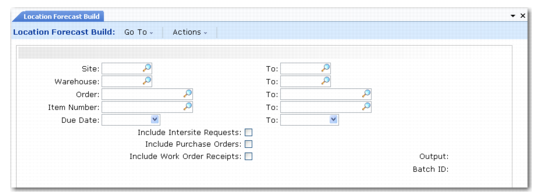
Use Location Forecast Build (4.3.19.1) to create new location forecasts.
Location Forecast Build (4.3.19.1)
Select the order and due date range for which forecasts are generated. Specify default values in Location Forecast Control (4.3.19.24) for the order types to include and for the number of days in the forecast horizon. Forecasts are generated in locations identified by the defined internal routing and algorithm assignments.
Internal Routings, Algorithms, and Transaction Types
In order to determine which internal routings should be used to identify the receipt paths that enable location forecasts to be generated, a set of specific transaction types are provided. These are:
• FOR-PO for the receipt of purchase orders
• FOR-WO for the receipt of work orders
• FOR-DO for the receipt of distribution orders
This means that, though actual receipts can take many different routes, forecasts can be rationalized to only function on some or all of them. This is best explained using an example.
Two internal routings are defined:
• RECEIVE moves stock from the receipts area and puts the stock directly away.
• INSPECT moves stock from the receipts area to an inspection area before the stock is put-away.
Purchase order receipts (transaction type RCT-PO) for some item types are assigned to use the INSPECT routing, while the remainder use the RECEIVE routing.
However, locations need only be reserved in the main storage area. Therefore, all purchase order receipt forecasts (transaction type FOR‑PO) are assigned to use the RECEIVE routing.
Note: It should rarely be required to create a specific internal routing for receipt forecasts, only a specific internal routing assignment. Only two-step internal routings fully support location forecasts. In the previous example where inventory is moved from receipts to inspection and then on to stores, if location forecasts are assigned to this routing, the forecasts are only created in the Inspection area. Unfortunately, if this is what is required, no location-find algorithms can identify and consume the forecast.
Similar to the assignment of internal routings, the algorithms to be used to identify the locations for forecasting must be assigned using the FOR transaction types. While the system lets any algorithms be used for the FOR transaction types, any algorithm that does more than just identify a location fails when used to generate a forecast.
Example: If an algorithm to consume location forecasts is assigned to be run when location forecasts are generated, the algorithm runs but does not do any processing or return any locations.
Receipt Forecast Maintenance
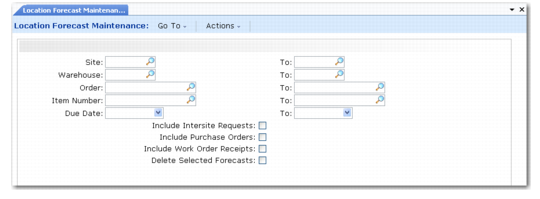
Location Forecast Maintenance (4.3.19.2) enables you to modify or delete previously generated forecasts, or to create new forecasts manually.
1 Select Location Forecast Maintenance (4.3.19.2).
2 In the fields in the top half of the frame, select the range of forecasts to modify. You can delete all selected forecasts by entering Yes in the Delete Selected Forecasts field. Click Next.
3 A scrolling window is displayed. To create a new forecast, click Next when the scrolling window displays. Alternatively, highlight any specific record to modify it and press Enter.
4 The details of the record are displayed in the lower frame where you can make your changes.
To delete a forecast, enter a forecast quantity of zero.
5 To return to the scrolling window, press End. You can then repeat steps 3 and 4.
6 To return to the initial selection frame, press End in the scrolling window.
The Location Forecast menu options also contain standard reports and inquiries that let you review existing receipt forecasts.
Location forecasts are created for an order line before that order line is physically received. If a location forecast is created, it must be used at the moment of the receipt to identify the locations to use. This is achieved by using put-away algorithms 111 through 124. See
Put-Away Algorithms.
General RF Receipt Procedure
1 Scan the warehouse location where the items are received.
2 Scan or enter the address ID
When the address is blank, the system lets you perform an unplanned receipt.
3 Scan or enter the packing slip for items being received.
4 Enter alternate UM: of the pallet being received.
5 Scan the pallet reference from the label attached to the pallet.
When the pallet ID is blank, the system prompts to generate a reference number.
Note: You can delete a scanned pallet.
6 Scan the item number from the label.
7 If applicable, scan the lot/serial number where items are received.
8 Scan the quantity of items being received.
If staff set the quantity to 0 (zero), the system deletes the item from the pallet contents.
9 Scan or enter the order number.
The system display an open order, based on previous scanned fields. Accept the order number or enter a different order number.
The system positions the cursor in the Item field to scan a new item contained in a previous pallet.
10 Scan or enter the order line.
The system displays an open order line, based on previous scanned fields. Accept the order line number or enter a different order line number.
11 Continue scanning items and entering quantities.
12 Press F4 to indicate the completion of pallet scanning.
The system captures results and displays them on the RF.
13 Go to the RF Select Task (1.2) or Next Task (1.3) option to confirm system-created put-away tasks.
14 Scan the order line.
The system proposes an open order based on previous scanned fields (PO or DO) being received.
15 Continue confirming tasks.