QAD 2017 Enterprise Edition
>
User Guides
>
Warehousing
>
Order Management
>
Adding Warehouse Data to Addresses
Adding Warehouse Data to Addresses
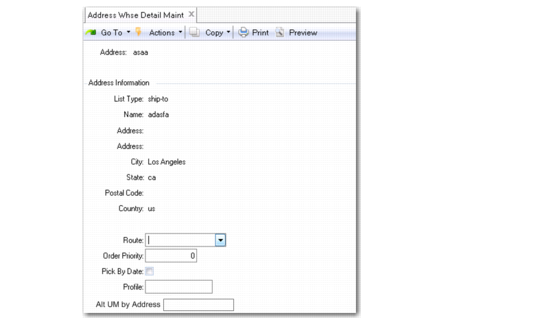
Use Address Whse Detail Maint (4.13.13) to add route, order priority, a date by which to pick items, and other data used in warehouse functions to company addresses or customer records.
To display details of an address, select an address code from the drop-down list.
Address Whse Detail Maint (4.13.13)
Address
Specify a valid customer address.
The system displays the name, list type, address, city, and state of the customer, as well as postal code and country.
Route
Enter a route code to add route data for orders with specific routes in the warehouse. For example, if orders from a customer you specify in the Address field require a particular delivery area, specify a route that includes that area. You associate a route with an order in Order Warehouse Data Maintenance.
Order Priority
Enter the order priority for selecting orders for the warehouse associated with the specified address.
Pick By Date
Enter Yes to specify that picking and shipment of inventory to this address must be in strict FIFO order; otherwise, enter No.
Profile
Enter a code up to eight characters that defines a particular profile for the address/customer. In QAD Warehousing, profiles provide an additional means to categorize and select orders to process and are not associated with system security profiles. For example, you can create a Top profile for all of your top customers, then select orders by this profile to process first or monitor until shipment.
Alt UM by Address
Enter a default alternate unit of measure by address as defined in Alternate Unit of Measure Maint (3.5.1). The system uses this field with the RF Receipts option to set the default alternate UM when warehouse staff scan a new pallet during a receipt. RF Receipts is the only function that uses this field. When this field is blank, the system does not default an alternate UM.