QAD 2017 Enterprise Edition
>
User Guides
>
Warehousing
>
Bulk Picking
>
Setting Up Bulk Picking
Setting Up Bulk Picking
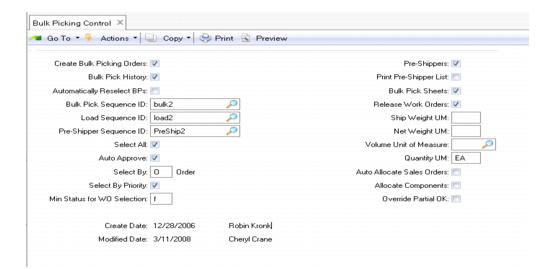
Use Bulk Picking Control (4.14.24) to set parameters for bulk picking and to set default values for other bulk pick programs.
Bulk Picking Control (4.14.24)
Complete the fields as follows:
Create Bulk Picking Orders
If set to Yes (the default), bulk picking orders are created automatically in the Bulk Pick Selection and Approval programs.
Bulk Pick History
Indicate whether to keep history of all bulk pick details processed.
Automatically Reselect BPs
If set to Yes, whenever an order line has been approved but not picked, the order line is automatically reselected (pick status set to S) for future bulk pick approval.
Bulk Pick Sequence ID
Identify the number range management (NRM) sequence ID to use for creating bulk picking order numbers. If not correctly defined, it is not possible to create bulk picking orders. You create bulk picking sequences in Sequence Definition Maintenance (4.23.1). See
Sequence Definition.
Load Sequence ID
Identify the NRM sequence ID to use for defining load IDs. If not correctly defined, it is not possible to create bulk picking orders. You create load sequences in Sequence Definition Maintenance (4.23.1).
Pre-Shipper Sequence ID
Identify the NRM sequence ID to use for creating pre-shipper numbers. If not correctly defined, it is not possible to create bulk picking orders.You create pre-shipper sequences in Sequence Definition Maintenance (4.23.1).
Note: This system does not use this field to create SO or DO pre-shippers. The system creates data in bulk picking tables for later printing of pre-shippers.
Select All
If set to Yes, the automatically calculated load ID assignments are used for selection. If set to No, a window is displayed in the selection and approval programs enabling you to include and exclude selected order lines, and to manipulate which order line is assigned to each load ID.
Auto Approve
If set to Yes, the selected order lines are automatically approved.
Select By
You can set this to A (Address), O (Order), P (Part), or R (Route).
Select by Priority
If set to Yes, order lines are selected within the address, order, part, or route selection by priority, and then by due date. If set to No, the subselection is by due date and then priority.
Min Status for WO Selection
This field enables you to enter the minimum status needed for work orders selection.
You can set this to A (Allocated), B (Batch), E (Exploded), F (Firm), P (Planned), or R (Released).
Pre-Shippers
If set to Yes (the default), a pre-shipper ID is automatically generated and assigned to each line in the selection and approval programs. See
Printing Bulk Pick Orders for more details.
Print Pre-Shipper List
When Pre-Shippers is Yes, indicate if a list of generated pre-shippers should also print.
Bulk Pick-Sheets
If set to Yes (the default), bulk pick sheets are automatically created in the selection and approval programs.
Release Work Orders
If set to Yes (the default), work orders are automatically released for the bulk pick.
Ship Weight UM
Enter the default UM for the shipping weight of bulk pick orders.
Net Weight UM
Enter the default UM for the net weight of bulk pick orders.
Volume Unit of Measure
Enter the default UM for the volume of bulk pick orders.
Quantity UM
Enter the default UM for the quantity of bulk pick orders.
Auto All Sales Orders
If set to Yes, the system performs general allocations for sales order lines that are not yet generally allocated at the time the bulk picking process is run. Allocations depend on the settings in Sales Order Control (7.1.24).
Allocate Components
Indicate whether the system automatically applies pick logic and creates detail inventory allocations for components of configured kits.
Yes: The system creates detail allocations for confirmed sales order lines.
No: The system uses sales order line site for the site and default item location. In both cases, the quantity to ship for a component is determined by the quantity open for the configured kit item, and not the quantity available to allocate for component.
Modify detail allocations for components of configured kits in Pre-Shipper/Shipper Workbench (7.9.2).
Override Partial OK
Indicate whether the system overrides the sales order Partial OK field setting in Sales Order Maintenance. When Partial OK is Yes, the system prints a packing list and lets you make shipments when the entire quantity is not available. When Partial OK is No, the system checks that all line items are available for shipping before printing a packing list. If they are not, you cannot print a packing list for the order.
No (the default): Do not override the Partial OK setting.
Yes: Override the Partial OK setting and reset it to Yes. You can print a packing list and create a partial shipment for the customer. You can ship the remainder of the order when items are available.