Assigning Users to a WLG
Use User Work Location Group Maintenance (4.11.3.13) to assign users to a workgroup and to set up print options specific to the user. You must complete this step for all users if you intend to use task reassignment features.
For the system to function properly, if you define one user-WLG relationship in a warehouse, you must define a relationship for all users in all WLGs in which they work.
Setting Up Print Options
Data can display for printing in either standard screens or the RF device, including printing any of the following types of information:
• Inventory coming into the warehouse
• Transactions for system-created tasks
• Transactions for confirmed tasks
• Transactions for inspections
• Changes to original transactions (for example, a change to the put-away location)
• Transactions relating to external devices or form printers
For each type of information that you can print, you specify the name of the printer to use for printing. You can specify the code for a form, ID, or task printer.
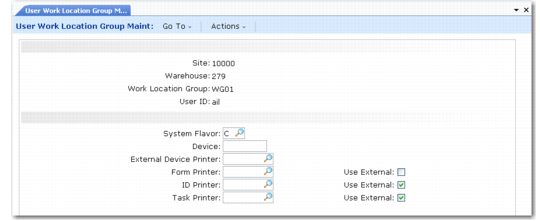
User Work Location Group Maintenance (4.11.3.13)
Site
Enter the site for the work location group of the user.
Warehouse
Enter the warehouse for the work location group of the user.
Work Location Group
Enter the work location group of the user.
User ID
Enter the ID of the user you are assigning to this WLG.
Flavor
Specify the code to define the style and format of screens to use for displaying warehouse information:
b: Selection by Reference
c: Multi-Bin Pick-Up
d: Dynamic Sizing
You set up flavor codes in Generalized Codes Maintenance (36.2.13). The codes determine the format for information display on devices such as fork-lift truck screens or RF devices.
Device
Enter a code to define the device, such as an RF device, for the user within the WLG. Leave blank to indicate no device.
External Device Printer
Enter the code that identifies the printer the external device uses.
Form Printer
Indicate the code for the form printer for the user or use the lookup to select a printer code.
Enter Yes to Use External if you want RF users to print identifications on an external printer such as a forklift printer. Enter No to Use External if you want RF users to print using the ID printer.
ID Printer
Indicate the code for the ID printer for the user or use the lookup to select a printer code.
Indicate whether the ID printer is an external printer by specifying either Yes to Use External.
Task Printer
Enter the code for the printer or use the lookup to select a printer code for the user when printing tasks.
Enter Yes to Use External if you want RF users to print identifications on an external printer such as a forklift printer. Enter No to Use External if you want RF users to print using the ID printer.