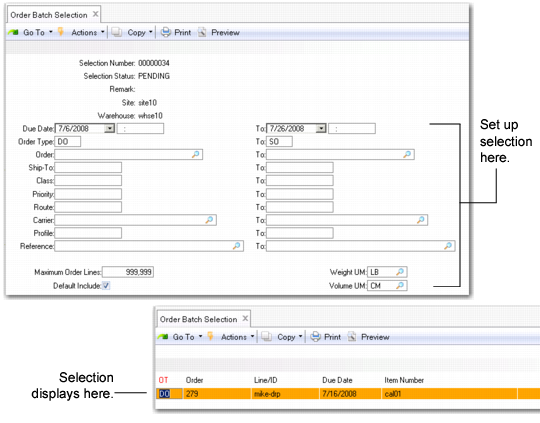
Creating a Selection
Use Order Batch Selection (4.15.2.5) to select order lines that have Load Optimization set to Yes in DO Order Data Maint, SO Order Data Maint, or DO Order Data Maint for load optimization through a TMS.
Once you select the order lines, the system exports data about the order lines to the TMS using Order Batch Export/Load Import (4.15.2.7) and informs you of the transfer status. Order Batch Export/Load Import selects order lines and lets you make a workload capacity simulation to ensure you have enough capacity to fulfill the orders.
The system uses the default export algorithm that you specify in the Export Algorithm field in Wave Transportation Control to export order information from QAD Warehousing to the TMS.
The TMS optimizes all orders within a batch selection. The estimated shipment date is part of the information returned to QAD Warehousing from the TMS. When the estimated shipment date differs from the system shipment date, you can re-export orders to the TMS on a subsequent export only if you previously canceled or deleted the loads created for the date.
The system assigns a selection number when you leave the Selection field blank. It also sets the status of the selection to Pending. Other valid values for Status include:
• Exporting: QAD Warehousing export to the TMS is in progress for the orders in the selection.
• Error: The communication process has failed. If a result of the order batch export and load import, these are errors that occur during normal operations, not because of the export and import completion.
• Closed: Order selections for which the exporting process has successfully finalized.
Since the system exports only one selection at a time, Order Batch Selection displays a warning if you create a pending selection for a site and warehouse for which a pending selection already exists.
When the TMS fails to process orders, the system displays error information in Order Batch Export/Load Import. After exporting the orders in Order Batch Export/Load Import, the system displays an integration report.
The fields marked with an asterisk (*) have indexes. This lets you search the indexes and sort by different criteria, display additional information about the orders, add more orders matching the same criteria, and so on. For example, you select only orders for a specific carrier. You can search all orders for that carrier, then select orders that ship to a specific region of the country and add them to the wave.
Use the following procedure to create a selection:
1 Specify a selection number if you want to edit an existing selection or leave blank to create a new selection.
If new, the system sets the Status field to Pending.
2 Specify the site and warehouse.
3 Specify criteria for the orders in this selection by entering ranges for the order due date, order type, ship-to, class, priority, carrier, and so on.
Once you specify criteria for the orders to be included in the selection and press Go, the system displays orders that match the criteria in the Selection frame; however, you can still determine whether to include the order in the selection by moving to the Include field and toggling between Yes and No.
Note: You set the default for the Include field in the Default Include field in Wave Transportation Control.
4 Review the orders in the Selection Frame. You can also use function keys to see details, remove or add orders; for example, press any of the following:
• D to access the detailed information dates, quantities, weights, and volumes on order lines
• F11 to selection criteria to remove order lines
• F12 to select criteria to add new order lines to the selection
• W to launch workload calculation that you specify in Workload Algorithm in Wave Transportation Control
5 Once you have the orders for the selection press Go.
6 Specify Yes when the system prompts you to create the selection.
Order Batch Selection (4.15.2.5)
Selection Number
Enter a selection number to edit an existing selection or leave blank to let the system create a new selection number. If you enter a value, the system displays data for that selection.
Remark
Optionally enter any remarks about the batch selection (maximum 40 characters). These display in reports within the Wave Transportation Menu.
Due Date/To
Enter a range of due dates for selecting orders to include for load optimization. Enter two-digit months, days, and years. You can also enter the time of day, based on a 24-hour clock; for example, enter July 4, 2006, 1:00 PM as 07/04/06 13:00.
The default values for Due Date and To are calculated based on entries in the Def From Due Date and Def To Due Date fields in Wave Transportation Control.
Enter the first time of day in a range of due times for orders you want to include for load optimization. Enter the date in 24-hour format; for example, enter 13:30 for 1:30 PM.
Order Type
Enter the order type or range of order types as follows:
From SO To SO: Use sales order lines for load optimization.
From DO To DO: Use distribution order lines for load optimization.
From DO To SO: Use distribution orders and sales orders for load optimization.
Note: If you specify From SO To DO, the system cannot display the orders. The system searches for orders in alphabetical order and cannot find a sales order before a distribution order.
This field defaults from the same-named field in Wave Transportation Control.
Order
Enter a range of specific order numbers if you want to include lines from those orders only.
Max Order Lines
Enter a numeric value for the default maximum number of order lines to include in a single export for load optimization. This field defaults from the Def Max Order Lines field in Wave Transportation Control.
Include
Indicate how to set the Inc field in the wave order display. This field defaults from the Default Include field in Wave Transportation Control.
No: Do not set the Inc field to Yes in the order display to automatically include the orders that match the defaults set in the selection fields.
Yes: Set the Inc field to Yes in the order display to include all orders that match the defaults set in the selection fields.
Use this field to streamline program execution if you typically include all selected orders when creating a selection for export to the WeightUM.
Specify the weight unit of measure for the order that is exported to the TMS. If blank, the system uses the order UM for exporting. If you specify a value here, the system first converts to this UM, then exports.
VolumeUM
Specify the volume unit of measure for the order that is exported to the TMS. If blank, the system uses the order UM for exporting. If you specify a value here, the system first converts to this UM, then exports.