Manually Creating/Editing a Load
Once the TMS receives shipment data from QAD Warehousing, it performs calculations on the load and determines the best routes, carriers, and so on for optimization. It creates the load and sends the load data to QAD Warehousing. Use Load Maintenance (4.15.2.17) to create, edit, or delete loads in the system.
Load Maintenance Frames
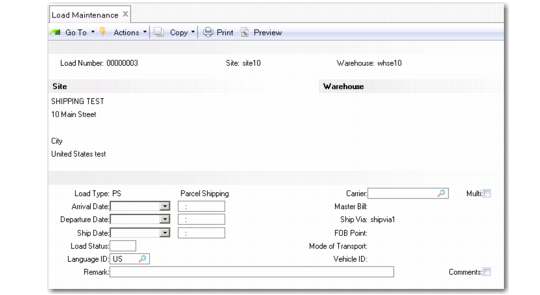
Load Maintenance consists of several frames. Enter general load settings in the header such as the ship-from site, and warehouse.
Note: If the load type is parcel shipping, some fields, such as Master Bill, are not updateable.
Enter the type of load if this is a new load; arrival, departure, and ship dates; the status, and other data, such as the bill of lading.
Note: Master Bill, ShipVia, FOB Point, Mode of Transport, and Vehicle ID are not editable for parcel shipping should not be editable; the system maintains these fields at the line level through bill of lading processing.
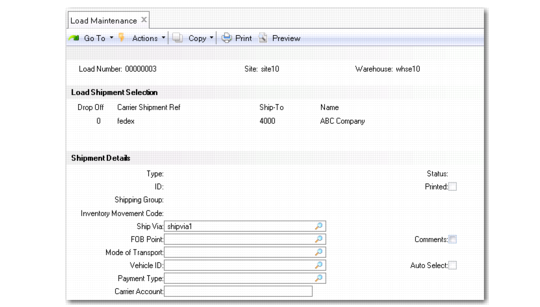
Use the Load Shipment Selection frame to define the different shipments contained in a load. Specify the drop-off sequence number for the load in the frame for full truck loads (FTL). The drop-off sequence and the shipment carrier ref uniquely identify a shipment detail record. Specify the ship-to address, then press Go.
If you specified Yes to Auto Select in the header, the Automatic Selection frame displays after the Load Shipment Selection frame. Specify a range of selection numbers, orders, items, routes, or carriers to automatically select the shipments for a load.
The Shipment Detail frame contains the ship-to address and the order type, either SO or DO orders. The Type, ID, Shipping Group, and Inventory Movement Code fields are display only. They are populated from the pre-shipper or shipper once the picking for this load shipment starts and a pre-shipper/shipper in the system is created. You can update the Ship Via, FOB Point, Mode of Transport, and Vehicle ID fields only when you enter a PS load type. Otherwise, the value defaults from the load header and cannot be changed.
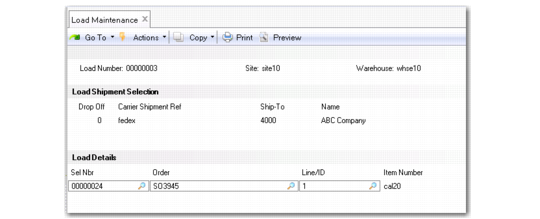
Use the Load Details frame to specify the selection number as established in Order Batch Selection. Order Batch Selection creates a selection number for the various order lines that have load optimization specified for them. You also specify the order, line, and item.
Use the Shipment Contents frame to identify the order lines associated with each shipment within a load. The order lines are the result of the TMS optimization processing and are used to guide the wave selection process for optimal picking and shipping.
Load Maintenance (4.15.2.17), Header
Load Number
Specify a load number or leave blank to let the system assign a load number.
Load Type
Specify a load type for load optimization by the TMS. Valid values include:
TL: Truck load
LTL: Less than truck load
FTL: Full truck load
For truck load or less than a truck load, all shipments for a given load have the same ship-via service. For parcel shipping, all shipments for a given load can have different services and modes of transport, even though they have the same carrier.
A truck load or less than truck load type can belong to only one wave. For parcel shipping loads, the load can belong to different waves, but individual load shipments belong to one wave. To include orders for a load in a wave, set Include Load Optimization to Yes in Wave Selection.
Arrival Date
Enter the arrival date for the items to consider for load optimization.
Time
Enter the arrival time in hours and minutes. The arrival time is the time you expect the truck to arrive to the warehouse. Use these fields to determine when to pick for a wave. For example, if you add loads to a wave in Wave Selection, you can use these fields to select loads that arrive within the next two hours.
Departure Date
Enter the departure date for the items to consider for load optimization.
Time
Enter the arrival time in hours and minutes.
Ship Date
Enter the ship date for the items to consider for load optimization.
Time
Enter the ship time in hours and minutes.
Load Status
Enter the status of the load:
Blank: Open load
X: Cancelled
C: Closed. The system automatically closes a load when the last shipper linked to this load is confirmed.
Language ID
Specify a valid language as defined in Language Create.
Remark
Optionally, specify any remarks for the load.
Carrier
Enter a valid carrier defined in Carrier Maintenance for the load.
Multi
Indicate whether to enter multiple carriers.
Master Bill
Enter the bill of lading ID for this load.
FOB Point
Enter the free on board code. FOB terms of a sale identify when title passes from a seller to a buyer, and who pays shipping.
Mode of Transport
Enter the first mode of transport code for the load. If you use RF Ship Truck (3.5) option in combination with the process end of day (EOD) message sent from the TMS, the system populates this field automatically and creates an MBOL in Master Bill of Lading Maintenance.
Ship Via
Enter the ship via code for this load. Depending on the load type, ship via might have different values. For FTL and LTL load types, the ship via contains the service as defined in Carrier/Service Assignment Maint. For PS loads, the ship via contains the carrier as defined Carrier/Service Assignment Maint. Services for individual load shipments are entered at the load shipment level (ship via). The system validates the value against the values you defined in Carrier/Service Assignment Maint.
Vehicle ID
Enter the vehicle ID for this function to consider.
Comments
Optionally, enter any comments about the load.
Use the Load Shipment Selection frame to define the different shipments contained in a load. Specify the drop-off sequence number for the load in the frame. The drop-off sequence and the shipment carrier ref uniquely identify a shipment detail record.
If you specified Yes to Auto Select in the header, the Automatic Selection frame displays after the Load Shipment Selection frame. Specify a range of selection numbers, orders, items, routes, or carriers to automatically select the shipments for a load.
The shipment detail record contains the ship-to address and the order type, either SO or DO orders.
Selection and Shipment Detail Frames
Drop Off
Specify the sequence number for dropping off the items in the load for shipping. The stop sequence, or drop-off point, is the order in which a truck stops for the different shipments. The drop-off sequence and the shipment carrier reference number uniquely identify a shipment detail record.
Carrier Shipment Ref
Specify the carrier reference ID for this load.
Ship-To
Specify the ship-to code for this load.
Payment
Specify the payment type if you manually create a load or edit the payment type if the value is from a TMS-created load.
If the TMS is set up for collection, use the payment type and carrier account information to inform carriers of the accounts that require shipment payment collection. The Payment Type and Carrier Account fields also display in:
• Pre-Shipper/Shipper Workbench (7.9.2)
• Sales Order Shipper Maintenance (7.9.8)
• DO Pre-Shipper/Shipper Maint (12.19.3)
When a TMS sends the payment type, QAD Warehousing verifies that pre-shippers or shippers created for this load shipment inherit the payment type value.
This field is validated against values specified in Generalized Codes Maintenance for the Valid entries abs_pay_type field.
Carrier Account
Specify the carrier account number if you manually create a load or edit the carrier account if the value is from a TMS-created load.
Comments
Optionally, add any detail comments about the shipments in the load.
Auto Select
Indicate Yes to automatically select pending order lines for the load that belong to pending selections that you create in Order Batch Selection. This is useful if you do not automatically export the orders to the TMS using Order Batch Export/Load Import. You can use the order selection process here to consolidate orders manually.
No: Do not automatically select pending orders for the pending-selection load.
Yes: Select orders marked for load optimization automatically for the pending-selection load. The Automatic Selection frame displays after the Load Shipment Selection frame. Specify a range of selection numbers, orders, items, routes, or carriers to automatically select the shipments for the load
Use the Load Details frame to specify the selection number as established in Order Batch Selection. Order Batch Selection creates a selection number for the various order lines that have load optimization specified for them. You also specify the order, line, and item.
Use the Shipment Contents frame to identify the order lines associated with each shipment within a load. The order lines are the result of the TMS optimization processing and are used to guide the wave selection process for optimal picking and shipping.
Load Details Frame
Sel Nbr
Specify the selection number established by Order Batch Selection.
Order
Enter the order number for this load.
Line/ID
Enter the line number for this order. The system fills in the item, quantity, and UM for the order line.