Boosting the Priority of a Load
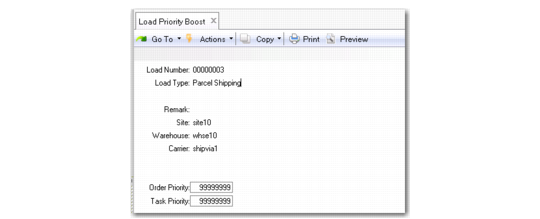
Use Load Priority Boost (4.15.2.20) to manually change the order or task priority of a load. When you boost the priority of a load, you boost the priority of all the orders or all tasks in the load. Since batch picking displays orders by descending priority, those orders display at the top of the list once you boost priority.
You assign task priority in the Priority field in Internal Routing Maintenance. If there is no internal routing defined for the movement, the task priority is set for transactions in the Priority field in Work Location Group Maintenance.
You define the order priority for a customer in Address Whse Detail Maint, which defaults to any order you create for the customer. You use Order Maintenance to view priority.
To change the order or task priority, specify the load number. The system displays the site, warehouse, and any remarks about the load. Change the priority by entering new values in the Order Priority or Task Priority field.
Load Priority Boost (4.15.2.20)