Importing Electronic Notas Fiscais
Use Import NFe File (5.20.3.1) to import electronic notas fiscais received by your company. You can use this process in place of manually issuing electronic notas fiscais in fiscal receiving.
Note: This screen enables you to execute Automatic PO Shippers when this functionality is set up if you are running version QAD 2013 Enterprise Edition or higher.
You can import an electronic nota fiscal by access key or by nota fiscal number and serial number.
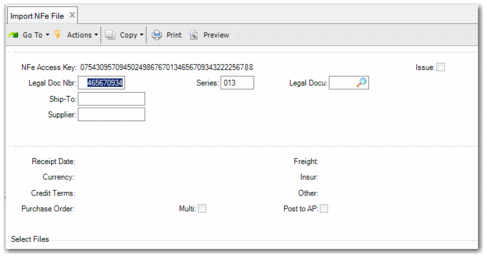
Import NFe File
NFe Access Key
Specify the access key to import an electronic nota fiscal. This field is optional. If you specify a valid access key, the Supplier, Ship-To, and Legal Document Nbr fields are populated with the details for the electronic nota fiscal that corresponds to the access key.
If you leave the access key blank, you can specify the supplier code, ship-to, and legal document number to import electronic nota fiscais with these details.
Issue
Select this field to import details on issued (and not received) notas fiscais.
Legal Document
Select the type of legal document that you are importing. It can be a legal document of type material (MA), logistics and material (ML), or logistics charges (LC).
Legal Document Nbr
Specify the legal document number to import the corresponding electronic nota fiscal.
Ship-To
Specify the ship-to to import the corresponding electronic nota fiscal.
Supplier
Specify the supplier code to import the corresponding electronic nota fiscal.
When you have specified the values in the header fields, click Next.
Import NFe File, Second Frame
Receipt Date
Displays the date on which you received the electronic nota fiscal.
Currency
Displays the currency of the electronic nota fiscal.
Credit Terms
Displays the credit terms associated with the electronic nota fiscal.
Purchase Order
Displays the purchase order associated with the electronic nota fiscal.
Multi
Select this field to import multiple electronic notas fiscais. If you select this field, an additional frame opens for you to specify criteria for the files to import.
Freight
Specify a code that identifies freight charges.
Insur
Specify a code that identifies insurance charges.
Other
Specify a code that identifies additional charges.
Post to AP
When you select this field, pending invoices are integrated to accounts payable and expenses are created as LC lines. Otherwise it creates LE lines.
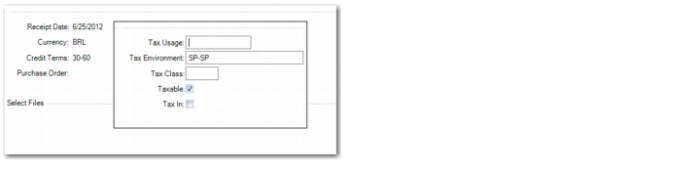
Click Next to display the tax frame. You must specify a valid tax usage.
Import NFe File, Tax Frame
Click Next to display the Select Files frame.
Import NFe File, Select Files Frame
Select Files
Specify the name of the XML file you want to import.
A browse is displayed where you can view and modify document line data, including type, tax usage, and tax class. You can customize the program ponf01br.p to change browse behavior or add data in fiscal receiving and add any changes using the Customer Entry (36.4.28) functions.
Import NFe File, Line Data
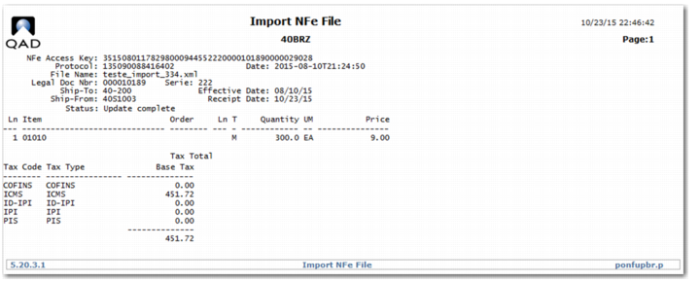
If the file is imported successfully, a report is displayed indicating this. The report displays error messages if the imported data contains inconsistencies.
Import NFe File, Report