QAD Internationalization Extensions, Brazil 4.0
>
User Guide
>
Electronic Notas Fiscais
>
Exporting Notas Fiscais in ASN Format
Exporting Notas Fiscais in ASN Format
You can send a shipper electronically as an advance ship notice (ASN) when a shipment leaves your premises. An ASN document informs customers when items have left your site. Depending on specific trading partner implementations, an ASN can provide a wide variety of shipment-related data items.
In Brazil, automotive customers and suppliers exchange ASN notas fiscais under the supervision of Associação Nacional dos Fabricantes de Veículos Automotores (ANFAVEA)—the Automotive Manufacturers National Association. ANFAVEA is responsible for standardizing the layout of the files exchanged.
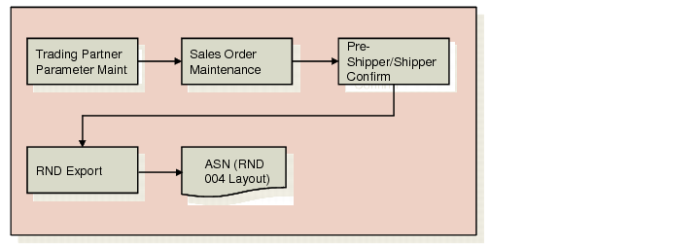
You can use RND Export (35.4.12) to indicate which shipments have ASNs sent. The system executes the appropriate EDI gateway program, selects the appropriate trading partner information, and transforms the outbound data to the format compatible with the receiving party’s EC subsystem.
RND Export extracts issued notas fiscais that match the search criteria and exports them to a text file with an RND 004 layout, as specified by ANFAVEA. RND is the acronym for Rede Nacional de Dados in Portuguese or National Network of Data in English. One file is exported for each customer and each file can contain several notas fiscais. Received notas fiscais are not exported.
RND Export uses the following trading partner parameters, which are set up in Trading Partner Parameter Maint (35.13.10):
Trading Partner Parameters for ASN Export
|
Character Para Desc
|
Character Param Value
|
|
Nota Fiscal Send Number
|
70
|
|
Receipt Code
|
|
|
Nota Fiscal (RND)
|
RND004
|
|
Nota Fiscal Ver
|
1
|
|
Nota Fiscal Type
|
|
|
Nota Fiscal Code To
|
999
|
See User Guide: QAD EDI eCommerce for more information on EDI and on Trading Partner Parameter Maint.
ASN Export Flow
Important: You need an EDI license in order to use RND Export.
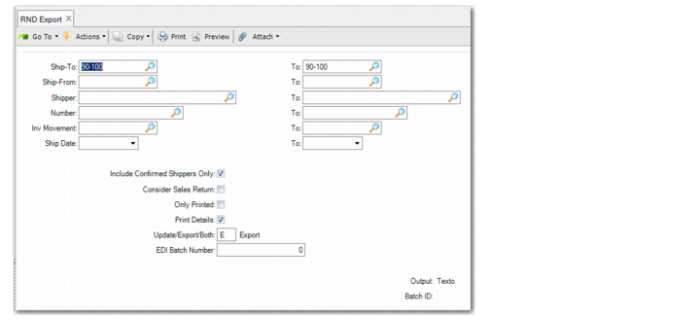
RND Export
Ship-To
Specify the ship-to addresses for the nota fiscal ASNs you want to export.
Ship-From
Specify the ship-from addresses for the nota fiscal ASNs you want to export.
Shipper
Specify the shipper IDs associated with the nota fiscal ASNs you want to export.
Number
Specify the nota fiscal numbers for which you want to export data.
Inv Movement
Specify inventory movement codes to limit the type of transactions you want to export.
Ship Date
Specify the shipping dates for the nota fiscal ASNs you want to export.
Include Confirmed Shippers Only
Select this field to only include confirmed shippers in the export. Otherwise, clear the field.
Consider Sales Return
Select this field to include sales return notas fiscais in the export. Otherwise, clear the field to exclude sales returns.
Only Printed
Select this field to only include printed sales orders in the export.
Clear the field to include both printed and unprinted sales orders.
Print Defaults
Select this field to include detailed error and warning message information on the report generated when this program executes.
If you clear the field, the report is limited to higher-level summary information.
Update/Export/Both
Specify whether the system prompts you to update previously defined fields before exporting the documents meeting the selection criteria:
Update: The system displays the fields you have set up as editable in the implementation definition for exporting this document type. You can modify them as needed.
Any updates you make are not reflected in the database. They affect only the outbound document.
Important: If you set this field to Update, export the documents in two steps. First, enter selection criteria and update the selected documents as needed. Then, run the program again with the same selection criteria and set this field to Export.
Export: The system exports the documents that meet the selection criteria without prompting you to update them.
Both: The system prompts you to update the documents, then exports them as part of the same process.
EDI Batch Number
To reexport a group of documents, enter the batch number assigned to the group.
When exporting a new group of documents, leave this field set to zero. The system assigns a new batch number to each group of exported documents.