QAD Internationalization Extensions, Brazil 4.0
>
User Guide
>
Fiscal Interface
>
Setting Up the Fiscal Interface
Setting Up the Fiscal Interface
Configuring Default Values
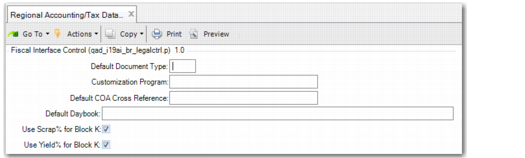
You can use a frame in Regional Accounting/Tax Data Export to set default values for the Fiscal Interface extract.
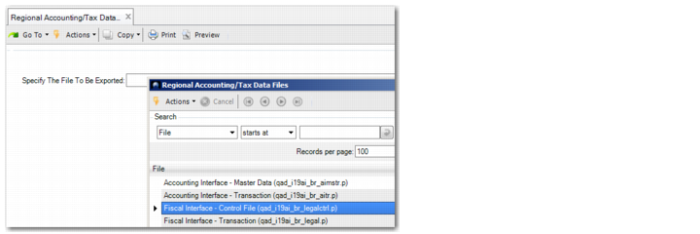
Launch Regional Accounting/Tax Data Export. Then, select Fiscal Interface Control File from the look-up browse and click Next.
Regional Accounting/Tax Data Export
Fiscal Interface Control File, Selection Criteria
Default Document Type
Specify a default value for the type of transactions to include in the extract. The value you specify becomes the default value in the Document Type field in the Fiscal Interface selection criteria.
Customization Program
Specify a customization program that must modify the extracted data, if applicable. This field is optional.
At the end of each data block in the Fiscal Interface file, there is a field that you can customize for your specific data needs.
Default COA Cross Reference
Specify the default value for the COA Cross Reference field in the Fiscal Interface selection criteria.
Default Daybook
Specify the default value for the Daybook field in the Fiscal Interface selection criteria.
Use Scrap% for Block K
Select this field to include scrap percentage in the product structure calculation for Block K.
Use Yield% for Block K
Select this field to include yield percentage in the product structure calculation for Block K.
Identifying Expense Types for Logistics Charges
For the electronic
nota fiscal and Fiscal Interface, you must identify the type of expense related to freight charges for Logistics Accounting. See
Identifying Expense Types for Logistics Charges.
Updating Export Details
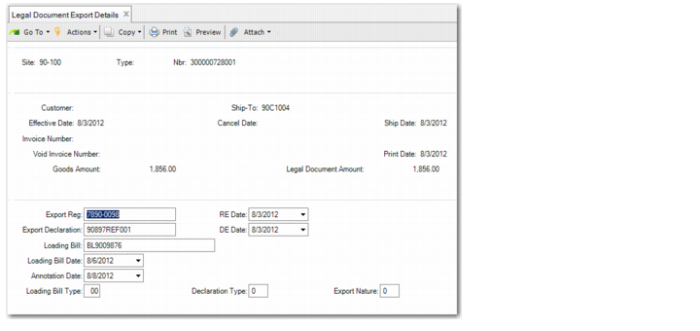
The Fiscal Interface requires additional details on goods exported such as the export declaration and registration. You can use Legal Document Export Details (7.10.7.2) to supply these additional details before you run the Fiscal Interface extract.
For direct exports, you must supply the registration number and the export declaration number. For indirect exports, you must report the memo number. Indirect exporting occurs when a company uses the services of a third party to find foreign markets and customers for its products.
Legal Document Export Details
Site
Specify the site at which the nota fiscal was issued.
Type
Specify the type of document; for example, NF for nota fiscal.
Nbr
Specify the nota fiscal number for which you want to add export details. You can only specify a nota fiscal for a non-Brazilian customer.
Customer
Displays the customer code for which the nota fiscal applies.
Ship-To
Displays the ship-to code associated with the nota fiscal.
Effective Date
Displays the date on which the nota fiscal was issued.
Cancel Date
Displays the date on which the nota fiscal was cancelled, if applicable.
Ship Date
Displays the date on which the goods were shipped.
Invoice Number
Displays the invoice number associated with the nota fiscal.
Void Invoice Number
Displays the invoice number associated with a cancelled nota fiscal.
Print Date
Displays the date on which the nota fiscal was printed.
Goods Amount
Displays the value of the goods shipped.
Legal Document Amount
Displays the value listed on the nota fiscal.
Export Reg
Specify the export registration number for the goods associated with the nota fiscal. On the export registration, the exporter provides the information necessary for customs to examine and authorize the export.
RE Date
Specify the date on which the export was registered.
Export Declaration
Specify the export declaration number. The export declaration is the document that initiates the export customs clearance. The export declaration may contain one or more export registrations.
EX Date
Specify the date on which the export declaration was registered.
Loading Bill
Specify the loading bill, which is a document that shows a detailed breakdown of a shipment content.
Loading Bill Date
Specify the date on which the loading bill was created.
Annotation Date
Specify the annotation date. The annotation is the final act in the export process and constitutes confirmation by customs of the goods.
Loading Bill Type
Specify the type of bill of lading. The types are as follows:
• 01: AWB
• 02: MAWB
• 03: HAWB
• 04: COMAT
• 06: R. EXPRESSAS
• 07: ETIQ. REXPRESSAS
• 08: HR. EXPRESSAS
• 09: AV7
• 10: BL
• 11: MBL
• 12: HBL
• 13: CRT
• 14: DSIC
• 16: COMAT BL
• 17: RWB
• 18: HRWB
• 19: TIF/DTA
• 20: CP2
• 91: NÂO IATA
• 92: MNAO IATA
• 93: HNAO IATA
• 99: OUTROS
Declaration Type
Specify the type of declaration:
0: Export Declaration
1: Simplified Export Declaration
Export Nature
Specify the export type:
0: Direct export
1: Indirect export