Adding UI Customizations Manually
Supplier Customization
1 Open Supplier Create (28.20.1.1).
2 Select the Accounting tab.
3 Click Tools. Select Design Mode.
4 Set Customization Level to Role, and select QAD Spanish Role as the role.
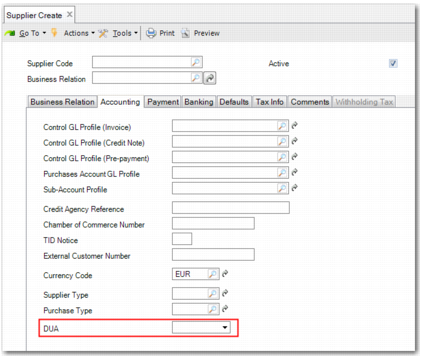
5 From the list of available fields in Field list/properties, add the DUA field to the screen.
Supplier Create with DUA Field
6 Close the Field list/properties window. Select Role as the customization level. Ensure that QAD Spanish Role is selected. Save the customization for all activities.
Supplier Invoice Customization
1 Open Supplier Invoice Create (28.1.1.1).
2 Select the General tab.
3 Click Tools. Select Design Mode.
4 Set Customization Level to Role, and select QAD Spanish Role as the role.
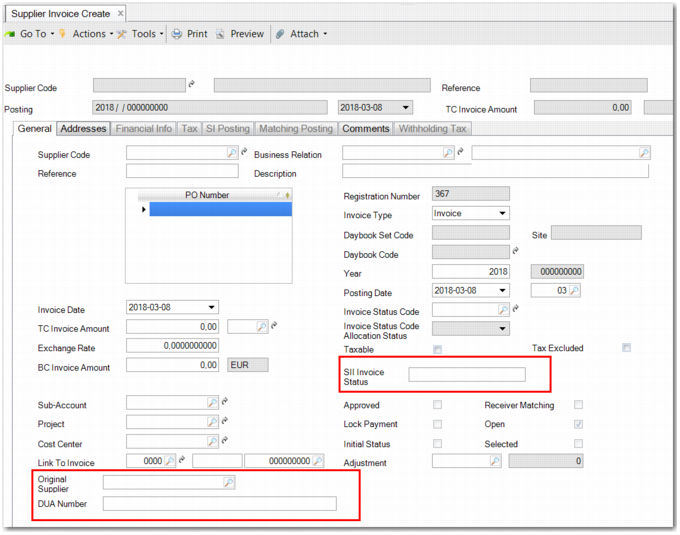
5 From the list of available fields in Field list/properties, add the following fields to the screen:
• Original Supplier
• DUA Number
• SII Invoice Status
Supplier Invoice Create with New Fields
6 Close the Field list/properties window. Select Role as the customization level. Ensure that QAD Spanish Role is selected. Save the customization for all activities.
7 Add custom code from the SupplierInvoice_Leave.cs file in SupplierInvoice_Customization.zip to the Leave event for the PO Number grid.
8 Add custom code from the SupplierInvoice_LeaveAndValueChanged.cs file in SupplierInvoice_Customization.zip to the Leave event for the Supplier Code field.
Customer Invoice Customization
1 Open Customer Invoice Create (27.1.1.1).
2 Select the General tab.
3 Click Tools. Select Design Mode.
4 Set Customization Level to Role, and select QAD Spanish Role as the role.
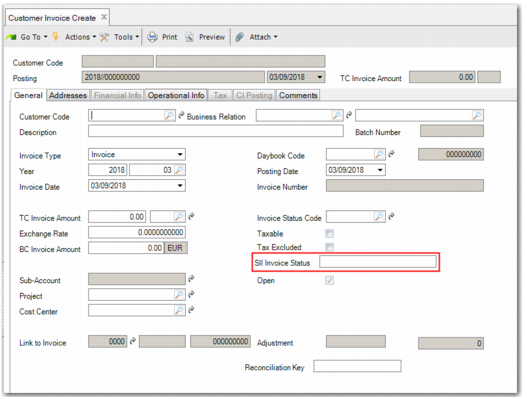
5 From the list of available fields in Field list/properties, add the following field to the screen:
• SII Invoice Status
6 Close the Field list/properties window. Select Role as the customization level. Ensure that QAD Spanish Role is selected. Save the customization for all activities.