Setting Up QXtend Outbound Query Service
To use the data query function in Excelerator to retrieve data from the source QAD Enterprise Applications, first set up the query service and configure QDoc APIs in QXtend Outbound. Perform the following steps in QXtend Outbound.
Note: For details on setting up the query service, modifying query profiles, and configuring and deploying QDoc APIs, see User Guide: QAD QXtend.
1 Set up the query service.
2 Configure corresponding QDoc APIs.
• If you are working with standard QDoc APIs, some already have corresponding synchronization profiles defined in QXtend Outbound, so you do not need to do anything for them. For example, for the maintainCustomer QDoc API, there is a corresponding profile called MaintainCustomerData already defined in QXtend Outbound.
• If the QDoc API being used does not contain the default profile, define the required profile in QXtend Outbound.
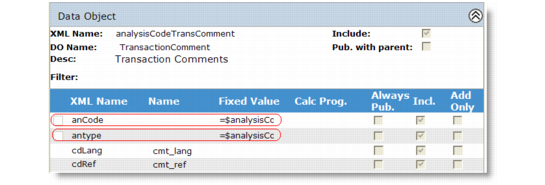
• Customize profiles as needed. Depending on the QDoc API you are using, in some cases, further configuring of the profiles for use with Excelerator may be required. For example, when querying data containing transaction comments, define the foreign key fields in the transaction comments object. For Analysis Code Master, the following fields have been added to the Transaction Comments object:
• anCode contains a fixed value of “=$analysisCode.anCode$”
• antype contains a fixed value of “=$analysisCode.antype$”
Customizing Profiles
This type of assignment uses the fixed value expressions functionality available in QXtend. In this example, the value is replaced by the value in the parent record. It is required because the foreign key definition in the maintainAnalysisCode schema references these values when linking the child transaction comments data to the parent analysis code record.
Reference Example
The standard replication profiles supplied with QXtend Outbound already include this field assignment when dealing with Transaction Comments data. When designing profiles for use with the Excelerator worksheets, it is important to ensure that this type of field assignment is included in the definition.
3 To expose the query profiles to the worksheet, use the Deploy Query button to publish any newly created or modified query profile definitions to QXtend Inbound. This allows QXtend Outbound to accept query requests for the published profiles.