Viewing and Modifying Data
After you execute a query to import data from the source QAD application into your worksheets, you can view and modify data just like you do with any other Excel worksheets.
The tool does not perform real-time validation of the data you enter in the worksheet. If you enter invalid data, error occurs when you update records to the target QAD application.
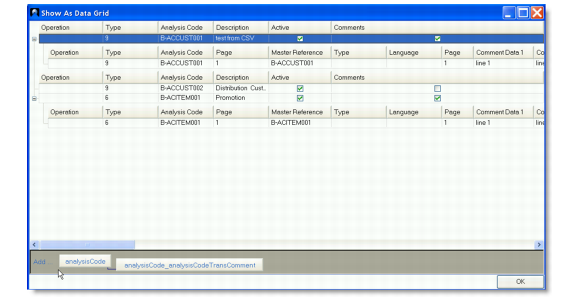
Alternatively, when the Enable Data Grid View option on the Developer tab is selected, you can click Grid View under the QAD Tools tab to view and edit the data in the data grid view. The data grid view gives you a better view of the parent-child relationships among data.
Data Grid View
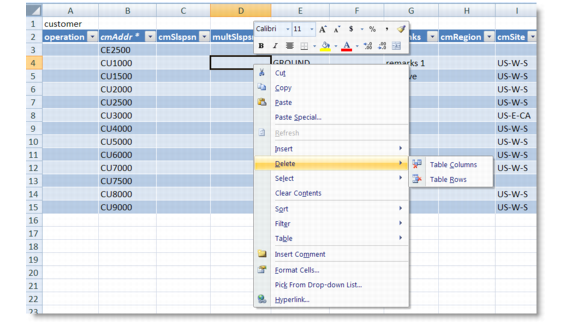
To delete records from the worksheet, select the rows and right-click; then from the pop-up menu, point to Delete and select Table Rows. This operation also deletes any corresponding child records in the worksheet. For example, if you delete a record in table routing, the tool automatically deletes its child records that reference the primary key of the parent record in table routingTransComment.
Deleting rows from the worksheet cannot delete corresponding records from the target QAD Enterprise Applications when you perform data update. To remove records from the target application, populate the “operation” column with R (for Remove) in corresponding rows to indicate to QXtend Inbound to delete the records when processing Update QAD.
Deleting Records