Performing Initial Data Load
For go-live implementation of QAD Enterprise Applications, load some initial data into the system to quickly get it up and running. Use the following general steps to perform the initial data load using Excelerator:
1 Design a set of data integration worksheets for the initial data load.
2 Use the CSV template creation function to generate CSV templates that outline the expected formats of CSV files for use with the worksheets.
3 Use the CSV templates to convert data from a legacy system into the structure defined in the templates and load it into the worksheets. You populate data in the CSV templates either programmatically or through data output from the legacy system. The format of the CSV data must match the CSV template.
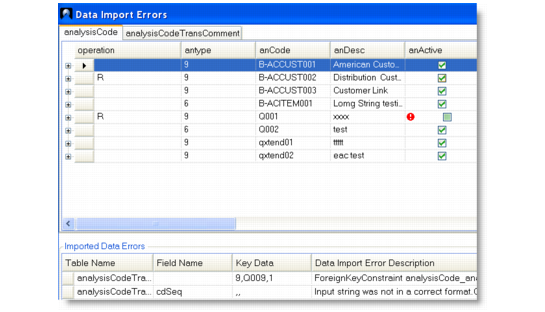
4 Use the Import From CSV function to load the data from the CSV files into the worksheets. Any errors that occur during CSV file import are captured and displayed in the grid view. Correct these errors before you can proceed with data import.
Data Import Errors
5 If necessary, modify the imported data in the worksheets.
6 Use the Update QAD function to load the data from the worksheets into target QAD Enterprise Applications.