Review the Installation Summary
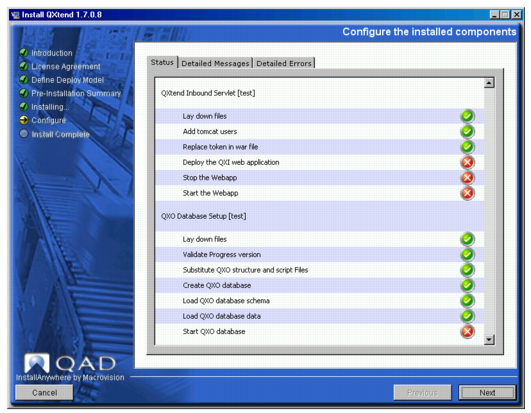
Install Status Screen
1 Use the Status screen to review the results of the install, upgrade, or migration.
If the installer encounters an error, a dialog box displays. You can select the “Detailed Messages” and “Detailed Errors” tabs for details to help you diagnose or fix the problem. You then choose the appropriate action to continue or quit the installation. See
Process Control for more information. If you have difficulty resolving a problem, see
Troubleshooting QAD QXtend Installs, Upgrades, and Migrations.
If only green check marks or green check marks and one or more blue double arrows are displayed, the install, upgrade, or migration was successful. Click Next.
3 The Install Complete screen appears.
Depending on your previous selections, the installer may display a reminder that describes post-installation work you must perform. Note the information for further reference.
When you are finished, press Done.
To finalize an installation, see
Overview. To complete an upgrade, see
Post-upgrade. To finalize a migration, see
Post-migration.