QXI Configuration
Overview
The QXtend Overview slides described the basic components and concepts behind QXI, but did not describe QXI setup and configuration. This training section describes in detail the QXI components, and their configuration and management.
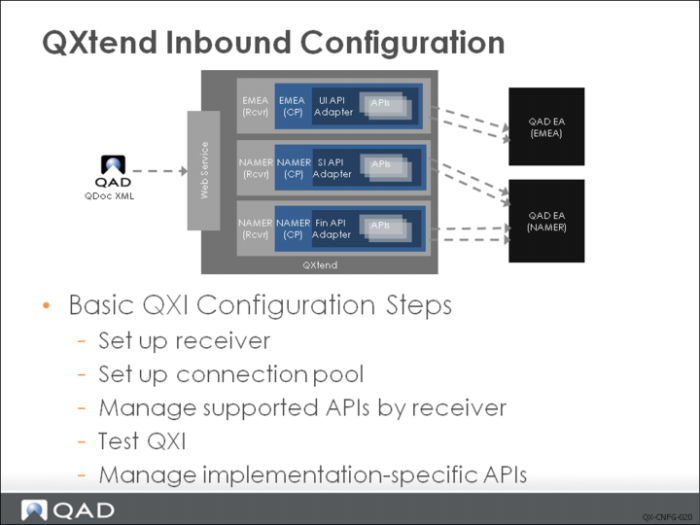
To ensure that messages can be processed into a target QAD application, you must configure QXI by following several basic steps; for example, you must create the services and components that drive QXtend. To configure QXI, you must do the following:
1 Set up the receiver. This step identifies the instance of the target QAD application (application type, version, and supported APIs).
2 Set up a connection pool. This step specifies the connection details required to connect and process requests into the target application.
3 Manage the supported receiver APIs. This step includes add, modify, and delete support for APIs used by the receivers configured in QXI.
4 Verify your configuration. This step validates the QXI configuration and ensures that a request can be processed into the target application.
5 Manage implementation APIs. This step manages the APIs required during the implementation project. These APIs are typically customer-specific.
Receivers
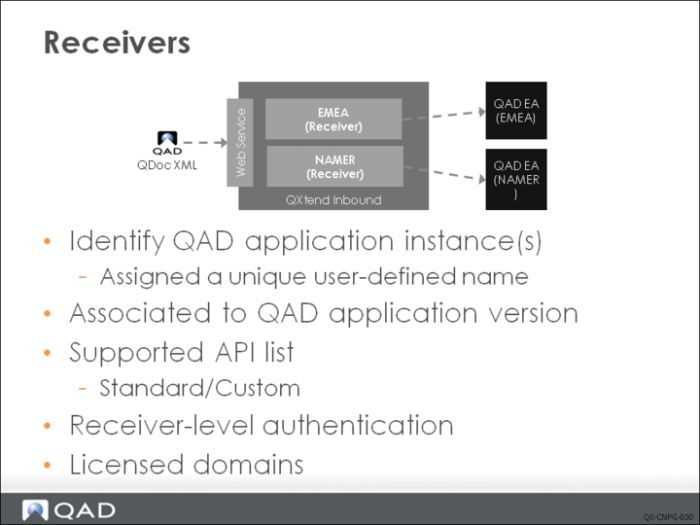
The concept of a receiver is core to understanding QXI. A receiver serves four primary purposes:
• Identifies the application instance. QXtend will support many instances of QAD applications; therefore a QXtend installation is not required for each and every QAD application instance that is using QXtend. However, if QXtend is to support many QAD application instances, there must be a way to differentiate between those instances. The receiver allows each QAD application to be assigned a name that uniquely identifies it. For a request to be successfully processed by QXI, a valid receiver must be included in the request.
• Identifies the QAD application version. An important attribute of the receiver is the application version, which identifies the exact release of the application to which the receiver is linked. Identifying the release is important as this identifies all of the APIs that are available through QXtend, as well as the versions of those APIs that are available for that specific application release.
• Defines the APIs supported. Each receiver must define the APIs that are valid for use. QXtend ships with hundreds of APIs available for use in any integration project, and typically only a subset are used for an integration. QXtend allows the user to define which APIs are available to be used—or, in QXtend terms, supported—by that receiver. This helps to prevent unauthorized use of the API and enables how QXtend is being used to be tracked.
• Receiver-level authentication. This attribute is used to indicate that this receiver requires all QDocs to contain authentication information. For each receiver in the system, you can specify that every QDoc for the receiver must contain authentication credentials consisting of a username and password, or a session ID.
• Determines licenses and licensed domains. The QXtend pricing model requires all QAD applications that receive data from an external application to be identified. These applications count as integration points and are part of the overall price that is charged for QXtend.
When a receiver is added to QXI that is for the eB or eB2 version, the Licensed check box must be selected if it will receive data from an external applications. When a receiver is added to QXI that is for the eB2.1 (or later) version, a list of the domains in that instance that will receive data must be provided. This information is then used when processing a request from an external system to ensure that the target is licensed to receive data. If the target is not licensed to receive data, the message is rejected.
Receiver Management
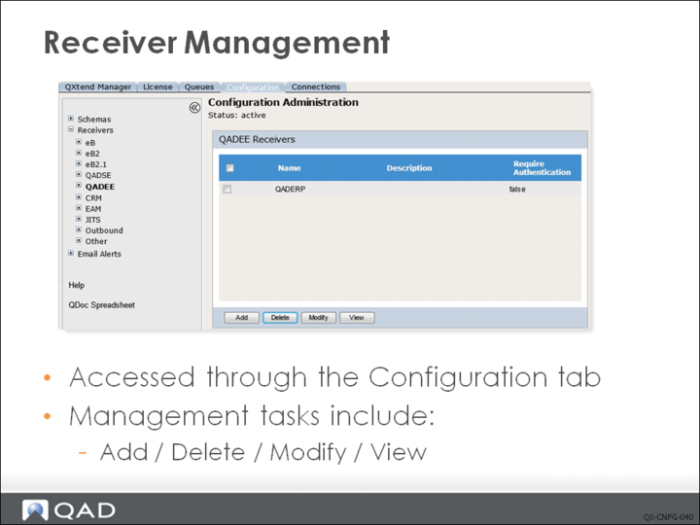
Receivers are managed through QXI. All receiver management tasks are accessed on the Configuration tab via the Receivers node on the tree menu.
Receivers are grouped by application version. To perform tasks against a specific receiver, select the application version from the tree menu, select the receiver, and then click a button—Add, Delete, Modify, View and so on—to choose the action to perform against the receiver.
Add Receiver
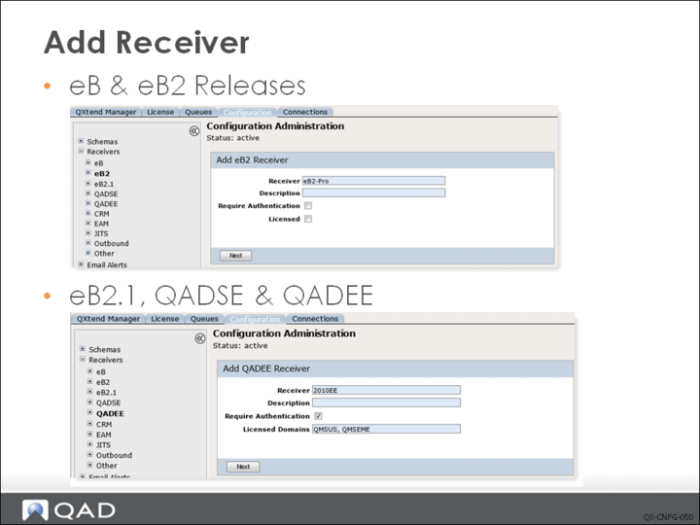
Receivers are created against specific application versions selected from the Receiver menu. Select the version, then click Add to add a new receiver. When adding a new receiver, a unique receiver name must be specified; this is the name used to route requests to the correct QAD application instance.
Set Require Authentication to True if it is required that every Qdoc for this receiver must contain authentication credentials consisting of a username and password, or a session ID.
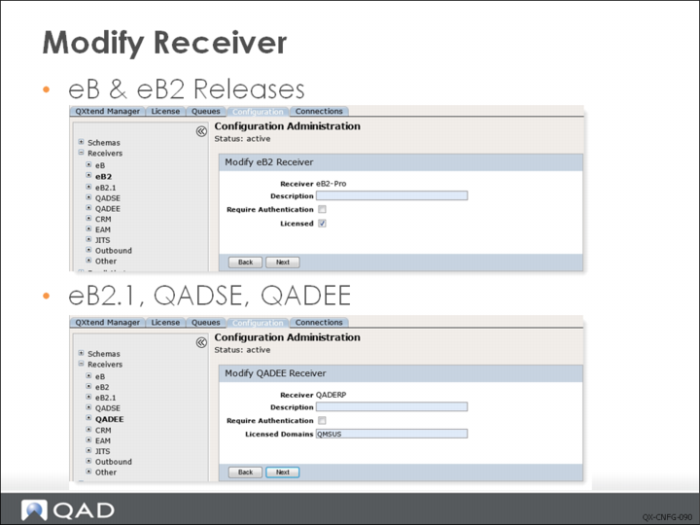
For eB and eB2 releases, select the Licensed check box to indicate whether the receiver will be processing requests that require a licensed agent.
For eB2.1, QADSE and QADEE, you can define a list of domain codes for the new receiver. The License Manager will reject any non-free or charged message/QDoc for an undefined domain.
Details about QXtend licensing will be discussed later.
Supported APIs
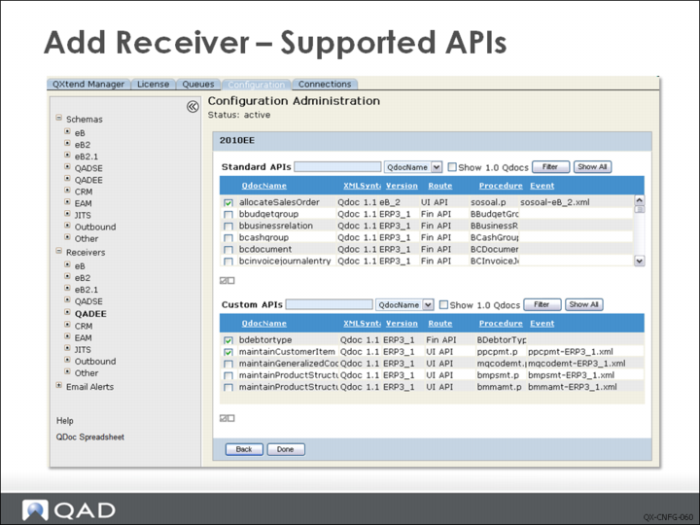
When a new receiver is created, you need to select the APIs that will be supported by the receiver. The list of supported APIs enables QXtend to limit the API transactions that can be processed by the receiver. This ability is useful when you need to limit the use of QXtend to approved transactions only. If all APIs are to be supported, select the Select All check box to add all of the APIs to the receiver’s supported API list.
The system displays two lists of APIs. The Standard APIs list contains all APIs provided by QAD for use with QXtend. The Custom APIs list contains the APIs developed specifically for the customer. Select the APIs you want to support, then click Done.
Receiver Report
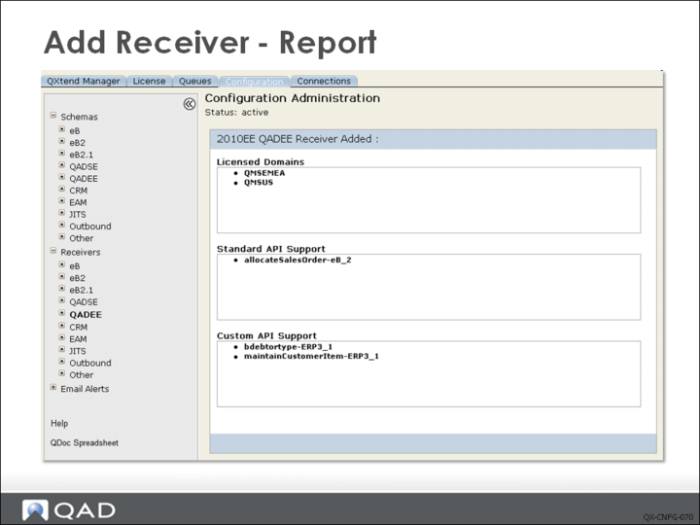
After successfully adding a receiver, a summary report displays showing licensed domains, standard API support, and custom API support.
Modifying a Receiver
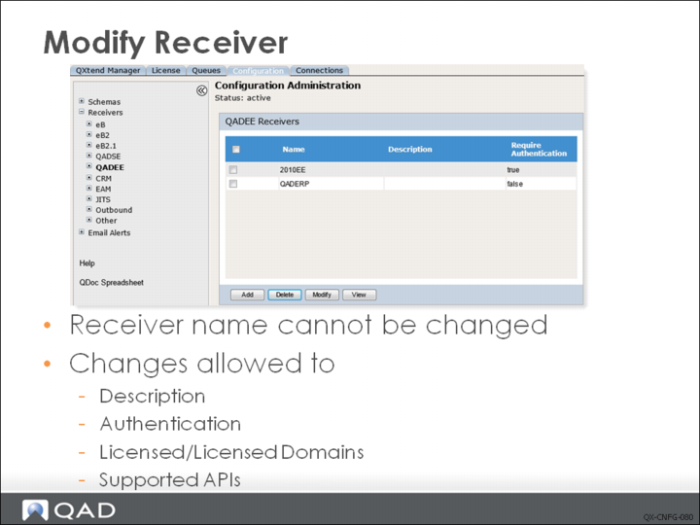
You cannot change the name assigned to a receiver. If you need to change the name of a receiver, you must delete the receiver and then re-create it.
You can change the description, Require Authentication setting, and Licensed/Licensed Domains setting of a receiver. The list of supported APIs can also be modified. To modify the settings on a receiver, select the check box next to the name of the receiver and click Modify button.
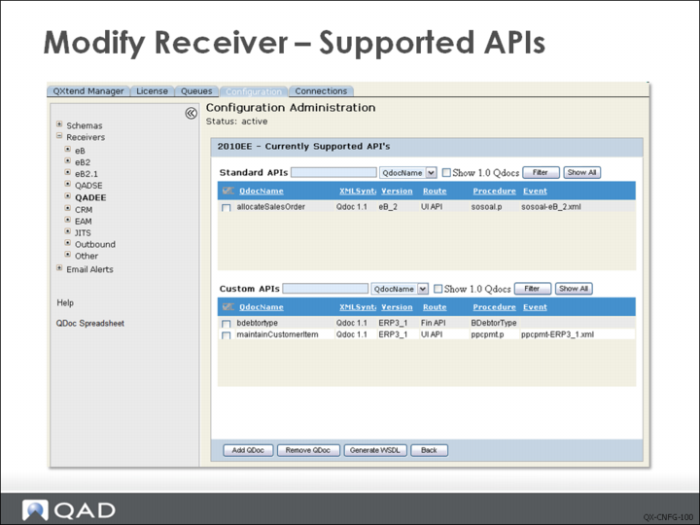
Modifying a Receiver - Supported APIs
You also can modify the list of APIs supported by the receiver: you can add support for additional APIs, or remove support for APIs that are no longer required.
To add support, click Add QDoc. A new screen displays that lists the APIs that are currently not supported by the receiver. Select the APIs to add and click Finish.
To remove support, select the check box next to the APIs that need to be removed and click Remove QDoc.
Deleting a Receiver
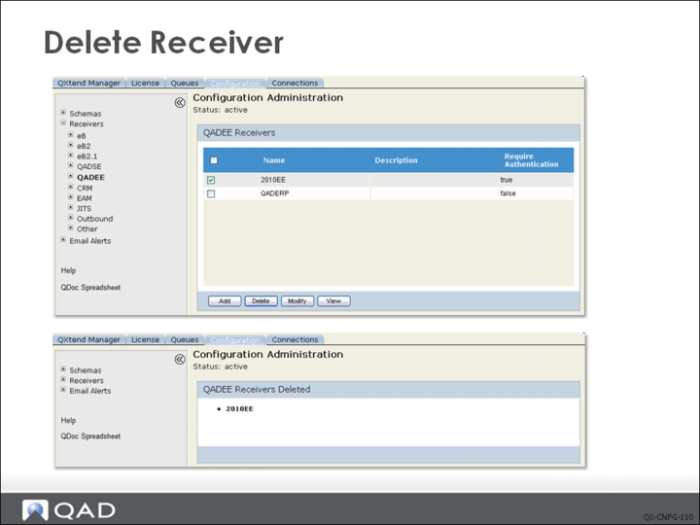
You can delete receivers as required. Deleting a receiver removes all traces of the receiver from the QXtend system.
To delete a receiver:
1 In the Configuration Manager, choose Receivers|<mfgpro-version>, where <mfgpro-version> is eB, eB2, eB2.1, QADSE, or QADEE. Other products may display on this menu. The currently available receivers display.
2 Select the receiver you want to delete by clicking in the box next to it. Choose Delete.
3 You are asked, “Are you sure you want to delete the receiver?” Choose OK.
4 You are asked, “Are all files within the receiver closed?” This should be true if no documents are in transit for the receiver. Choose OK. If QXI is active, the suspend options display. Choose a suspend option to cancel or continue.
5 If you suspended QXI services in step 4, you have the option of resuming QXtend Manager at this point. If you do this, QXI returns to the active state and a confirmation displays.
6 To exit the delete receiver confirmation screen or the resume QXI services confirmation, choose any other menu option in the QXtend Manager interface.
Exercise: Receivers
The following list shows a number of key concepts used in receivers in QXI. In each statement below, fill in the correct term from the list.
Configuration tab | authentication |
license settings | Receivers node |
application instance | supported APIs |
1 A receiver serves five primary purposes: Identifies the ________, identifies the QAD application version, defines the APIs supported, and determines the licenses and licensed domains.
2 All receiver management tasks are accessed on the ______ via the ______ on the tree menu.
3 The list of ______ enables QXtend to limit the API transactions that can be processed by the receiver.
4 You can change the description, ______ and ______ for a receiver.