Creating a Business Object
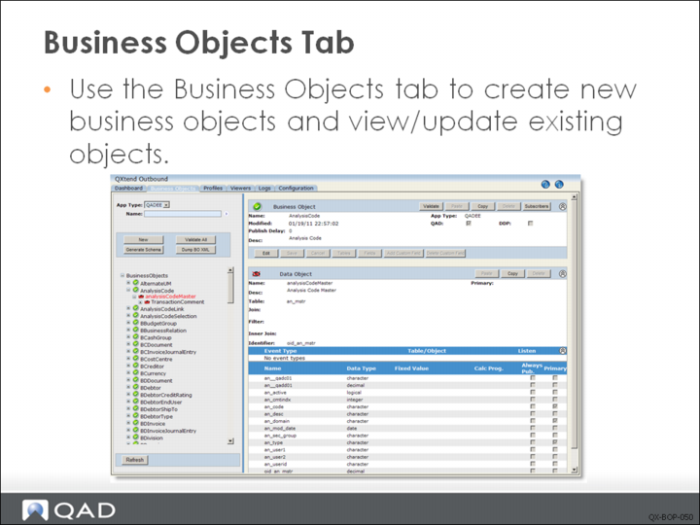
When you click the Business Objects tab, the Business Objects screen displays. You use the Business Objects tab to create new business objects and view or update existing objects.
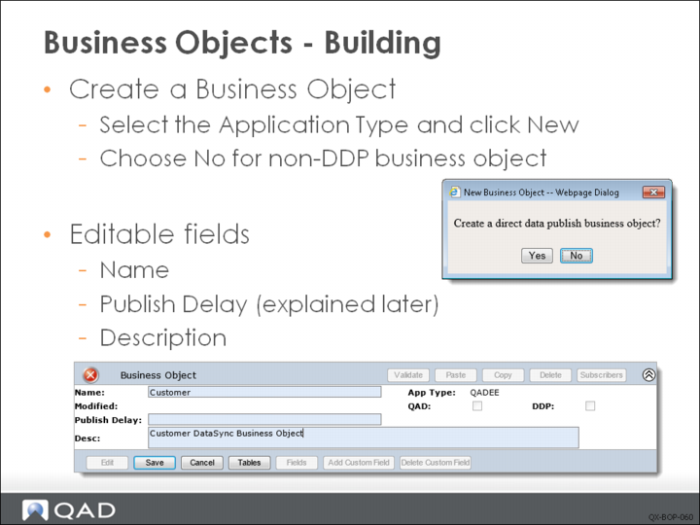
When creating a business object that’s used to extract data from source application, choose No for question “Create a direct data publish business object?”
Business object name must be unique to application type. And only alphanumeric characters, dash, and underscore are allowed in business object names.
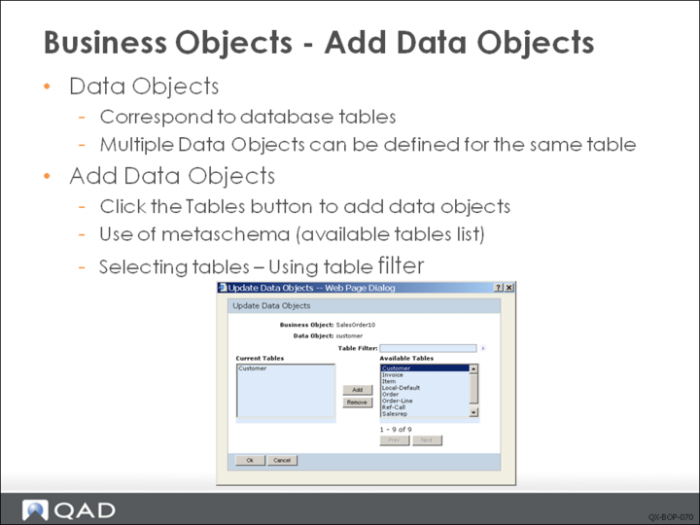
Once you have created or modified a business object, you can add or modify the related data objects. Data objects are like Progress buffer objects. Data objects correspond to database tables. You can define multiple data objects for the same table. For example, in SalesOrder, you can define BillToCustomer and ShipToCustomer both from same table ad_mstr.
To add or delete tables from the copied business object, click Tables. Update Data Objects displays. Click the arrow next to Table Filter to populate the Available Tables list.
In order to get the Available Tables list, or metaschema, an instance of the application type must be available. For example, QADERP source application is available for QADEE. This way, all tables in the source application will be displayed in the list. Tables span all databases in the source application.
You can give the table name, or enter filter criteria to find the table. The filter uses Progress 4GL expressions.
Add an available table to Current Tables will create a data object in the business object. Remove a current table will delete the data object.
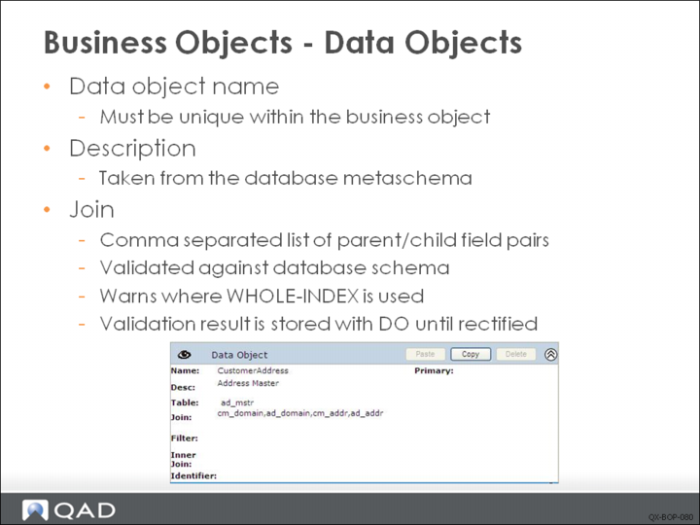
The data object name must be unique within the business object. This allows you to have the same table defined in the business object more than once but with a different data object name. The data object name is used as the buffer name when building the business object during processing.
If the available indexes in one of the source application tables does not sort the records correctly for the searches being performed, whole-index search may occur. In these instances, the entire index may be scanned. The search still works but takes much longer to complete. In the example of CustomerAddress, if Join is defined as cm_addr, ad_addr, then a warning will be given during validation as whole-index search may occur when extracting the data object. This is mainly for performance consideration.
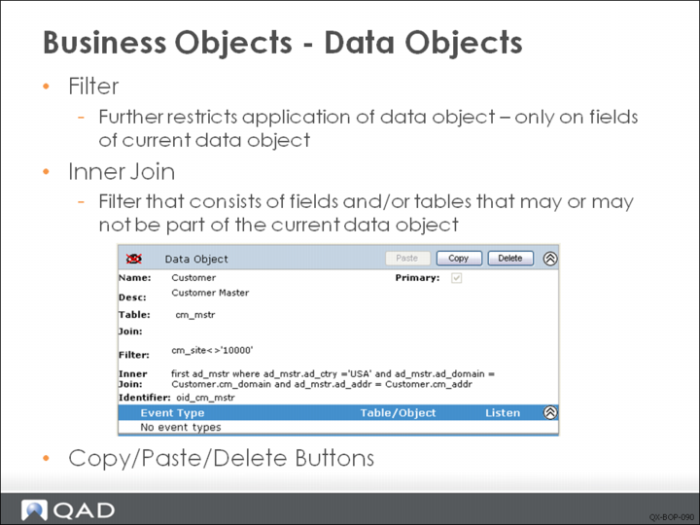
Optionally, enter filter criteria to limit the data stored after extraction from the application. The filter uses Progress 4GL expressions.
An inner join is essentially a filter that consists of fields and/or tables that may or may not be part of the current data object. Using inner joins enhances your ability to extract the types of data you want from business objects in your system.
In the example, you create the inner join query to extract customers only in USA. You use inner joins to query fields in other business objects in your system - address information, not related to the current customer data object.
Filter and Inner Join are both validated similar to join.
To streamline the creation of business objects, you can copy and paste data objects from one business object to another. For example, if you are creating a new object that references an address, you can copy the address data object associated with a different business object and paste it into the one you are creating.
Note: You cannot copy and paste data objects from business objects that employ direct data publishing.
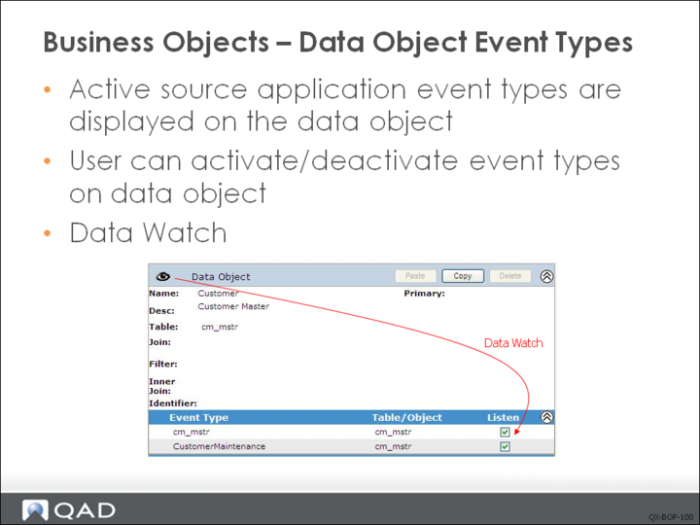
You can view and configure event types - for example, database triggers and business events — for data objects on business objects; only active events are displayed.
User can decide whether the data object listens to a particular event type.
For direct data publish business objects, all valid event types display for the current business object in the primary top-level data object.
Data Watch. The eye icon shows whether a data object is watched by event types. An eye alone means that the data object is watched; that is, the object has one or more active event types. A watched data object is aware of updates to that object’s tables in the source application.
An eye crossed out means that data object is unwatched; that is, either the data object has no defined event types, or its event types are all inactive. An unwatched data object ignores updates to the object tables, but the data for that object is still retrieved when events affect other data objects in the parent business object.
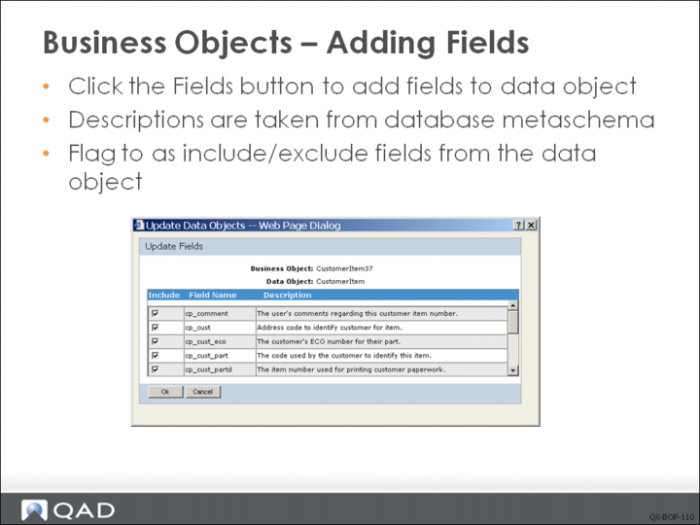
There is a performance consideration when designing business objects. Only the fields that are required for processing should be included in the business object definition. This helps limit the amount of data extracted from the source application and stored in the QXO database.