Adding Fields
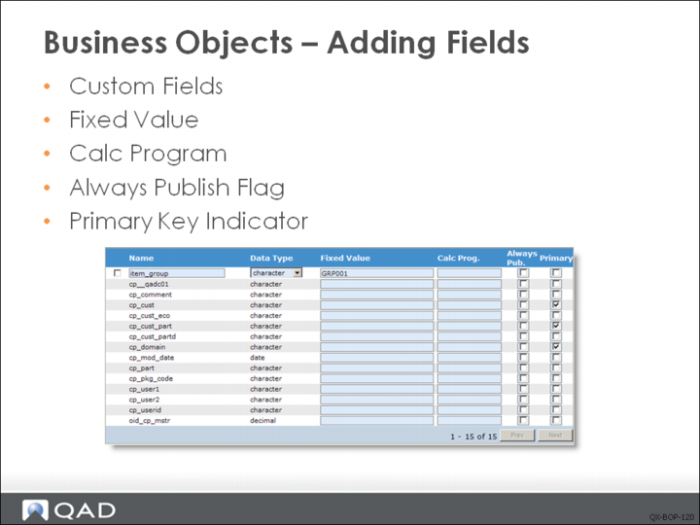
Custom Fields.
They can be included whenever data from the business object is published. These fields are only added at the QDoc generation stage, not extracted from source application. The value of a custom field can be from two sources: a fixed constant field value (or a formula), or a program to call to return the value.
Fixed Value.
Specify a fixed value that you always want to use in the QDoc for this field, or specify a value using the format =$<node>$, in which case the field will be populated with the value in the specified node.
Fixed value fields can also contain Progress expressions and perform built-in Progress calculations; for example, =today+2. Fields from the current buffer can be referenced in the current calculation by including the XML node name surrounded by dollar ($) characters; the expression must start with an equals sign (=) character.
For example, =substring($ptDesc1$,1,12).
Calc Program
Enter the name of a Progress program (.p) to be run to provide the value. The program can be either in the QXOServer PROPATH or on the AppServer. The local version will be run if it exists; otherwise it runs on the AppServer.
Fixed Value and Calc Program can be defined for normal fields as well.
Always Publish
Indicate if the field should be published whenever the data object that contains it is published, regardless of whether the field was changed by the application event.
Primary
Indicate if this field is part of the primary index for the table associated with this data object.
Fields of a table are displayed in pages for large tables.
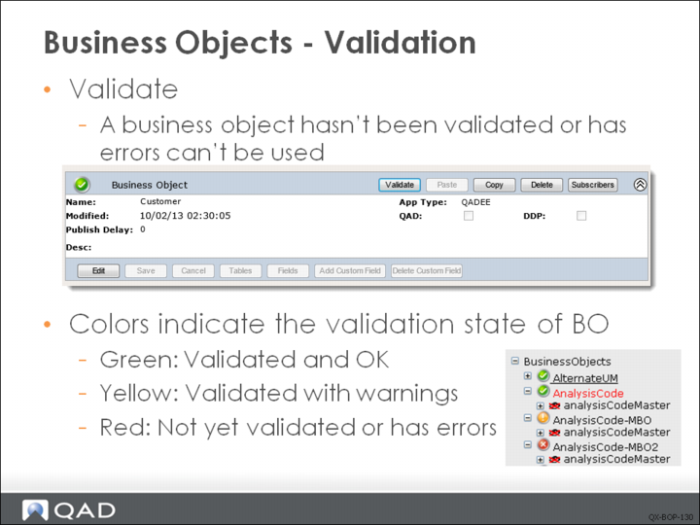
A business object that has not been validated can not be used to publish data. In order to validate it, click the Validate button. Any validation warnings or errors appear above the business object definition.
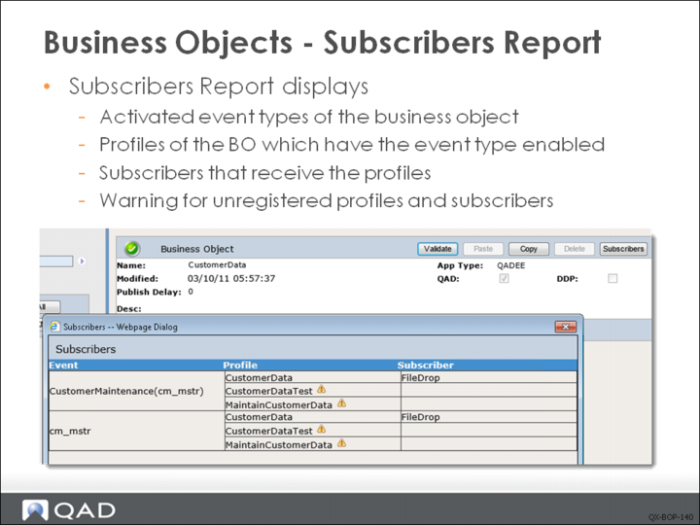
In order to determine which subscribers will receive messages based on a business object - and the events that will trigger messages - you can click the Subscribers button on the Business Objects screen and display a Subscribers report. The report displays the following:
• Activated event types
• Profiles related to the current business object that have this event type enabled
• Subscribers that receive these profiles based on the event type
If a profile is not assigned to a message publisher, a warning symbol displays next to the profile name. Similarly, if a subscriber is not assigned to a message sender, a warning symbol displays next to the subscriber name and tooltip for the warning symbols indicates the exact reason.
Set the message publication delay setting to a nonzero value for business objects that may generate multiple notifications to the qxevents database prior to completion of data entry. For example, sales order entry creates one or more notifications as different tables are updated before data entry is complete. Setting the value to 60 seconds or more allows time for data entry to complete and only the final data to be exported.
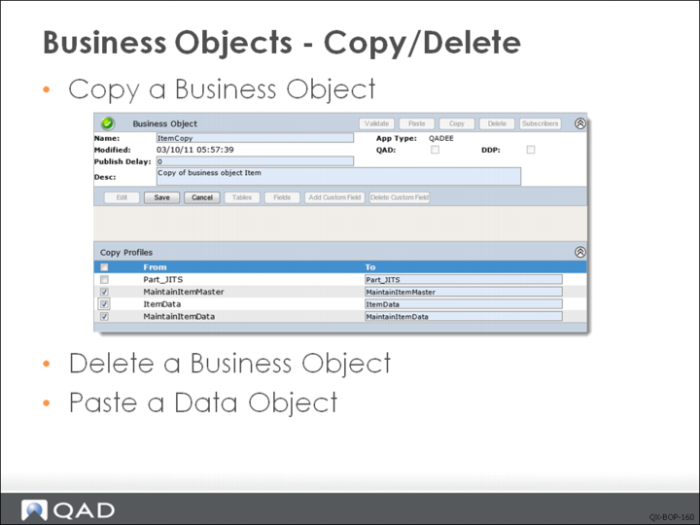
When copying a business object, you can select profiles, except for the default profile, to copy with the BO. The default profile will be generated by the system when you copy a BO.
Business objects that are not defined by QAD can be deleted.
The paste button is only used to paste a data object copied from another business object.