QXI Queue Manager
Overview
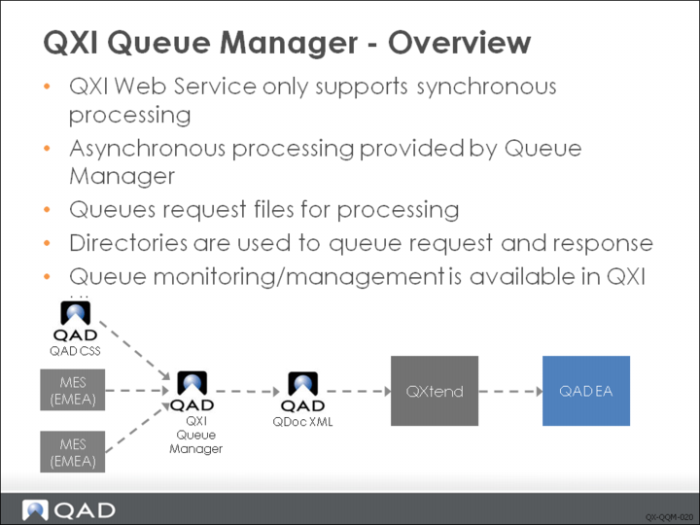
The web service provided by QXI only supports synchronous requests; when a client makes a request to the Web service, the client must stay connected until a response message is returned. The client cannot submit a request and have the response delivered later. Not all applications can process synchronous messages. To remedy this, QXtend has an asynchronous messaging solution called the Queue Manager as part of the QXI suite.
While various messaging products, for example, Sonic, IBM WebSphere, and WebMethods, support asynchronous messaging, these products are expensive, but do have advanced queuing capabilities. The QXtend Queue Manager is a basic queuing application that allows operating system directories to be treated as request and response queues.
The Queue Manager allows the creation, monitoring, and management of multiple queues. Each queue consists of:
• A request directory used to queue requests that need to be sent to the QXI web service.
• A response directory used to store responses to the requests that have been processed by the queue.
Request XML messages with or without a SOAP envelope are dropped into a file in the queue’s request directory with a .req file extension. The directory is polled and any request files are delivered to the QXI Web service via a synchronous call. The response from the call and the original request file are then moved to the response’s directory for analysis and, if necessary, further processing by the external application. The processing of response messages by the external application is not part of QXtend functionality; if this is required, it must be implemented as part of integration development.
A management and monitoring application UI is provided as part of QXI. This UI allows you to:
• Create new queues
• Update existing queue configuration
• View queue contents
• View requests/responses
• Delete processed messages
• Edit and resubmit failed messages
When placing requests into a queue, you should create the file with a .tmp extension. After creating the file, rename it to .req. Changing the extension prevents the request file from being picked up for processing by the queue before it has been completely written to disk.
Initializing the Queue Manager
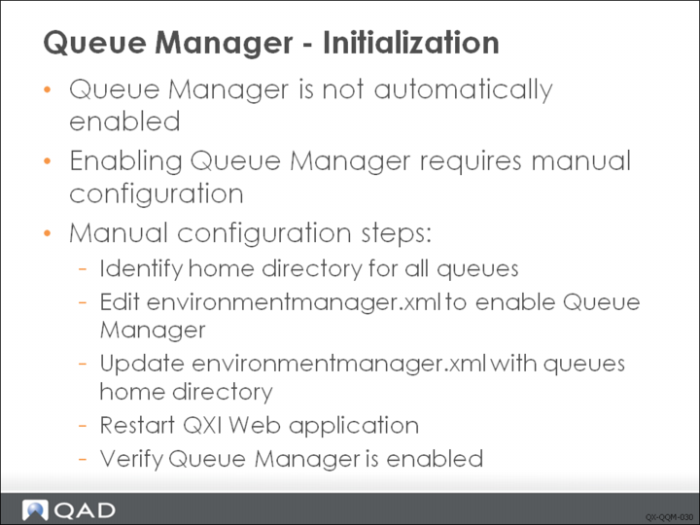
The Queue Manager is not automatically enabled when QXtend is installed—you must initialize it manually. To do this you edit a QXI Web application configuration file. You will need appropriate file permissions to save the changes you make to the file.
To enable the Queue Manager, do the following:
1 Identify Queue Directory. The Queue Manager manages a group of queues. All queues must be located in the same parent directory. When queues are added they are automatically created in this directory. During installation QXI creates a default directory that is home for all queues:
<tomcat-home>/webapps/<qxi-webapp>/qxtendQueues
This directory should be used to host all queues. If you do not want to use this directory, you can specify another directory; see User Guide: QAD QXtend.
2 Update environmentmanager.xml
a Open environmentmanager.xml in:
<TOMCAT_HOME>/webapps/<qxi-webapp>/WEB-INF/conf
(Instructions for initializing the Queue Manager also appear in the file.)
b Locate the commented section in the -<managers> node.
c Uncomment the manager class node following the in-line comments; delete the <!– and-—> symbols.
d Replace the param value with the full path to the top-level Queue Manager directory. You can use any directory structure you choose, on any connected network machine. However, you must specify the full path in environmentmanager.xml otherwise the Queue Manager will not work correctly. For example:
<manager class="com.qad.qxtend.queue.directory.DirectoryManager“ Param="c:\Tomcat5.5\webapps\qxtendserver\qxtendQueues"/>
e Save the file.
3 Restart QXI Web Application. The changes you make to the configuration file are not automatically applied when the file has been saved. For the changes to take effect you must restart QXI. The best way to do this without stopping and starting the entire Tomcat instance is to use the Start and Stop options on the Tomcat Manager page. You can access this from the base Tomcat URL http:\\<tomcat-machine>:<tomcat-port>.
4 Verify the Queue Manager. Once QXI is restarted, you can verify that the changes have been applied by opening QAD QXtend. If the changes have been applied correctly, the Queues tab displays on the tab bar.
Adding a Queue
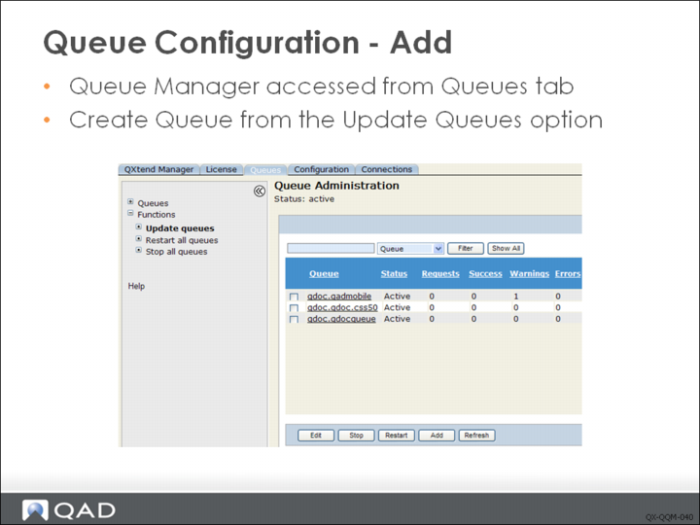
After the Queue Manager has been enabled, the Queues tab displays in the QXI instance. The Queues tab contains the user functions for managing and monitoring queues.
The Functions node on the tree menu contains all queue management functions, including the Add option.
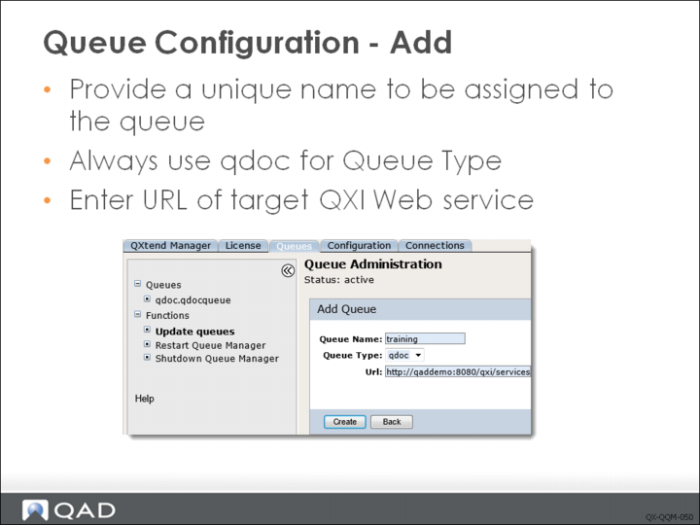
To create a new queue, select the Functions node on the tree menu on the Queues tab. Select the Update queues option, then click Create.
The initial creation of a queue only requires completing three fields:
Queue Name
Enter a unique name within the Queue Manager instance. This name identifies the queue and also is the name of the directory that gets created in the Queue Manager directory.
Queue Type
This field should always be qdoc.
URL
The URL to send the requests to. You can post messages to any instance of QXI from the queue. The URL entered here identifies where messages are sent.
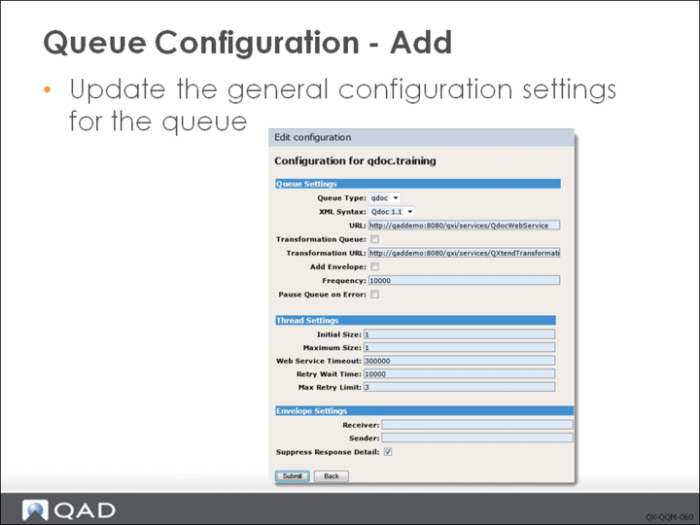
Configuration settings control a queue’s behavior. When you create a queue, it is configured automatically using default settings—you can change these if required at any time. When you create a queue, the Edit Configuration screen displays. The screen contains the following fields:
Queue Settings
XML Syntax
XML Syntax. The syntax of the QDoc messages processed by this queue. New implementations should use the QDoc 1.1 syntax. Support for the QDoc 1.0 syntax is provided only for backward compatibility.
Note: This course does not describe settings for the 1.0 syntax.
URL
The location of the QXI Web service that will process the request files processed by this queue.
Transformation Parameters
These parameters are not discussed as the feature is rarely implemented. These parameters will be removed from the product and are an advanced feature.
Add Envelope
All requests to QXI must include a valid QDoc SOAP envelope. If the incoming requests do not have a SOAP envelope, set this to True; the Queue Manager adds a SOAP envelope to each incoming message before sending it to QXI. If Add Envelope is selected, you also must enter values for envelope settings.
Frequency
In milliseconds, set the interval at which to poll the queue.
Pause Queue on Error
Specify how Queue Manager handles queues when encountering errors. If this is set to yes, when error occurs this queue will be paused. When restarted, Queue Manager resumes processing the QDoc that paused the queue. If this is set to no, when error occurs, Queue Manager proceeds to the next QDoc without pausing the queue.
Thread Settings
Configures the queue as either a single or multi-threaded queue. If high volumes of messages are expected for a queue, in order to prevent a significant message backlog, you can assign multiple processing threads to a queue enabling the queue to process multiple messages simultaneously.
Initial Size
The number of threads to start initially when the queue is started. The value entered must be less than the Maximum Size parameter.
Maximum Size
The maximum number of threads (or QDocs) that can be processed at a time. Since one thread consumes one agent in the QXI connection pool when processing a request, make sure that the queue and connection pool configuration are complementary.
Web Service Timeout
The time-out in milliseconds for attempts to send QDocs to the QXI Web service.
Retry Wait Time
Interval in milliseconds between attempts if the Web service call fails.
Max Retry Limit
The maximum number of times Queue Manager will try to send a request QDoc before it stops trying. This allows enough time for web services to get up and running.
Envelope Settings
If the Add Envelope option is selected, you must provide appropriate envelope settings.
Receiver
Identifies the QDoc recipient, which is by definition an QAD EA instance. Enter the name of a receiver defined in QXI.
Sender
Identifies the QDoc source application.
Suppress Response Detail
Specify whether to set the suppressResponseDetail attribute of QDoc requests to true or false for the queue.
Yes: suppressResponseDetail is set to true.
No: suppressResponseDetail is set to false.