Configuring DDP in QAD QXtend
Configuring QXtend for DDP is similar to configuring it for Data Extraction; the major differences are in the set up of the source application and the creation of business objects.
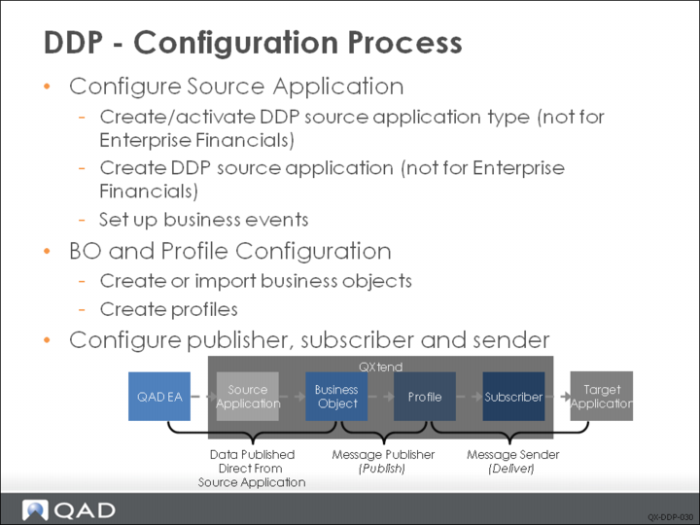
To configure DDP within QXO, do the following:
1 Create/activate DDP source application type. A source application can operate in either a Data Extraction or Direct Data Publishing mode, which is reflected in the configuration of the source application type. In the source application type screen, ensure that the DDP check box is selected. If the DDP source application type has already been defined, make sure it is active by selecting the Active check box.
2 Create DDP source application. A DDP source application instance must be created before data can be sent to QXO using the DDP API. Create a new instance from the source application tree menu: assign a name to identify the data source. A DDP source application has no database connections. Once the source application instance has been created, business objects can be created.
Enterprise Financials uses DDP to publish data to QXtend, but it uses the same QADEE source application used for data extraction.
3 Set up business events. Business events enhance your control over when a business object is published. DDP data must be associated with a valid business event, otherwise the data will not be published. The business event is provided in the session context parameter. The system checks to verify that the business event is a valid event type for the source application. If the event is not valid, the system raises an exception. The system also verify that the business event is active.
4 Create/import business objects. Business object definitions can be created on the Business Objects tab. First you select the corresponding source application type. New business objects can be created; instead of the system prompting you to build the definition manually, you are asked for an XML schema file that defines the business object. The source application must supply the business object definition XML schema files. The DDP business objects can also be loaded through Configuration -> Utilities -> XML Import function.
5 Create profiles. Defining profiles for DDP source application business objects is performed the same way for both operation modes of the source application; fields can be renamed, excluded, and additional calculated field can be added. All profile functionality applies to all business objects regardless of the operating mode of the source application.
6 Configure QXO services. Make sure that the remaining QXO services are correctly configured to ensure that the relevant data is published to interested subscribers. You will need to configure the message publisher, subscribers, and the message sender as described in the QXO Configuration section.