Diagnostics and Troubleshooting
QAD QXtend Inbound Logging
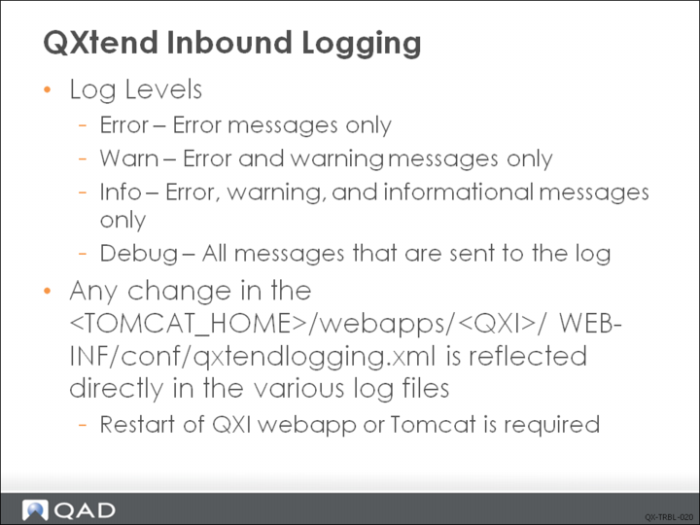
Logging is facilitated by the Apache Jakarta Project Log4j infrastructure. This means that log statements are in the code; their output can be configured in an external XML file. In QXI, this file is called qxtendlogging.xml and is located in:
<TOMCAT_HOME>/webapps/<QXI>/WEB-INF/conf
All log files are created and stored by default in:
<TOMCAT_HOME>/webapps/<QXI>/WEB-INF/logs
Unless otherwise directed, do not change the details for these logs, except where they are stored or the reporting levels. You might want to move these files to backup storage or delete them when the records are no longer required.
Reporting levels for the QXI logs are:
• Error—error messages only
• Warning—error and warning messages only
• Info—error, warning, and info messages only
• Debug—all messages
These can be set for each of the logs in qxtendlogging.xml.
QAD QXtend Inbound Log Files
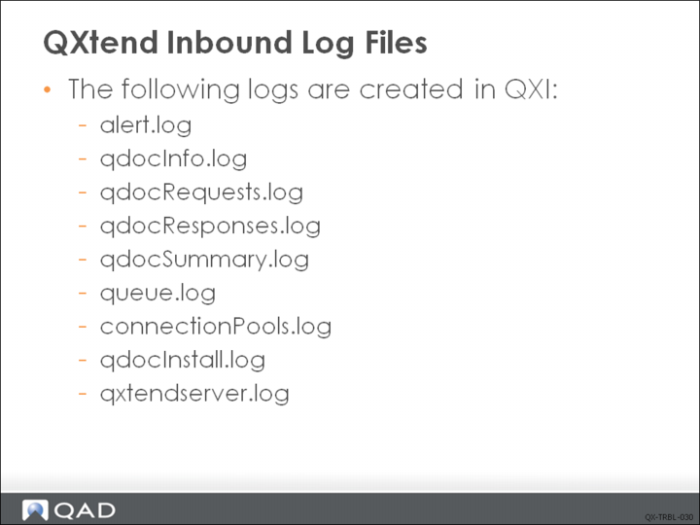
The logs created in QXI are:
• alert.log
• qdocInfo.log
• qdocRequests.log
• qdocResponses.log
• qdocSummary.log
• queue.log
• connectionPools.log
• qdocInstall.log
• qxtendserver.log
• transformationEngine.log
• transformationengineRequests.log
• transformationengineResponses.log
• transformationEngine.debug
We will not discuss transformation engine in this course. The transformation engine allows QXI to accept non-QDoc XML files and apply an XSLT mapping specification to them to convert them to standard QDoc requests.
QDoc Requests Log
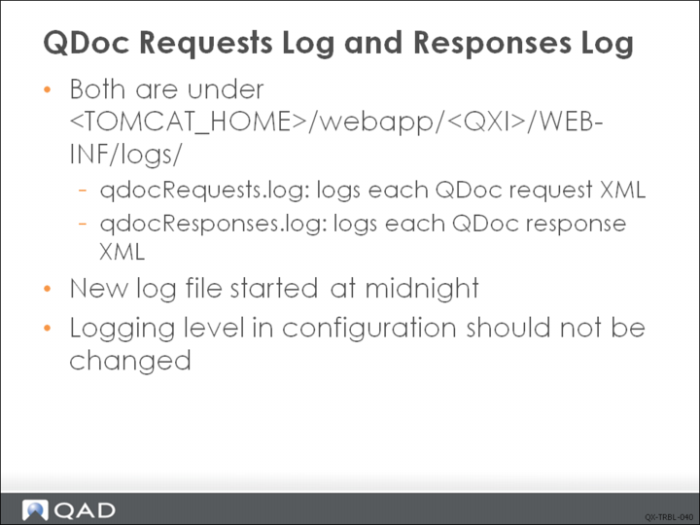
Each QDoc Request that is received by QXtend is logged in the qdocRequests.log file. The date, time, and other information is recorded and the request XML is also recorded.
Each QDoc response that is returned by QXtend is logged in the qdocResponses.log file. The date, time, and other information is recorded along with the response XML.
Both log files are created in:
<TOMCAT_HOME>/webapps/<QXI>/WEB-INF/logs
The log file is configured so that each day at midnight the log file rolls over and archives the existing log file with a date suffix. Then a new log file is started.
The logger node in qxtendlogging.xml is:
<logger name="qdocLogger.request" additivity="false">
<level value="info"/>
<appender-ref ref="asyncqdocRequest"/>
</logger>
QDoc Response Log
Samples:
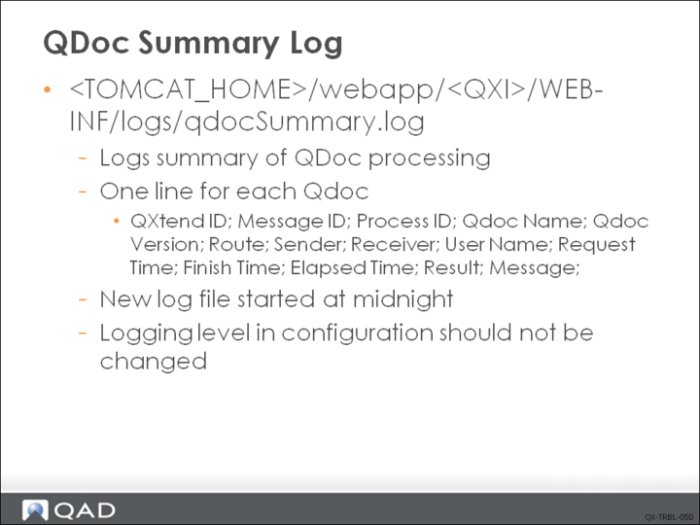
QXtend ID; Message ID; Process ID; Qdoc Name; Qdoc Version; Route; Sender; Receiver; User Name; Request Time; Finish Time; Elapsed Time; Result; Message;
1380613858813; urn:messages-qad-com::10/01/2013 18:23:20.017-06:00:urn:services-qad-com:QADERP; 24253; maintainAnalysisCode; eB2_2; UI API Adapter; QAD QXtend Outbound; QADERP; qmi; 2013-10-01 18:23:20.377; 2013-10-01 18:23:22.139; 00:00:01.762; success;
1380613858816; ?; 24253; maintainAnalysisCode; eB2_2; UI API Adapter; qxtend-training; QADERP; qmi; 2013-10-01 18:26:19.137; 2013-10-01 18:27:31.985; 00:01:12.848; warning; an_mstr in use by demo on pts/1. Wait or press CTRL-C to stop. (121), an_mstr in use by demo on pts/1. Wait or press CTRL-C to stop. (121);
QDoc Processing Log
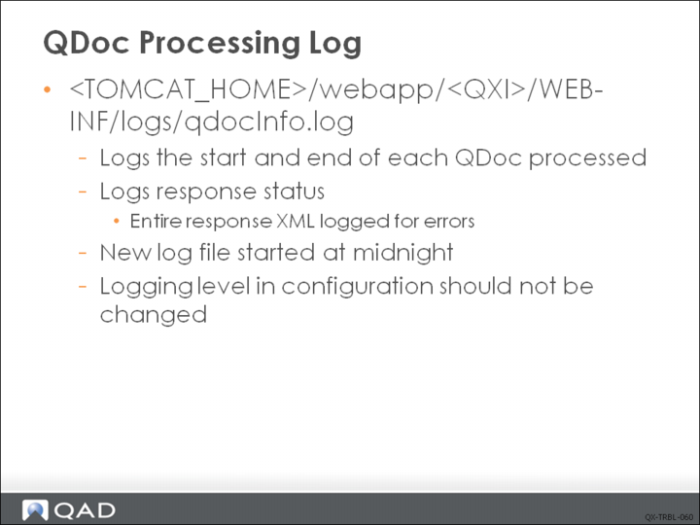
Each request that is processed is logged in qdocInfo.log. A one-line entry is created indicating that the request had been received, a transaction number is assigned, and the transaction ID is retrieved from the request. The responses are also logged in this log file: the transaction number is logged as well as the transaction ID, along with a string that identifies the status of the processing (success/warning/error). If a response contains an error, the whole response XML is logged to this file.
Each request and corresponding response are logged in the qdocInfo.log file; the date, time, and other information is recorded. The log file is created in:
<Tomcat-dir>/webapps//<QXI>/WEB-INF/logs
The log file is configured so that each day at midnight the log file rolls over and archives the existing log file with a date suffix. The a new log file is started.
A sample non-error entry is:
2009-02-03 01:43:46,797 INFO qdocLogger.info [1233250081771][-]API Request Received
2009-02-03 01:44:14,185 INFO qdocLogger.info [1233250081771][]API Request Complete – success
The message line components are ISO format date (2009-02-03), ISO format time (01:43:46,797), reporting level (INFO), logger (qdocLogger.info), unique message ID (1233250081771), and message (API Request Received).
QAD QXtend Server Install Log
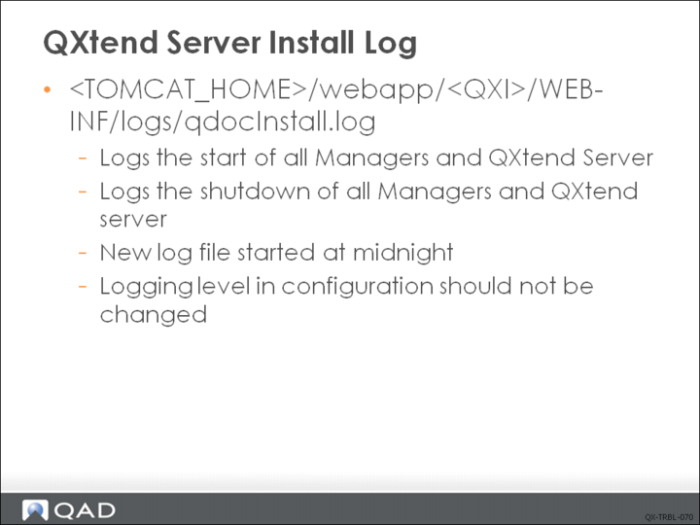
The qdocInstall.log file contains all details about the startup and shutdown of the Environment Manager and its Managers. This log is updated with details when the QXI Webapp is started, stopped, or reloading, listing components and whether they initiated or terminated successfully.
This log has a maximum of five files (current + four previous), with a sequence number. The file is rolled over based on log size, which is currently set to 500K; for example, qdocInstall.log.1. Once the maximum number of files has been created, QXI reuses the existing files. You do not need to delete these files since they always take up finite storage space.
The startup and shutdown details are logged in the qdocInstall.log file; date, time, and other information is recorded. The log file is created in:
<TOMCAT_HOME>/webapps/<QXI>/WEB-INF/logs
The log file is configured so that each day at midnight the log file rolls over and archives the existing log file with a date suffix. Then a new log file starts.
Connection Pool Manager Log
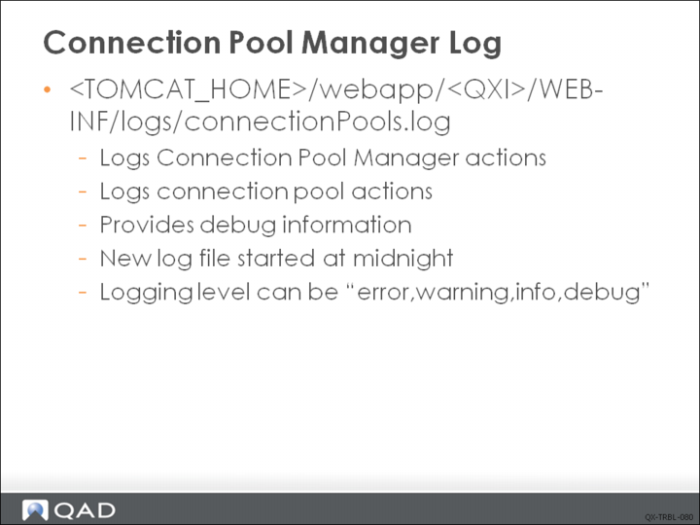
Activity from the Connection Pool Manager and each of the connection pools that it manages is logged in this file. The default setting for the logging level of this log file is INFO, so only the information messages raised from the code are recorded. The logging level can be adjusted so that debug/warning information is also displayed to the log file. The logging level is changed in the qxtendlogging.xml configuration file.
The logger in qxtendlogging.xml is:
<logger name="connectionPool" additivity="false">
<level value="info"/>
<appender-ref ref="connectionPoolApp"/>
</logger>
All activity with the connection pools is logged in the connectionPools.log file. The date, time, and other information is recorded. The log file is created in:
<TOMCAT_HOME>/webapps/<QXI>/WEB-INF/logs
The log file is configured so that each day at midnight the log file rolls over and archives the existing log file with a date suffix. Then a new log file starts.
QAD QXtend Server Processing Log
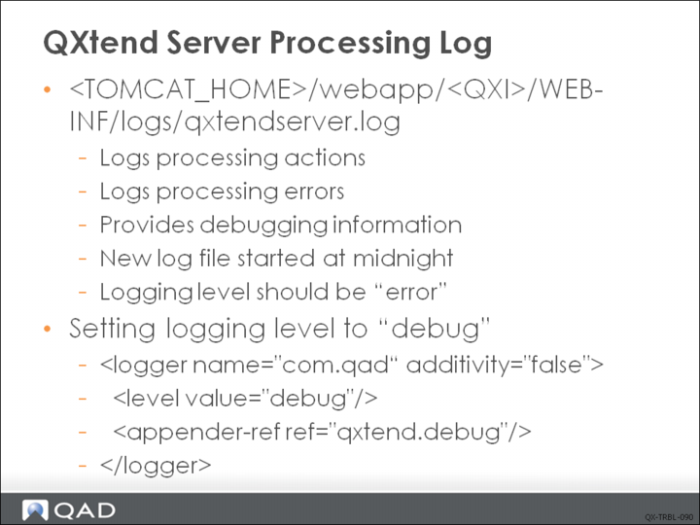
All processing that is internal to the QXtend Server is logged to this file. The logging level of this should always be set to “error” unless instructed. If the logging setting is set to anything other than error, this log file grows quickly. The debug setting on this file should only be used when problem solving and investigation is taking place.
All activity within the QXtend Server is logged in the qxtendserver.log file. The date, time, and other information is recorded. The log file is created in:
<TOMCAT_HOME>/webapps/<QXI>/WEB-INF/logs
The log file is configured so that each day at midnight the log file rolls over and archives the existing log file with a date suffix. Then a new log file starts.
To enable debug logging for the qxtendserver.log file, locate the logger for com.qad and set the value attribute to debug. This change will then cause QXtend to log debug messages to this log file during processing. This is extremely useful for diagnosing QDoc processing problems.
QAD QXtend Queue Manager Log
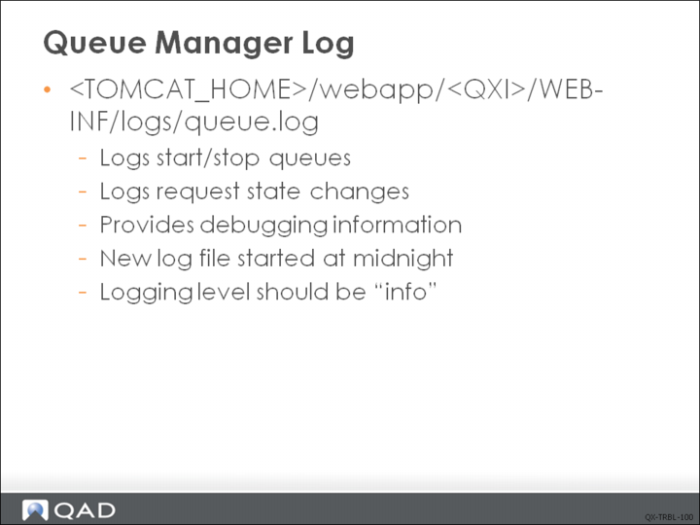
The Queue Manager log file contains the details of the Queue processing. The log file contains the start/stop of each queue and for each message that is processed every time the request state changes that is also logged. The default setting for the logging level of the queue is “info”; debug messages can be received by setting the logging level to “debug”.
The logger to change the level is:
<logger name="directoryLoader" additivity="false">
<level value="info"/>
<appender-ref ref="asyncqdocDirectoryLoader"/>
</logger>
All activity within the QXtend Server is logged in the queue.log file, the date and time and other information is recorded. The log file is created in:
<TOMCAT_HOME>/webapps/<QXI>/WEB-INF/logs
The log file is set so that each day at midnight the log file rolls over and archives the existing log file with a date suffix and starts a brand new log file.
Debugging UI API QDocs
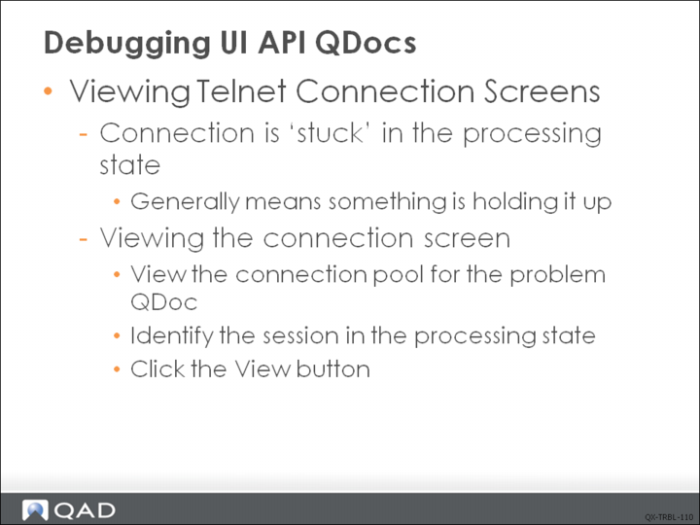
It is possible to view the screen for each telnet connection within the connection pool manager.
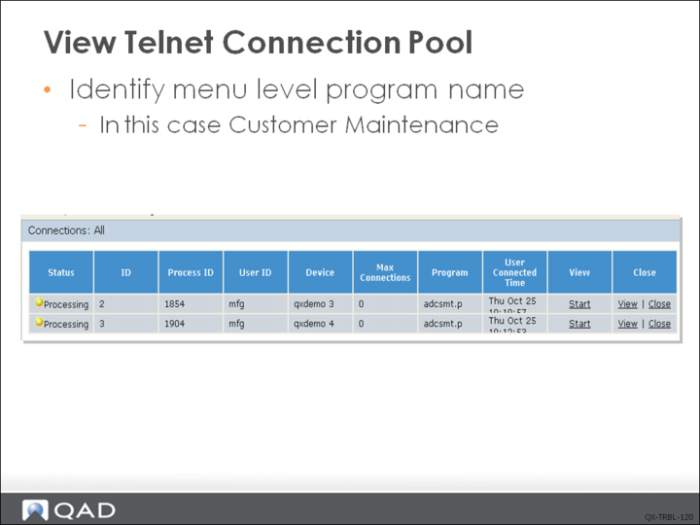
Viewing Telnet Connection Pool
Using the Start link you can debug your QDocs. Choose Start to view the telnet window for the connection being used to import data from a QDoc when that QDoc is being processed. If there is an error in the QDoc, the scrolling of the QDoc on the telnet window halts at the location of the error. When finished testing your connections, click the Stop link, which displays next to the Start link.
If the QDoc is in the processing state, there is no need to start the telnet viewer—just click the View link on the connection agent in question and view the pop-up screen.
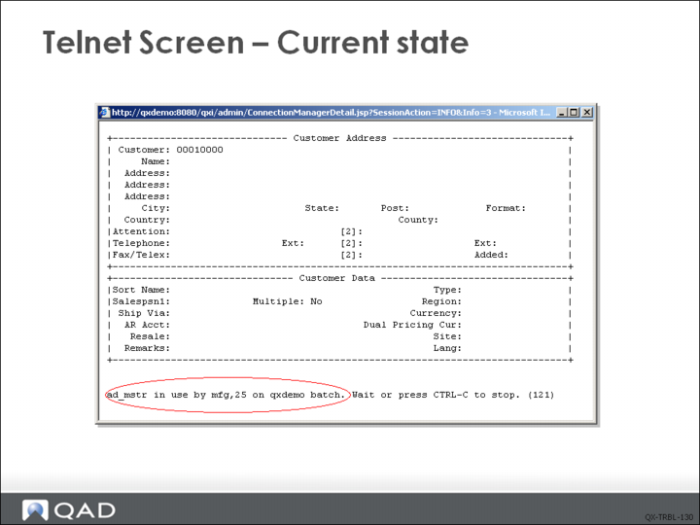
Telnet Screen - Current State
In this example, the processing is being held up because the ad_mstr record is currently locked. Other causes may be unexpected pop-up frames/alert-boxes.
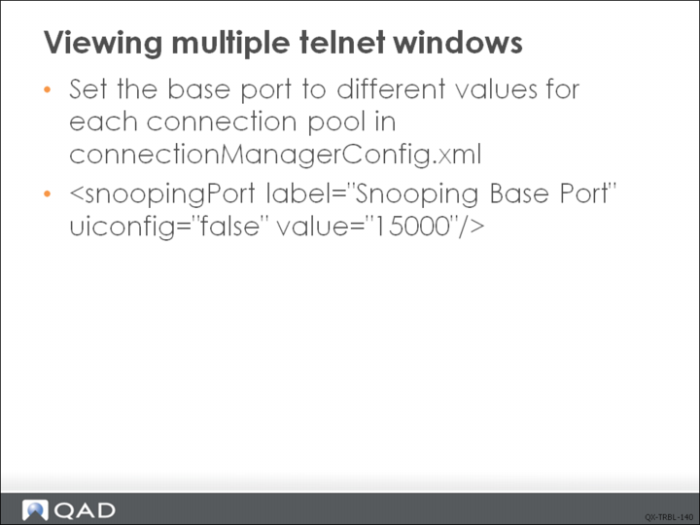
Viewing Multiple Telnet Windows
Important: Since telnet windows for connections use system resources, you should close any telnet windows not in use.
To view multiple telnet windows—and to avoid network port conflicts while doing so—set the base port to different values for each connection pool in connectionManagerConfig.xml.
Note: The telnet port that each process agent uses is a combination of the base port and agent ID. For example, for agent ID 2 in this connection pool, the network port used will be 15002.
To be able to use the telnet viewer you may need to provide access to the specified ports or make sure the ports are accessible in the networking setup of server.
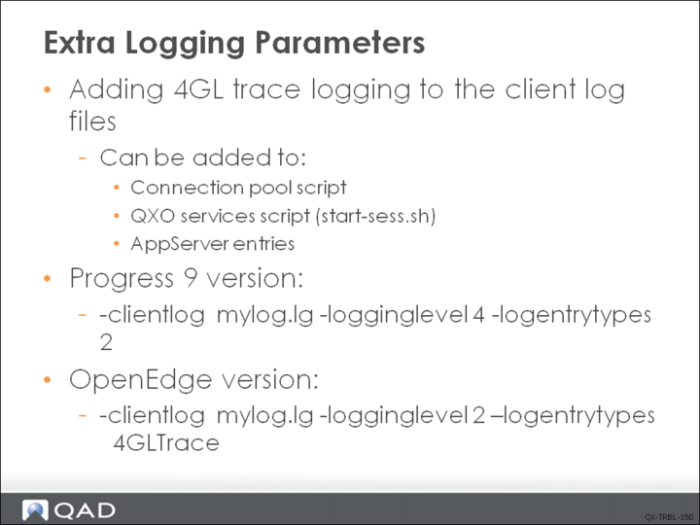
Extra Logging Parameters
Progress client logging can be used to output more detail on the Progress side of the QXtend processing.
To do this, add the 4GL Trace parameters to the telnet connection script.
OpenEdge versions
$DLC/bin/_progres –clientlog qxilog.txt –logginglevel 2 –logentrytypes 4GLTrace -rereadnolock -c 30 -d mdy -yy 1920 -Bt 350 -D 100 -mmax 3000 -nb 200 -s 128-noshvarfix -pf /qad/mfgsvr/Demonstration.pf -p mfwb01aa.p -param mfgwrapper=true,apimode=true
Progress 9 versions
$DLC/bin/_progres –clientlog qxilog.txt –logginglevel 4 –logentrytypes 2 -rereadnolock -c 30 -d mdy -yy 1920 -Bt 350 -D 100 -mmax 3000 -nb 200 -s 128-noshvarfix -pf /qad/mfgsvr/Demonstration.pf -p mfwb01aa.p -param mfgwrapper=true,apimode=true
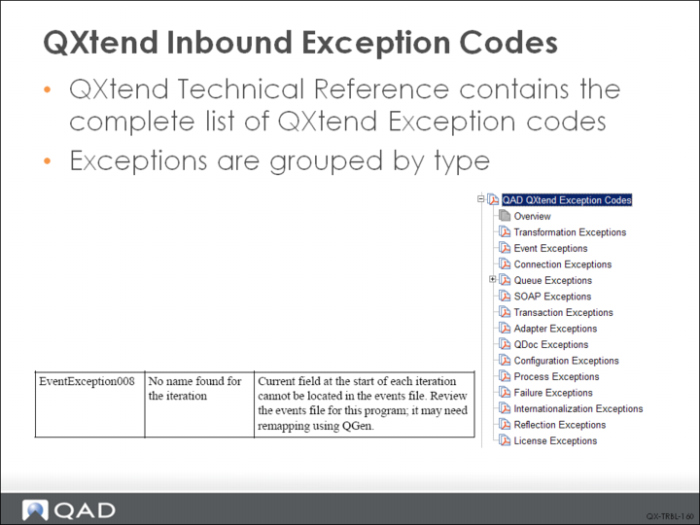
QAD QXtend Inbound Exception Codes
The reference section of User Guide: QAD QXtend lists all exception codes and explains why the exception was raised, as well as suggestions for resolving the problem.