Financials Event Setup
This section describes how to configure Financials to publish events to QAD QXtend.
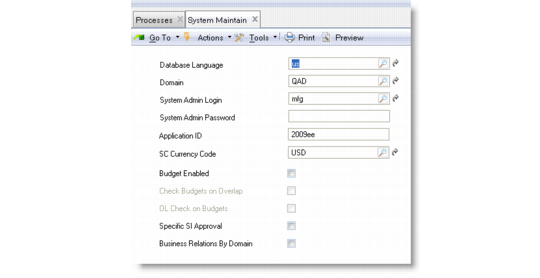
1 Set the Application ID in System Maintain (36.24.3.1). The application ID value should be the same as the source application name configured in QXO.
System Maintain (36.24.3.1)
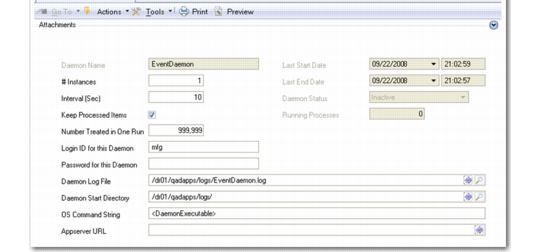
2 Configure the Event Daemon using Event Daemon Configure (36.14.16.16.1). Otherwise, the Event Daemon cannot be started.
Event Daemon Configure
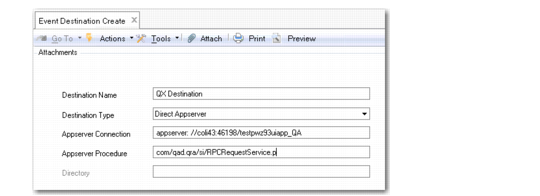
3 Record the location of the QXtend appserver in Event Destination Create (36.14.16.14.1).
4 In the AppServer Procedure field of Event Destination Create, specify the RPCRequestService.p procedure. This is the general service interface dispatcher.
Event Destination Create (36.14.16.14.1)
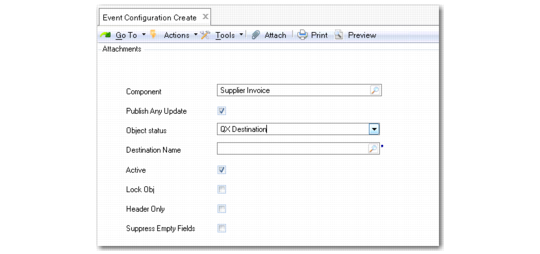
5 In Event Configuration Create (36.14.16.15.1), select the component and then select the Publish Any Update check box.
Note: If the workspace has changed, an Event Configuration record must be created for the new workspace.
6 Specify the destination previously created in the Destination field.
Event Configuration Create (36.14.16.15.1)
7 Start the Event daemon using Event Daemon Start (36.14.16.16.4).
8 Change a record on an existing supplier invoice using Supplier Invoice Modify in Financials.
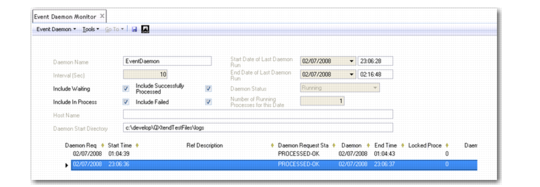
9 Open the Event Daemon Monitor to view the event generated in Financials when you modified the supplier invoice.
Event Daemon Monitor (36.14.16.16.2)
10 Open Supplier Delete (28.1.1.9) and delete a supplier record.
11 Open Event Daemon Monitor.
Create, modify, and delete activities can generate a published event from Financials.