Creating a DDP Business Object
You can define DDP business objects for source applications regardless of their type (DDP and non-DDP). DDP business objects are indicated by the DDP check box in the Business Object screen.For DDP business objects that have more than one top-level table, one data object must be flagged as the primary data object, by which the raw message will be identified based on the value of the data identifier field of that data object; this is usually tContextInfo. When you load a DDP business object, tContextInfo is marked by default as being the primary data object. This is indicated on the screen by the selection of the Primary check box.Use the following steps to create a new DDP business object.1 In the left-hand Business Objects frame, click New. For a non-DDP source application type, the New Business Object box displays.
Note: For a DDP source application type, the Load Schema box displays directly.
New Business Object Box
2 Click Yes. The Load Schema box displays.
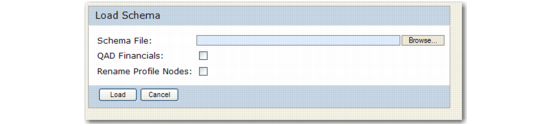
Load Schema
Schema File
Specify the schema document for the business object.
Note: If required, the schema document for the business object can be reimported later by clicking the Reload button at the top of the business object definition screen. The schema may have to be reimported if the source application is modified. Reimporting the schema allows you to retain previous messages.
QAD Financials
Select the field if the schema you are loading is for QAD EE Financials.
Rename Profile Nodes
Select the check box to have the system convert the underscore-delimited names of tables in your business object into camelcase notation when creating the nodes in the associated profile. For details about notation used for elements, see
QDoc Specifications and Standards.
3 Click Save to save the new object.