Direct Data Publish Setup in QXO
1 On the Business Objects tab, select the source application type you want to create a new DDP business object for. Click New and then click Yes on the New Business Object pop-up box to create a DDP business object.
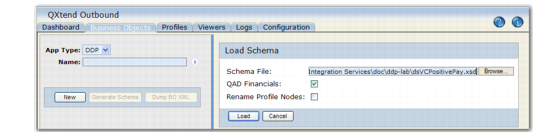
2 Create a business object by loading the Supplier Invoice schema.
Load Schema
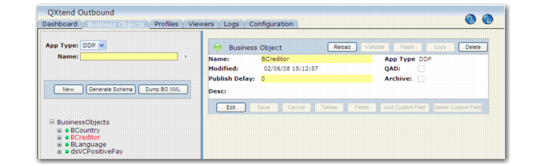
The schema is loaded.
Loaded Schema
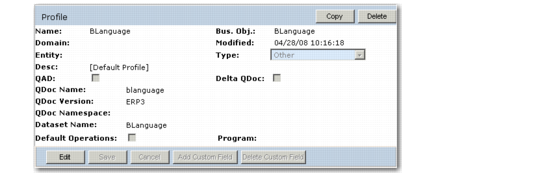
QXtend creates the default profile automatically.
Default Profile
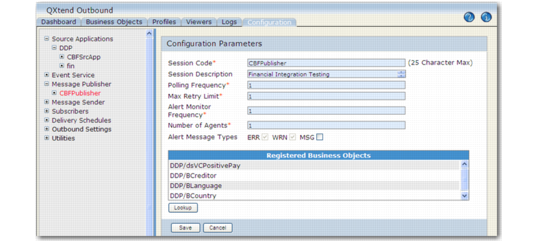
3 Create a Message Publisher for DDP.
Message Publisher
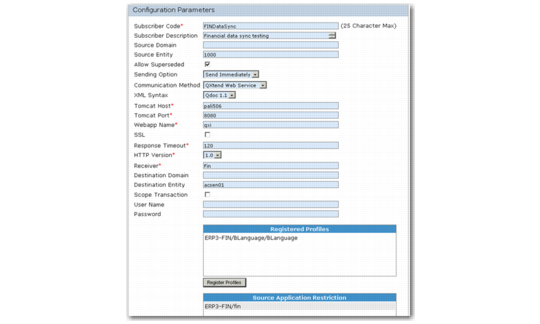
4 In the Subscribers Configuration Parameters screen, create a message subscriber for DDP.
Subscribers Configuration Parameters
Note: Register the profile and source application created.
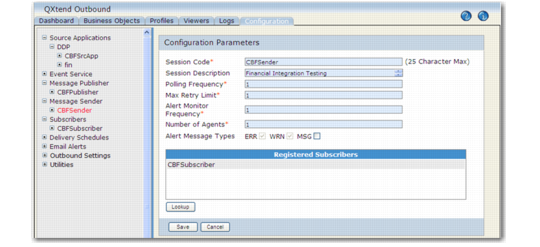
5 In the Message Sender screen of the Configuration tab, create a sender.
Message Sender Configuration Parameters
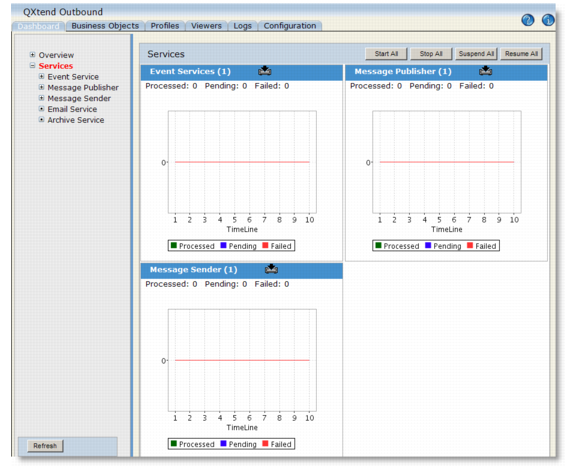
6 In the Services screen in the Dashboard tab, click the Stop All button and then click the Start All button.
Services