Adding a Connection Pool
You add new connection pools in the Connection Pool Manager by the type of user the pool is going to support. The options are UI API, JITSAPI, SIAPI, or FinAPI. You name each pool with the receiver name of the target QAD Enterprise Applications instance and identify the pool by host machine and port. You then create a startup script for the pool telnet session, and enter the pool parameters.
When you create or modify a connection pool, it is created or modified in your connectionManagerConfig.xml file. The default version of this file is located in:TOMCAT_HOME/webapps/<QXI webapp>/WEB-INF/conf/defaults
The server-specific version is stored one level up in the /conf directory.Warning Do not manually modify the connectionManagerConfig.xml file. Change it only through the interface.
Adding a UI API Pool
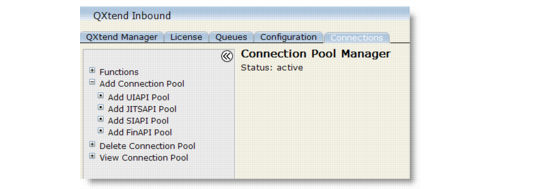
1 In the Connection Pool Manager, choose Add Connection Pool. The available user types display.
Connection Pool Manager
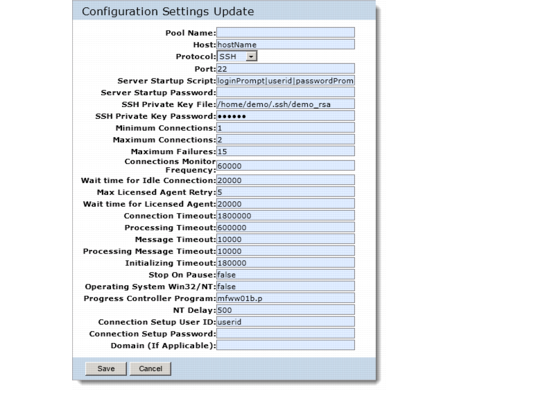
2 Choose Add UIAPI Pool. The Configuration Settings Update form displays. Use the following field descriptions to create a connection pool configuration.
Add a UI API Connection
Pool Name
The pool name must match the receiver name for QXI API pools. The pool name displays in the view and delete connection pool menus.
Host
Enter the machine name or IP address of the telnet or SSH server.
Protocol
Specify the protocol for the connection. The available options are Telnet and SSH.
Port
Enter the port number for the server. By default, the port of Telnet server is 23; the port of SSH server is 22.
Server Startup Script
Enter the startup script for the telnet session. Specify the telnet server log-in prompts and the responses to these prompts separated with the pipe symbol (|). The standard order is: loginPrompt|userid|passwordPrompt|$PASSWD|osPrompt| startScript. For example:
login:|QXtend|Password:|password|$|exec ./qma.QXprod
For Oracle implementations, modify the qma script.
Server Startup Password
Specify the password for the telnet session startup script (maximum 20 characters). The password is encrypted on entry. The startup script substitutes the encrypted password for the $PASSWD reference. Leave this field empty for SSH protocol, only if using SSH Public Key Authentication.
SSH Private Key File
Specify the location and name of the SSH Private Key file on the Tomcat server; for example,
/home/demo/.ssh/demo_rsa. This field is enabled only when the Protocol is set to SSH. For information on how to create the public and private key pair, see
SSH Reference.
SSH Private Key Password
If the SSH private key is encrypted with a password, enter the password. This field is enabled only when Protocol is set to SSH.
Minimum Connections
Enter the minimum number of open connections that the Connection Pool Manager can maintain. During startup, the Connection Pool Manager opens this number of connections. As connections are used, it continues to open more so that this number of open connections is maintained, until it reaches the value specified for Maximum Connections.
In general, keep this number as low as effectively possible; for example, 3 on faster systems. On slower systems, increase the number to reduce startup time on new requests.
Maximum Connections
Enter the maximum number of open connections that the system can allow. The Connection Pool Manager can not open any more connections than the specified connections.
Important: On Windows systems, set this field to 2 or more to ensure successful connections.
Maximum Failures
Enter how many times the Connection Pool Manager attempts to restart an unsuccessful connection. This number is reset when a successful connection is made. You can also reset it by using the Reset Failed Init Count command on the Connection Pool Functions menu.
Connections Monitor Frequency
Enter, in milliseconds, the interval for checking all connections. The default value is 180000 (3 minutes). The system monitors all connections in all states and closes the time-out connections.
Wait Time for Idle Connection
When a connection is requested from the Connection Pool Manager, this timeout specifies the maximum wait for the connection. The maximum number of connections may have been reached, or new connections may be in the initializing state. The default value is 20000 (20 seconds).
Max Licensed Agent Retry
Specify the number of times the system attempts to reserve a licensed agent before returning an exception.
Wait Time for Licensed Agent
Specify the number of milliseconds that the system waits for a licensed agent.
See
QAD QXtend Licensing for details on licensing.
Connection Timeout
Enter, in milliseconds, how long an HTML session can remain inactive before the Connection Pool Manager closes it. The default value is 1800000 (30 minutes).
Processing Timeout
Enter, in milliseconds, how long a connection can be in processing mode. Processing mode indicates a locked or busy screen. The default value is 3600000 (60 minutes). Connection Pool Manager closes locked or busy connections that exceed this time.
Message Timeout
Enter the interval, in milliseconds, for Connection Pool Manager to wait for a general messaging reply from the telnet server. The default value is 10000 (10 seconds).
Processing Message Timeout
Enter the interval, in milliseconds, for Connection Pool Manager to wait for reply from the telnet server when a connection is in processing mode. The default value is 6666 (6.6 seconds).
Initializing Timeout
Enter the interval, in milliseconds, for Connection Pool Manager to wait for a telnet session to successfully initialize. The default value is 180000 (3 minutes).
Stop on Pause
For QXI, set it to Pause. It prevents a transaction from failing when a “Press Spacebar” message is displayed in the target QAD Enterprise Applications session.
Operating System Win32/NT
Select this option if the Progress telnet sessions are executing on a computer with a Windows operating system. Otherwise, do not select it.
Progress Controller Program
Enter mfww01b.p for UI API pools.
NT Delay
Ignore this field for QXI connection pools.
Connection Setup User ID
This field and the next two are the parameters required to connect to the target QAD Enterprise Applications instance. Enter the valid QAD Enterprise Applications user ID.
Connection Setup Password
Enter the password for the QAD Enterprise Applications user ID (maximum 20 characters). The password is encrypted on entry.
Domain
Enter the valid QAD Enterprise Applications domain if the target instance has domains implemented. Domains were introduced in QAD Enterprise Applications version 2.1.
3 On completion, choose Save. The new connection pool is started automatically and is added to the list of connection pools in the Connection Pool Manager interface.
Adding a JITSAPI, SIAPI, or FinAPI Pool
The JITSAPI, SIAPI, and FinAPI pools are slightly different than the XML-based pools for the UI API. You identify the Progress AppServer and the user ID and password for the AppServer. Several values covered for the UI API pools are not required for SIAPI pools. Ensure that you also enter a session type for Progress Dynamics for JITSAPI pools.1 In the Connection Pool Manager, choose Add Connection Pool. The available connection pool types display beneath the Add Connection Pool selection.
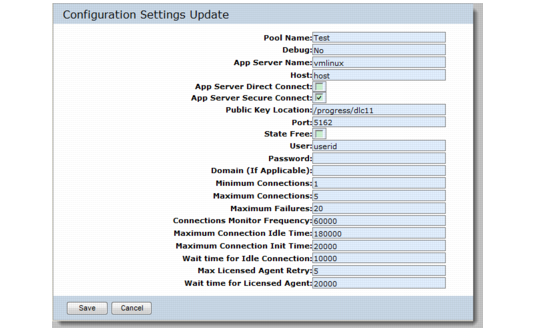
2 Choose Add JITSAPI Pool or Add SIAPI Pool as needed. The Configuration Settings Update form displays. Use the following field descriptions to create a connection pool configuration.
Add a SIAPI Pool
Pool Name
The pool name must match the receiver name for QXI API pools. The pool name displays in the view and delete connection pool menus.
Debug
If debug is set to Yes, debug information is written to the AppServer log file. If set to No, no AppServer logging occurs.
App Server Name
Enter the name given to the AppServer in the
ubroker.properties file. You can configure this field when creating the AppServer settings. See
Configuring the Progress AppServer.
Host
Enter the machine name or IP address of the machine where the Progress AppServer is installed and running.
App Server Direct Connect
Specify whether you want QXtend Inbound to directly connect to the AppServer.
Yes: QXtend directly connects to the App Server using the port number you provide in the Port field for the AppServer.
No: QXtend first uses the port number you supply in the Port field to connect to the NameServer, which then assigns the AppServer to the connection.
App Server Secure Connect
Specify whether you want the connection pool to connect to an SSL-enabled AppServer. For information on how to enable SSL on the host server and on the client, see
SSL-Enabled AppServer Reference.
Public Key Location
Specify the directory containing the public key. This field is enabled only when App Server Secure Connect is selected. For information on how to create the public key, see
SSL-Enabled AppServer Reference.
Port
Enter the port number for the AppServer or the NameServer, depending on your App Server Direct Connect setting. If you selected the App Server Direct Connect option, enter the port number for the AppServer; otherwise, enter the port number for the NameServer that is controlling the AppServer instance. In that case, the connection is requested from the NameServer and it assigns the AppServer to the connection.
State Free
Specify in which operating mode the connection pool can connect to AppServer.
Yes: The connection pool can only connect to AppServer when operatingMode is State-free.
No: The connection pool can only connect to AppServer when operatingMode is Stateless.
User
Enter the QAD Enterprise Applications user name.
Password
Enter the QAD Enterprise Applications user’s password, encrypted on entry.
Domain
For a SIAPI pool, enter the valid QAD Enterprise Applications domain if the target instance has domains implemented. This field does not apply to JITSAPI pools.
Session Type
This value displays only in the QAD JIT Sequencing API connection pool configuration. See QAD JIT Sequencing Installation Guide for details. Set it to dynamics session type to enable a Progress Dynamics session.
Minimum Connections
Enter the minimum number of open connections that the Connection Pool Manager can maintain. During startup, the Connection Pool Manager opens this number of connections. As connections are used, it continues to open more so that this number of open connections is maintained, until it reaches the value specified for Maximum Connections.
In general, keep this number as low as effectively possible; for example, 3 on faster systems. On slower systems, increase the number to reduce startup time on new requests.
Maximum Connections
Enter the maximum number of open connections that the system can have. The Connection Pool Manager cannot open any more connections than the specified number.
Maximum Failures
Enter how many times the Connection Pool Manager attempts to start a connection. This number is reset when a successful connection is made. You can also reset it by using the Reset Failed Init Count command on the Connection Pool Function menu.
Connections Monitor Frequency
Enter, in milliseconds, the interval for checking all connections. The default value is 180000 (3 minutes). It monitors all connections in all states and closes the time-out connection.
Maximum Connection Idle Time
Enter, in milliseconds, the maximum time a 4GL connection can remain idle.
Maximum Connection Init Time
Enter, in milliseconds, the maximum time a 4GL connection can be initializing.
Wait Time for Idle Connection
Enter, in milliseconds, how long the Connection Pool Manager waits for an initializing connection to become idle before an error is generated. The default value is 20000 (20 seconds).
3 On completion, choose Save. The new connection pool is started automatically and is added to the list of connection pools in the Connection Pool Manager interface.