Usage Scenario
This section uses an example to give a step-by-step illustration of how to finish a configuration data transfer task.Task Description
There are two QXtend systems: one is for test; the other is for production. User A has changed some configuration in the test system and finished testing. It is approved to deploy the production system with the configuration of the test system. To avoid manually configuring the production system, User A is going to transfer the configuration components from the test system to the production system.The configuration components changed in the test system are as follows:• Changed/added API schemas
QDoc Name | Version | Type | Module Name |
bbusinessrelation | ERP3_1 | custom | QADEE |
bcashgroup | ERP3_1 | standard | QADEE |
bcdocument | ERP3_1 | custom | QADEE |
maintainECO | ERP3_1 | standard | QADEE |
authorizeKanban | ERP3_1 | custom | QADEE |
• Changed/added receiver APIs
Receiver Name (Test) | Receiver Name (Production) | QDoc Name | Version | Type | Module name |
QADERP | ERP | bbusinessrelation | ERP3_1 | standard | QADEE |
| | bcashgroup | ERP3_1 | standard | QADEE |
| | bcdocument | ERP3_1 | custom | QADEE |
QADCRM | CRM | maintainUsers | CRM_1 | custom | CRM |
| | bdebtorenduser | CRM_1 | custom | CRM |
| | queryUsers | CRM_1 | custom | CRM |
Procedures
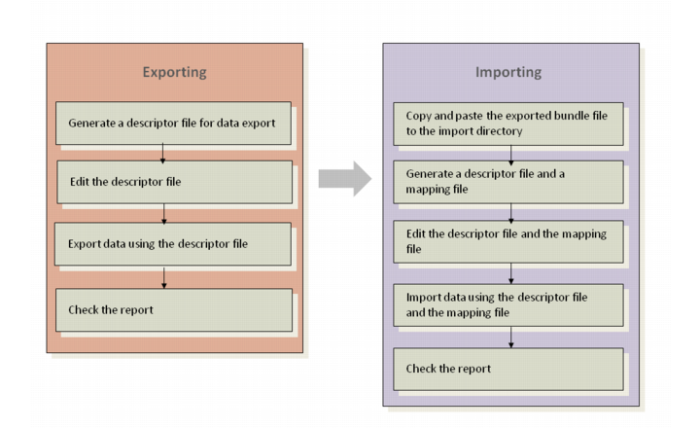
What User A needs to export are the changed and new API schemas and receiver APIs rather than all configuration entities. And, the names of the receivers are different in the source system from the target system. So, the descriptor file is needed to scope the data for export, and the mapping file is needed to map the receivers. Workflow for Scenario Task shows the workflow for the scenario task.
Workflow for Scenario Task
Generating and Editing a Descriptor File
1 Log in to the test system and locate the qxicfgbundle.sh at the scripts directory; for example, /tomcat/webapps/qxi/WEB-INF/scripts.
2 Generate a descriptor XML file named qxi_export.xml using the following command:
./qxicfgbundle.sh -gd -d qxi_export.xml
The descriptor file is generated in the export directory; for example, /tomcat/webapps/qxi/WEB-INF/export.
3 Edit the generated file as the follows:
<?xml version="1.0" ?>
<qxiCfgBundleActionDescriptor xmlns="urn:schemas-qad-com:qxtend-configuration">
<action name="export" onNotExist="stop" />
<module name="QADEE">
<apiSchemaCfg qdocName="bbusinessrelation" version="ERP3_1" type="custom"/>
<apiSchemaCfg qdocName="bcdocument" version="ERP3_1" type="custom"/>
<apiSchemaCfg qdocName="maintainECO" version="ERP3_1" type="standard"/>
<apiSchemaCfg qdocName="authorizeKanban" version="ERP3_1" type="custom"/>
<receiver name="QADERP">
<receiverApiCfg qdocName="bbusinessrelation" version="ERP3_1" type="standard"/>
<receiverApiCfg qdocName="bcashgroup" version="ERP3_1" type="standard"/>
<receiverApiCfg qdocName="bcdocument" version="ERP3_1" type="standard"/>
</receiver>
</module>
<module name="CRM">
<receiver name="QADCRM">
<receiverApiCfg qdocName="maintainUsers" version="CRM_1" type="custom"/>
<receiverApiCfg qdocName="bdebtorenduser" version="CRM_1" type="custom"/>
<receiverApiCfg qdocName="queryUsers" version="CRM_1" type="custom"/>
</receiver>
</module>
</qxiCfgBundleActionDescriptor>
4 Save the descriptor file.
Exporting Data from QXI
1 On the test system, locate the qxicfgbundle.sh from /tomcat/webapps/qxi/WEB-INF/scripts.
2 Execute the following command to export the data to the qxi_bundle.zip file using the descriptor file:
./qxicfgbundle.sh -e qxi_bundle.zip -d qxi_export.xml
3 Go to /tomcat/webapps/qxi/WEB-INF/export and check the report qxi_bundle.report.txt.
The report for a successful export displays as follows:
11 configuration entities have been exported to bundle (ID: dbaf3865-0cff-48b5-84cf-cd56de5d2333) file /tomcat/webapps/qxi/WEB-INF/export/qxi_bundle.zip
5 API schema(s) exported:
MODULE NAME, QDOC NAME, VERSION, TYPE
QADEE, authorizeKanban, ERP3_1, custom
QADEE, bbusinessrelation, ERP3_1, custom
QADEE, bcashgroup, ERP3_1, standard
QADEE, bcdocument, ERP3_1, custom
QADEE, maintainECO, ERP3_1, standard
6 receiver API registration(s) exported:
MODULE NAME, RECEIVER NAME, QDOC NAME, VERSION, TYPE
CRM, QADCRM, bdebtorenduser, CRM_1, custom
CRM, QADCRM, maintainUsers, CRM_1, custom
CRM, QADCRM, queryUsers, CRM_1, custom
QADEE, QADERP, bbusinessrelation, ERP3_1, standard
QADEE, QADERP, bcashgroup, ERP3_1, standard
QADEE, QADERP, bcdocument, ERP3_1, standard
Generating a Descriptor File and a Mapping File for Importing
For some reason, User A wants to import all the custom APIs that were exported instead of importing all. So, an action descriptor file is necessary. The receiver names in the test system are different from the names in the production system, which requires a mapping file.1 On the test system, copy and paste the qxi_bundle.zip file to /tomcat/webapps/qxi/WEB-INF/import.
2 Locate the qxicfgbundle.sh from /tomcat/webapps/qxi/WEB-INF/scripts and run the following command:
./qxicfgbundle.sh -g qxi_bundle.zip -d qxi_import.xml -m qxi_mapping.xml
In the import folder, the files are generated with the specified names.
3 Open the action descriptor file and remove the entities with type=”custom”. Or you can use wildcards to scope the entities as shown in the following descriptor file.
To enable the process to complete regardless of whether the entities exist in the source or target system, here, we set both the onNotExist value and the onExist value to skip. To make all custom APIs within the import scope, use wildcards to define all the qdocName and version values and specify custom as the type value.
<?xml version="1.0" ?>
<qxiCfgBundleActionDescriptor xmlns="urn:schemas-qad-com:qxtend-configuration">
<action name="import" onNotExist="skip" onExist="skip">
<bundleRestriction bundleId="dbaf3865-0cff-48b5-84cf-cd56de5d2333"/>
</action>
<module name="CRM">
<receiver name="QADCRM">
<receiverApiCfg qdocName="*" version="*" type="custom"/>
</receiver>
</module>
<module name="QADEE">
<apiSchemaCfg qdocName="*" version="*" type="custom"/>
<receiver name="QADERP">
<receiverApiCfg qdocName="*" version="*" type="custom"/>
</receiver>
</module>
</qxiCfgBundleActionDescriptor>
4 Open the mapping file and edit it as follows:
<?xml version="1.0" ?>
<qxiCfgBundleActionMapping xmlns="urn:schemas-qad-com:qxtend-configuration">
<receiverMapping module="CRM" source="QADCRM" target="CRM"/>
<receiverMapping module="QADEE" source="QADERP" target="ERP"/>
</qxiCfgBundleActionMapping>
Importing Data
1 Run the following command:
./qxicfgbundle.sh -i qxi_bundle.zip -d qxi_import.xml -m qxi_mapping.xml
2 Check the report qxi_bundle.report.txt in the import folder.
Note: The report is named with the name of the bundle file.
The report can be as the follows:
6 configuration entities have been imported from bundle (ID: dbaf3865-0cff-48b5-84cf-cd56de5d2333) file /tomcat/webapps/qxi/WEB-INF/import/qxi_bundle.zip
3 API schema(s) created:
MODULE NAME, QDOC NAME, VERSION, TYPE
QADEE, authorizeKanban, ERP3_1, custom [WARNING]
QADEE, bbusinessrelation, ERP3_1, custom [WARNING]
QADEE, bcdocument, ERP3_1, custom [WARNING]
3 receiver API registration(s) created:
MODULE NAME, RECEIVER NAME, QDOC NAME, VERSION, TYPE
CRM, CRM, bdebtorenduser, CRM_1, custom
CRM, CRM, maintainUsers, CRM_1, custom
CRM, CRM, queryUsers, CRM_1, custom
1 receiver API registration(s) skipped because the entities do not exist in source:
MODULE NAME, RECEIVER NAME, QDOC NAME, VERSION, TYPE
QADEE, QADERP, *, ERP3_1, custom
[WARNING]
3 imported API schema(s) not registered to a receiver
MODULE NAME, QDOC NAME, VERSION, TYPE
QADEE, authorizeKanban, ERP3_1, custom
QADEE, bbusinessrelation, ERP3_1, custom
QADEE, bcdocument, ERP3_1, custom
The report shows the results in detail and gives the warning messages generated through validation.
It warns that three API schemas that you imported are not registered to any receiver. If necessary, you can add them to the correct receivers to resolve the issue.