User Menu and Function Keys
Assigning function keys to frequently used menu items is another way to execute programs quickly. Keys can be established for all users or individually customized. Up to 999 function keys can be defined. In addition, you can change the standard label for a menu item to customize menu labels for each user.
The effect of the records you define in User Function Maintenance (36.4.11) varies depending on the selected user interface. Function keys apply only to the character interface. However, the programs assigned to function keys also display on the User Menu in the character and Windows interfaces and under the My Programs link in QAD Desktop.
Example Use of Function Keys
A user entering a sales order may need to check on the available-to-promise (ATP) quantities for an item before indicating a due date. By setting up a function key for the Master Schedule Summary Inquiry (22.18), the order clerk can review an item’s ATP quantity without leaving Sales Order Maintenance (7.1.1).
Note: Do not use function keys or the function menu to access a maintenance screen in the character or Windows environments. Progress only completes transactions initiated with function keys after the initial transaction is completed. If, for example, you are in sales orders, you start an order, then perform an inventory transaction using a function key, and then cancel the sales order, the inventory transaction is also canceled.
Windows Interface
Access user functions from the pull-down User Menu. This menu has multiple sections:
• User menu items display in the top section, ordered by the value of the Function Key and Sequence fields. For example, the program assigned to function 13, sequence 2 follows the program assigned function 13, sequence 0. The program assigned to function 15 comes after both of these.
• Programs defined in User Tool Maintenance (36.20.4) display below User Menu items. They also display as buttons on the toolbar of programs with which they are associated. Unlike user menu items, you can associate user toolbar items with specific programs or groups of programs. See
User Tool Maintenance.
Note: Programs defined with User Tool Maintenance do not display on browses.
The exact menu items that display depend on whether you have user-specific items defined in User Function Maintenance.
• If you have user-specific items defined, they display on the menu.
• If no items are associated with your user ID, the menu includes only items assigned to a blank user ID.
Note: This is unlike the character interface, where users can see both menus.
Character Interface
Access programs associated with a function key by selecting that function key. Function keys F1 through F12 are reserved for system use, so the assigned key must be F13 or higher. Since many keyboards do not handle that number of function keys, this option is used less frequently.
User Menu in Character Interface
Access the User Menu by pressing F6. A list of menu items set up for your user ID appears. Choose the one you want by highlighting it and pressing Enter or Go. Press Tab to sort the list by menu number or function name. Press End to display the user menu items defined without a user ID.
Note: There is no relationship between the order of items on the User Menu and the function key assigned, and the function key is not shown. Menus sort lexically, so that 13 appears before 2 if you are in the Menu Selection column.
Different environments have different function key uses and limitations. Set up your system according to your environment. For example, if your system is limited to only 12 function keys, do not attempt to use the function keys as a quick method to launch programs. Instead, use the User Menu.
Executing Programs in Sequence
In the character interface, you can make several programs execute in sequence by assigning them to the same function key and giving each a different sequence number. When you press that function key, the first function in the sequence executes. When that function is finished, the next one in sequence is called automatically.
Important: All transactions in the sequence must be completed before data is updated in the database.
QAD Desktop
If you are using QAD Desktop, the programs you specify with User Function Maintenance display on the My Programs menu under My Desktop. In Desktop, My Programs lets you organize frequently used programs rather than being a way to access multiple programs. This is because you can always run multiple programs simultaneously in detached windows. You do not need to be concerned about running two maintenance programs at the same time.
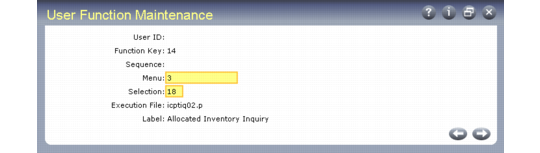
User Function Maintenance
Set up user menus and function keys in User Function Maintenance. Each selection on the user menu should have a different function key reference, from 13 to 40, and a zero or blank sequence number. The function key reference must be 13 or greater, even if your keyboard supports fewer function keys or you plan to access selections through the User Menu.
Note: To set up function keys, terminals must be compatible with the Progress protermcap file.
User Function Maintenance (36.4.11)