License Reporting
Various reports let you monitor application use, the number of logged-in users and sessions and the programs they use, and license violations. You can use the application usage and user count reports to be informed about potential license violations.
In addition to license reporting, you can use User Access by Application Inquiry (36.3.22) to display a list of applications, user access status (active or inactive), and access activation date.
Licensed Application Report
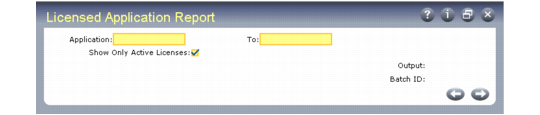
Use Licensed Application Report (36.16.10.3) to display a list of software applications registered in the database.
You can select a range of applications to display. Setting Show Only Active Licenses to Yes displays the current license code for an application. Setting this field to No displays information on current and expired license codes for applications. Records display in descending order of the registration date. If there are multiple records for one application, the record with the latest registration date displays first.
The report includes the application description and version, license code and type, number of licensed users, registration and expiration date, user ID of the person who registered the application, audit date information, and any changes to license information.
Licensed Application Report (36.16.10.8)
Application Usage Profile Report
After you install and register an application, the software keeps statistics about your application use. The statistics include:
• Licensed application name
• Menu item executable program name
• Number of times the menu item is accessed
• Percentage of the application in use at the time of reporting
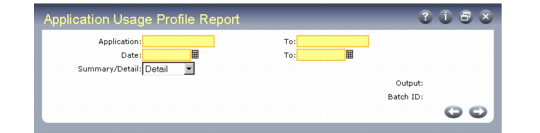
You can use Application Usage Profile Report (36.16.10.8) to display the recorded information for each licensed application.
Application Usage Profile Report
(36.16.10.8)
You can generate the report in summary or detail format. Summary reports display only the module, access count, and percentage of application use. Detail reports display all recorded information about application usage.
Detailed License Violation Report
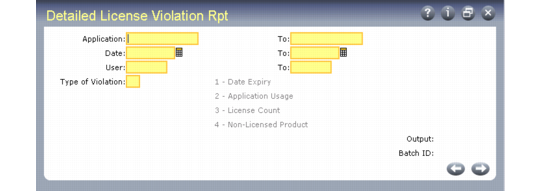
Use Detailed License Violation Report (36.16.10.13) to display information about license violations, including:
• Violation date, time, and error message
• User ID and name of the person who is in violation
• Violation type (for example, application usage or license count exceeded). See
Violation Types.
• The total number of sessions and users logged in at the time of violation
• Session ID at the time of violation
• Percentage of the application in use at the time of violation
Detailed license violation reports let you select a range of registered applications registered, dates, user IDs, or violation types on which to report.
Detailed License Violation Report (36.16.10.13)
Summary License Violation Report
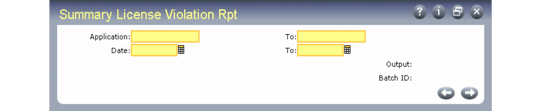
Use Summary License Violation Report (36.16.10.14) to display:
• Application name, version, and license type
• Violation date
• Total number of violations
• Total number of violations by violation type
• Maximum number of licensed users logged on during a period or the high water mark
• Total number of licensed users
Summary license violation reports let you specify the application and the period you want the report to cover.
Summary License Violation Report (36.16.10.14)
If you do not specify an application, all violations for all applications display. If you specify an application, but no dates, all violations for that application display.
If you run either report and there are no violations to report, the following message displays:
No violation observed.
Audit Reporting
The system provides programs for QAD auditors to use when the auditors gather statistical information on customer use. The programs are not accessible to users. The statistical information is for QAD auditing purposes only.
User Monitor Inquiry
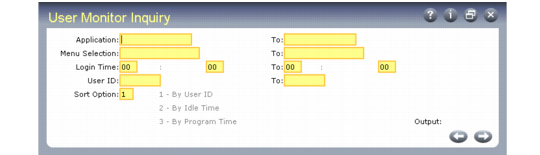
User Monitor Inquiry (36.16.12) displays users currently logged in, along with the:
• License type and count for the application
• Program names and menu numbers they are currently executing
• Session ID and user interface type for the session
• Time since they started the current program or menu
• Amount of time they have been idle if no program is selected
Note: This inquiry represents a single point in time, not a continuous system record or audit trail.
By monitoring user and program activity, the system administrator can identify users in violation of license agreements and minimize unnecessary overhead during peak system usage.
You can enter a combination of log-in time and users, applications, or menu selections to view details of a specific log-in scenario.
User Monitor Inquiry (36.16.12)
Application
Enter the application name for which you want information to display. You can enter a range of applications by specifying the first application to display in this field and the last application to display in the To field.
Menu Selection
Enter the menu selection for which you want details to display. Leave blank to begin with the first menu matching the other selection criteria.
Login Time
Enter the log-in time for which you want details to display.
Enter the time based on a 24-hour clock in HH:MM format. For example, enter 1:30 pm as 13:30.
User ID
Enter the ID of the user for whom you want details to display. Leave blank to begin with the first user ID matching the other selection criteria.
Sort Option
Enter the number that corresponds to the way you want to arrange information in the User Monitor Inquiry. You can sort by:
• User ID, which sorts the data in alphabetical order by user ID.
• Idle Time, which sorts the data by the length of time a user has remained on a menu. The user with the longest idle time displays first.
• Program time, which sorts the data by the length of time a user has remained in a program. The user with the longest program time displays first.