Overview
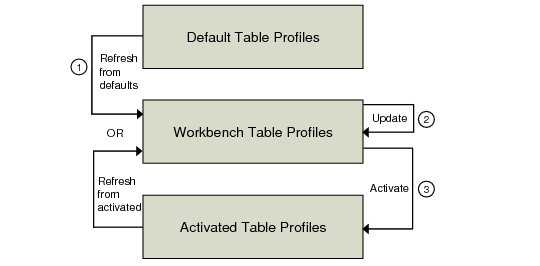
Each database table has its own profile. Initially all table profiles are empty; they must be refreshed with the QAD-provided default information. Table profiles hold values that auditing functions use to manage the audit trail generation and reporting process. This information affects auditing only after the profile is activated.
A table profile:
• Indicates whether auditing is enabled
• Maintains a list of QAD-defined delete event keys
• Maintains a list of user-defined delete event keys
In addition to the QAD-provided default data, the system maintains two sets of profiles: the profiles you edit in the workbench and the activated profiles. When you activate a profile, the system creates a new activated profile by copying your completed workbench profile and setting the begin date. Since the system activates a copy of your workbench profile, you can continue to modify the workbench profile with Audit Workbench Profile Maintenance without affecting the active system.
Table Profiles
Before refreshing workbench profiles, you can optionally create audit groups to manage several profiles more easily and streamline the data setup process. Once refreshed, modify the profiles with your requirements. You can enable or disable auditing and add delete event keys as needed. When your profiles are complete, activate them and set a begin date. To discontinue auditing a table, simply update the workbench profile to set Audit Trail to No; then activate it with the begin date set to the date auditing should stop.