Refreshing Profiles
When initially setting up auditing functions, workbench table profiles are empty, and must be manually populated. Use Audit Workbench Refresh (36.12.13.4) to update the empty profiles with the QAD-provided default information. You can refresh one table at a time or, optionally, refresh the profiles for an entire group of tables.
You can use this program later to restore the QAD-provided default data, modified in Audit Workbench Profile Maintenance, or to update workbench profiles based on existing activated profiles.
Note: Any changes you make with this program do not affect activated profiles currently in use.
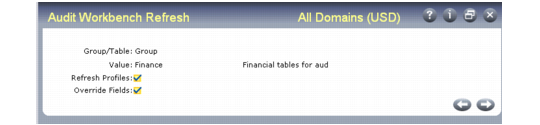
Audit Workbench Refresh (36.12.13.4)
Indicate if you want to refresh tables or groups; then specify the table name or group name to be refreshed. Leave the Value field blank to refresh all tables or groups, based on the setting in the Group/Table field.
Use the following field descriptions to enter the values for the refresh process.
Refresh Profiles
Indicate whether to refresh all data for the specified profiles.
No: The Refresh Profiles frame does not display.
Yes: The Refresh Profiles frame displays. Use it to specify the source profiles for the refresh. You can use active profiles or the QAD-provided default profiles.
Override Fields
Indicate whether to override the field that controls auditing for the specified profiles. The QAD-provided default profiles have auditing functions turned on.
No: The Override Fields frame does not display.
Yes: The Override Fields frame displays for you to set the value for Audit Trail to Yes or No for all the specified profiles. If Refresh Profiles is Yes, the value specified here replaces the refreshed value.
Refresh Profile Frame
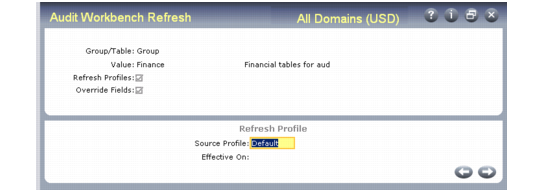
If Refresh Profiles is Yes, the Refresh Profile frame displays.
Audit Workbench Refresh, Refresh Profile Frame
Source Profile
Enter Active or Default to indicate which profiles to use as the source for refreshing the profiles selected previously.
Active: Each specified workbench profile is refreshed using the activated profiles in use on the date specified in Effective On. The corresponding table profiles must be in use on the date specified; otherwise, the system displays an error for each activated profile not found and the refresh does not occur for that profile.
Default: Each specified workbench profile is refreshed using the QAD-provided values. Select this value when initially setting up audit functions to load the QAD-provided values into the profiles for the tables you plan to audit.
Effective On
Enter a date when the activated source profile was in use. The workbench profile is refreshed using the active source profile settings in use on this effective date. If an activated profile was not in use on the date, an error displays and the target profile is not refreshed.
Note: This field is available only when Source Profile is Active.
Example: Enter today’s date to refresh the workbench profiles based on the activated profiles currently being used.
Override Fields Frame
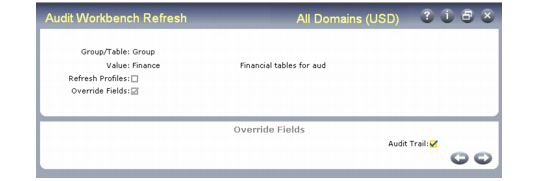
If Override Fields is Yes, the Override Fields frame displays.
Audit Workbench Refresh, Override Fields Frame
Audit Trail
Indicate whether to enable auditing for the tables being refreshed.
If Refresh Profiles is No, the value specified here replaces the Audit Trail value in the current workbench profiles for the specified group or table.
When you refresh based on QAD-provided profiles, audit trail functions are turned on by default. You can use this field to override that setting.
Use Audit Workbench Profile Maintenance to change this value for individual table profiles.