Install the Windows Telnet Server
For telnet connections on Windows servers, install the Georgia Softworks Telnet Server (GSWTS). A version is provided on the QAD UI installation media. Check the Georgia Softworks Web site for an updated version.
The Georgia Softworks Power Features Pack included in the general release provides a session monitor, which is helpful for troubleshooting telnet connection issues.
Install the Telnet Server
1 If you are using the QAD-provided version, copy the release-specific .zip file from the /tools directory on the release media to a local drive.
2 Unzip the .zip file to a work directory.
3 In the work directory, double-click setup.exe to begin installation.
4 At the Welcome window, click Continue.
5 Select Full Install and click Continue.
6 Enter the GSWTS installation directory and choose Continue. Use the default \gs_uts installation directory. You can place this directory on any drive that can be accessed through the network.
7 When GSWTS is installed, the Setup Succeeded window displays and GSWTS starts automatically.
Register the Georgia SoftWorks Software
To register GSWTS, you provide a product ID to Georgia SoftWorks so that a serial number can be generated for your product. The serial number identifies server hardware and software components. If these components change or are upgraded, contact Georgia SoftWorks about generating a new product ID and serial number.
Important: If you need to reinstall or are planning to move your installation to a different platform, or if you are a sales agent or a distributor, include that information on the registration.
1 Select the Registration icon from the GSWTS program group in the Start menu.
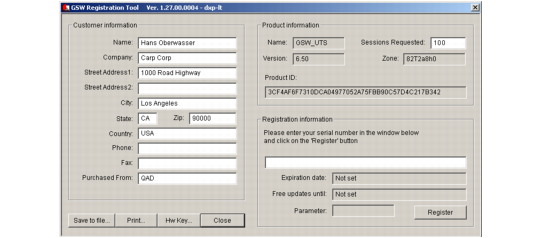
2 In the Georgia SoftWorks Product Registration window, enter your customer information. The information that displays in the Product Information section is system-generated.
3 Set Sessions Requested to 100. This is the number QAD automatically supplies with your registration.
Georgia Softworks Registration
4 Choose Save to File to save this information, or choose Print. Then, follow the appropriate step to supply the product ID to Georgia SoftWorks:
a E-mail the saved registration form file to Georgia SoftWorks at:
When your form is received, a serial number is generated for your product and is returned to you by e-mail.
b FAX the printed registration form to Georgia SoftWorks at 706‑265-1020. When your form is received, a serial number is generated for your product and is returned to you by FAX.
5 When you receive your serial number, return to the Georgia SoftWorks Product Registration window and enter it in the appropriate field in the registration form. Click Register.