Build the QAD UI System
This portion of the UI creation lets you build a new .NET UI configuration based on the values entered in the UI Configuration screen. It also lets you:
• Limit optional build features such as the search database.
• Build for a specific language.
• Rebuild a UI selectively based on what portions of the UI you have modified.
• Create the build script without running the build, which lets you run the build for one or more UIs at a later time when system resources are available.
Use the following steps to verify the system information and build the QAD UI system:
1 From the MFG/UTIL main menu, choose UI|Build UI Configuration.
2 In UI Configuration Name, choose the configuration to build.
Build User Interface
The fields are populated with values for the configuration you chose.
A UI configuration is Validated for Build for single database systems. Multi-database systems that have more than one qaddb included in the .pf files are not validated; they will build, but the compile will return errors.
If Validated for Build is not checked, you may proceed; however, after the build you must edit your .pf files to ensure that only the first instance of the qaddb database appears. This allows the compile to run without errors.
When you are building a UI for an Oracle environment, the confirmation screen displays additional Oracle-specific settings. Verify the Oracle Home, Oracle SID, and for UNIX environments, the Oracle Shared Library Path values.
3 Once you verify the values on this screen, choose Tomcat/WebSpeed Info to review the build information for the Tomcat server and WebSpeed components.
Tomcat Server and WebSpeed Information Fields
4 After verifying the Tomcat and WebSpeed information, choose Close to return to the Build UI screen.
5 To set advanced configuration options—typically, used when building Oracle systems, rebuilding a UI, upgrading to a new release, creating build scripts without executing the build, or building multi-language environments—choose Advanced.
Advanced Build Options
As with other MFG/UTIL screens, this one may differ slightly depending on the QAD UI configuration and database environment you are working with.
First Advanced Build Options Screen
User Interface Configuration Name
This field displays the QAD UI configuration you are currently updating; it cannot be modified.
DB Connection -pf File
This is the database connection parameter file that the build process uses to connect to the database to load system data and compile the QAD UI code. This file is set based on the database set you identified in the UI Configuration screen. If the wrong .pf is displayed here or you need to change it, you must exit this screen and specify the correct database set in the UI Configuration screen.
Generate new config.properties file
This option should be selected when a new QAD UI system is to be built. However, once a QAD UI system has been built and you are rerunning a specific build function—such as generating new menus because you changed menus—deselect this option. This option creates a new config.properties file and overwrites the existing one. If the existing file contains any customizations, they will be lost.
Create Build Script Only
Select this to generate build scripts without running the build. These scripts can later be used to build the QAD UI system. This option helps ease system administration activities in environments with multiple QAD UI systems. By creating build scripts for all the QAD UI systems without running the build, the system administrator can create a batch or cron job to run the build for one or multiple QAD UI systems at a later time when system resources are available, or during scheduled down times.
The generated build script is saved to the QAD Standard Edition installation directory. The file name is the QAD UI system name with the standard system extension, such as qaduiConfig.bat for Windows, or qaduiConfig.ksh for UNIX.
Build Options
Select the options you want to use to control this build. These options are affected by values defined in the config.properties file.
Typically, you enable all build options the first time you build the system. Later, you can change the config.properties file and rebuild with or without all options selected. In some cases, you may not need all options. For example, if you change your menu system, you can build only the search database and menu pages to incorporate your changes.
Create config.js file
Enable this option to create the JavaScript code that incorporates your environment values. This script is used to build the QAD Desktop menu system.
Create Menu Pages
Enable this option to create the HTML menu pages for the Desktop UI. This option updates the menus in the two-letter language code subdirectory in the Tomcat Web applications directory:
TomcatInstallDir/webapps/qaduiConfig/menus
Create Search Database.
Enable this option to build the database accessed by the Search option in the Desktop UI. You can search by menu label, menu number, short name, and execution file based on data specified in Menu System Maintenance (36.4.4) and Menu Substitution Maintenance (36.20.6).
Create labels.js file
Enable this option to create the JavaScript code for displaying MFG/PRO labels that are used on the Desktop UI main pages. Labels and their associated terms are stored in the label master table in the database and maintained with Label Master Maintenance (36.4.17.1). Labels are extracted and placed in language-specific files based on the language specified for the MFG/PRO language code prompt.
Load Data files
Enable this option to load terms and labels used in the Desktop from an external file into your MFG/PRO database. This data needs to be loaded only once to update your MFG/PRO database. If you are creating multiple UI configurations for the same databases, you can run each UI configuration build with this option enabled without any negative effect.
Compile User Interface Progress Programs
Enable this option to compile the Progress programs supplied with the user interfaces.
Skip Version Check
The build code checks the version against the UI version. If an unsupported version is detected, the build stops. This is true even for currently supported versions that were previously not supported.
If you are installing this UI configuration against a version that was not previously supported, check this box. You will see a warning about the version mismatch rather be stopped from completing the build.
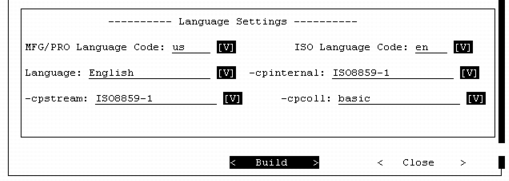
Language Settings
Language settings are important if you are installing a UI configuration into a system that supports multiple languages. For a single- language implementation, you typically do not need to change any of these settings. QAD UI is preconfigured with appropriate settings for each supported language and these display by default, based on the QAD language code you selected in the previous screen.
Each language has predefined values for ISO language code, Progress startup parameters, and the Oracle NLS setting.
However, if you are installing multiple languages, you must execute the advanced build options for each language to create language-specific menus, search database, and other required support data. In this case, you may need to modify the language settings for additional languages from the default values to conform to your database settings.
Advanced Build Options, Language Settings
QAD ERP Language Code
Select the MFG/PRO language code from the drop-down list that represents the language you want to use for screen display, such as US for US English. MFG/UTIL builds the list of available languages based on the language directories you have currently installed.
Note: This language code is not necessarily the same as the ISO standard language code used by Java.
ISO Language Code
This field displays the ISO language code associated with the QAD ERP language code in this screen. You should not change this value. The Desktop UI is preconfigured with the correct mapping between supported QAD ERP codes and ISO codes.
When menus are generated, the HTML files are placed in a directory that is named based on this ISO language code. However, even when a non-English language is specified, some files are also created in the en directory.
Language
This field displays the full language name associated with the language code you selected. Do not change this value.
For details on these parameters, see the Progress Startup Command and Parameter Reference.
–cpinternal
The database startup parameter that identifies the Progress code page for graphical clients. This should be the same as the operating system code page. If a value is not specified, iso8859-1 is used. When you build a multiple-language UI configuration, change this value to the code page associated with the database.
–cpstream
The database startup parameter that identifies the code page for stream I/O. Stream I/O includes character clients, data files, and code. When you build a multiple-language UI configuration, change this value to the code page associated with the database.
–cpcoll
The database startup parameter that identifies the collation table to use with the code page identified by the ‑cpinternal parameter. Progress uses the collation rules that you specify to compare characters and sort records. When you build a multiple-language UI configuration, change this value to the collation table associated with the database.
Oracle NLS Setting
This field sets the NLS_LANG parameter required in the WebSpeed ubroker.properties file and telnet startup scripts for the Oracle dataserver when Native Language Support (NLS) is required for non-English and double-byte languages.
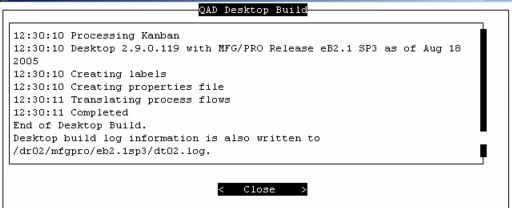
6 Choose Build and confirm you have reviewed the build information to build the system. The build log displays as the build occurs.
Sample Build Log Display
7 When the UI build completes, review the log for errors. Correct any errors before you proceed. Choose Close.
One of the files generated by the build is QADInstallDir/ dt2qaduiConfig.ini. For a configuration named dt02, this would be dt2dt02.ini. This file is required during the JAR file extraction.
You are ready to create the archive file that will be used to deploy the configured Web application on the Tomcat server.