Work Order Subcontract Processing
This lesson covers subcontract setup and processing with work orders. Advanced Repetitive Schedules offer significant additional functionality for subcontract operations. Advanced Repetitive subcontract operations are covered in the Advanced Repetitive course.
Note: The department and work center setup for subcontract operations covered here also applies to the advanced repetitive functionality.
Subcontracting Requirements – Department
• Subcontract processing requires work in both manufacturing and purchasing.
• In this subsection, you look at the control information to enter in the manufacturing module.
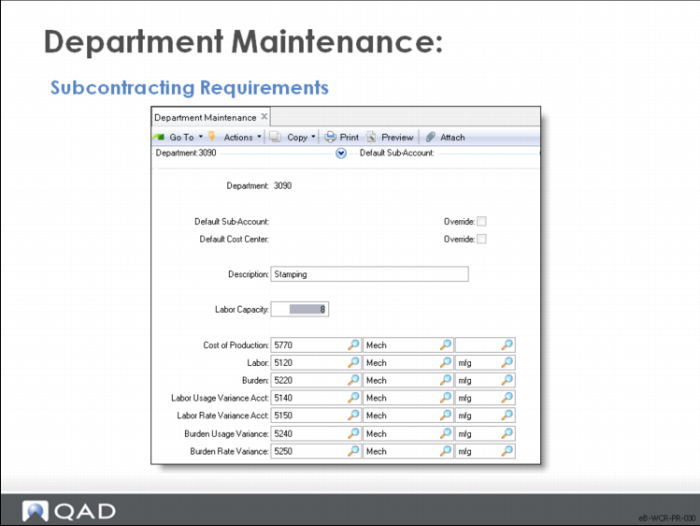
Department Maintenance: Subcontract
Create at least one department before entering any work centers or routings.
• Set up a department to group subcontract work centers.
• This department record has no accounting effect.
Subcontracting Requirements – Work Centers
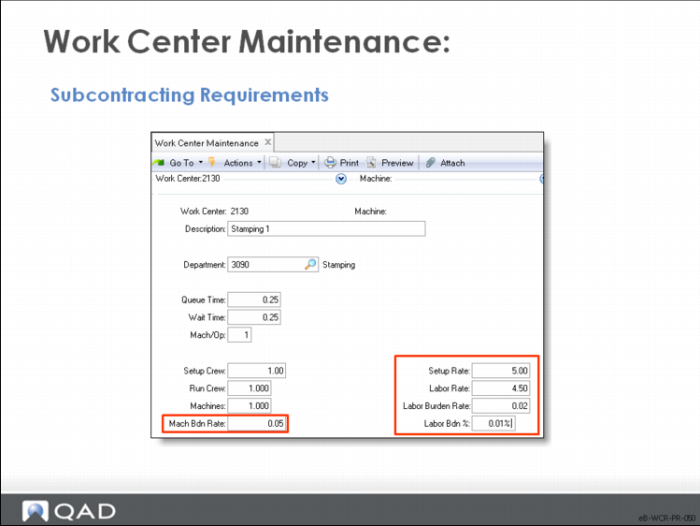
Work Center Maintenance: Subcontract
A work center is a production area with one or more people or machines having identical capabilities.
For subcontracting, set up a work center for each type of subcontract operation or supplier, leaving costs at zero. It is most convenient if there is one work center for each subcontract vendor and the work center code is equal to the supplier code. In the example shown here, the supplier code is SU100 and the Work Center code is SU100.
Subcontracting Requirements – Routing
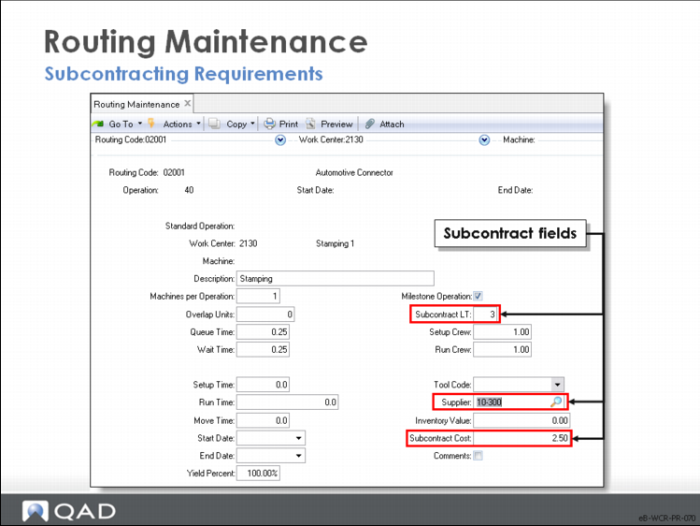
Certain fields in routing operations deal specifically with subcontract requirements.
Routing Maintenance - Subcontract
Enter subcontract cost and lead time for subcontract operations. These values are the default when a routing or process operation is added that references this standard operation code.
• Subcontract lead time is part of the calculation for the manufacturing lead time of an item (performed in Routing Cost Roll-Up) and influences scheduling for work order operations.
• Subcontract cost is the average cost per unit subcontractors normally charge to perform this operation. Cost calculations determine item costs using subcontract cost.
The Supplier field is informational only; you can enter a supplier code even if the operation is not normally subcontracted. This code appears on the work order routing document.
Enter either:
• Subcontract cost and lead time, or
• Setup, run, and move time
Warning If you enter both sets of data, cost and lead time are overstated, making operation schedules are incorrect.
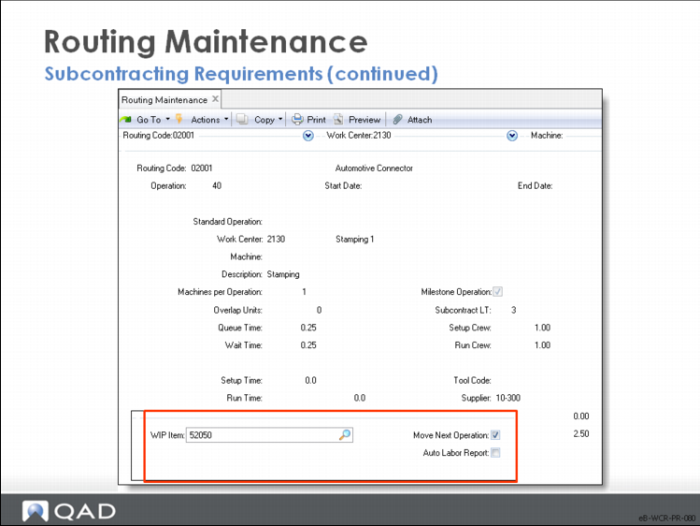
This second frame appears for entry of subcontracting information.
WIP Item
Specify an item number to represent Work-In-Process (WIP) material for subcontract shipments. For example, create a WIP item “Hot Stamp” to accommodate a large range of items that are sent outside for processing. This WIP item gives you accountability and costing for items currently at the supplier’s place of business.
The WIP item must be a valid item number defined in the Item Master.
Sub Shipper Print in Advanced Repetitive Subcontract processing uses this field. The item number entered here is used to get a description and unit weight from Item Master Maintenance, used for printing in the subcontract shipper.
Move Next Op
This field is used as the default for the field of the same name in Advanced Repetitive in both Backflush Transaction and Move Transaction
Auto Labor Report
Controls whether the Backflush Transaction generates run labor reporting automatically.
Yes: Backflush Transaction automatically reports the standard number of run hours for the quantity processed entered for this operation as well as any prior non-milestone operations where this field is set to Yes. This data is reported in addition to any labor hours entered in the transaction.
No: Labor hours do not report automatically. In this case, report labor explicitly in either Backflush Transaction or Run Labor Transaction.
In both cases, report all setup labor using Setup Labor Transaction.
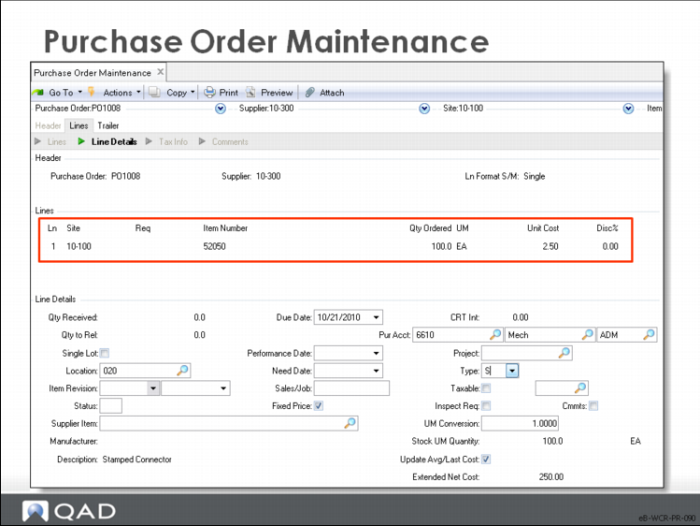
Subcontract Processing: Purchase Order
• Set up a purchase order line, type S, to cover the subcontracted service.
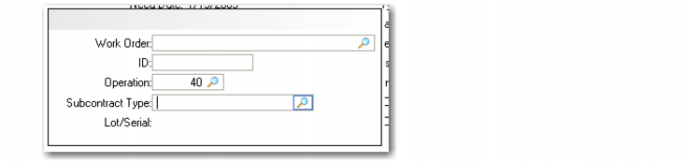
• If you know the work order number, you can enter it in the pop-up window on the PO line.
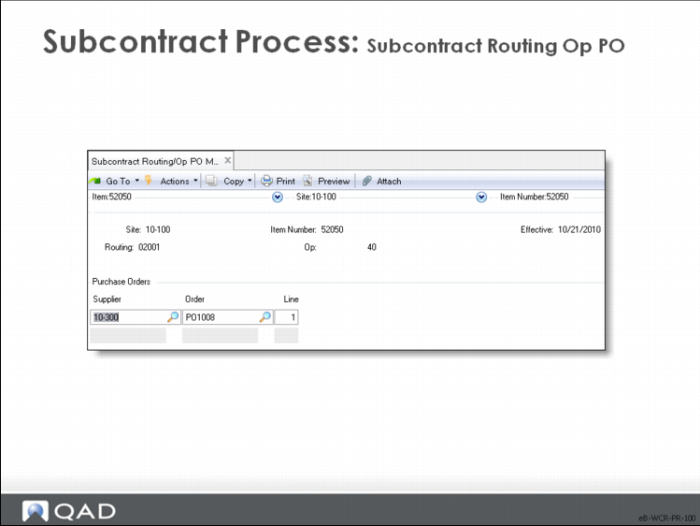
Subcontract Processing: Subcontract Routing Op PO
Use Subcontract Routing Op PO to link the subcontract routing operation to the subcontract line item on the purchase order.
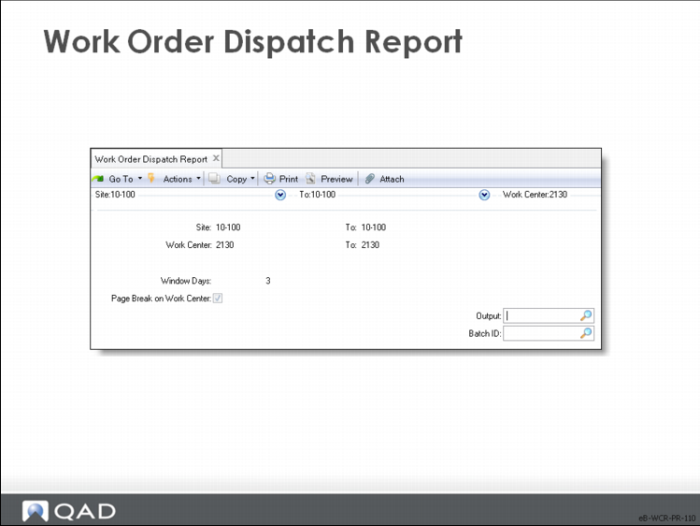
Work Order Dispatch Report
By selecting the work centers you have set up for the suppliers who do your subcontract work, you can print a report on subcontracting operations.
The Work Order Dispatch Report prints in work center sequence and shows all work orders with operations in the selected work centers, between the report date and the window days. In the example shown here, the report lists work order operations that call for work center 2130 between today and three days from now.
Subcontract Shop Floor Control
Use shop floor control transactions to report the operation before the subcontract operation as complete and select Move Next Operation. This action moves the WIP to the subcontract work center.
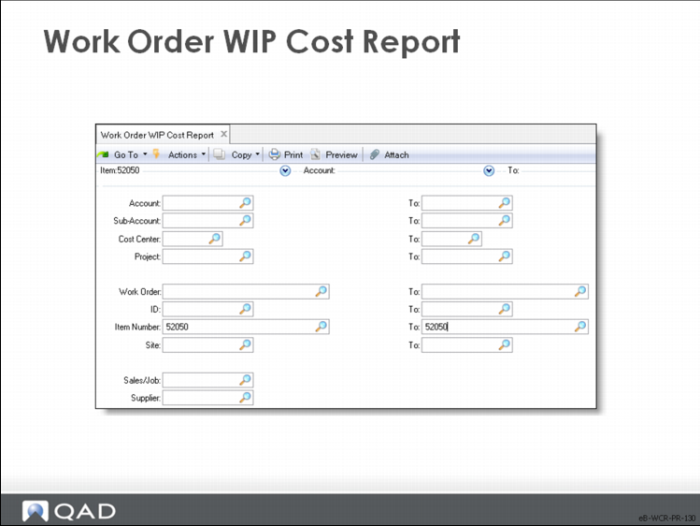
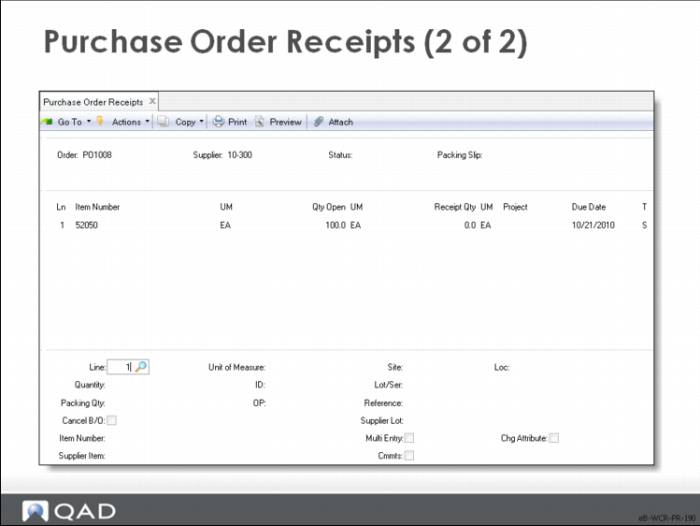
Use Purchase Order Receipts to receive the items back into WIP at the next operations. In the case where the subcontract operation is the last operation, the units can be received into an inventory location. It is common to have an inspection operation be the first operation after the subcontract operation to verify that all shipped units have been received and all are correct. Use the Work Order WIP Cost Report to track WIP cost of subcontract operations.
Work Order Cost Report
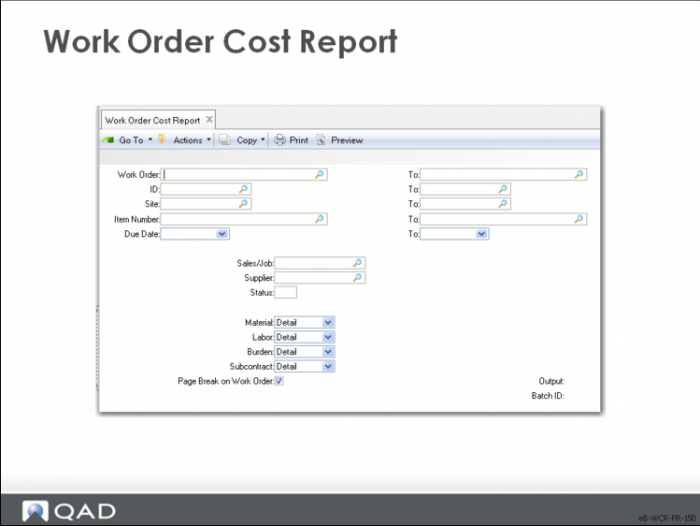
Use the Work Order Cost Report to see total work order cost including the cost of subcontract operations.
You can print this and other reports by supplier code.
Purchase Order Receipts
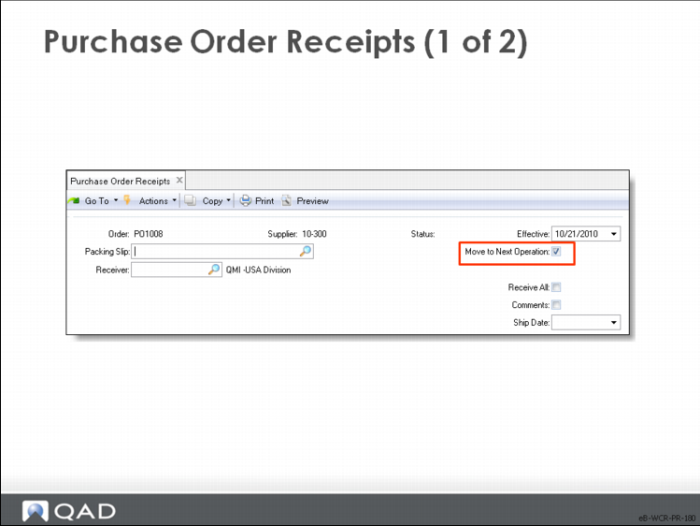
You receive subcontract items into WIP.
The receipt updates the quantity completed at the designated WO operation and sets the operation status to C.
You can specify to Move to Next Operation to set the status of the next operation to Q (Queue) so it appears on the dispatch list.
If the operation has been completed (status C) before the purchase order receipt, then the cost of the subcontract operation does not go to WIP, but remains in cost of production.