Setting Up a Product Structure
Product Structure Maintenance includes a graphical tool for creating, viewing, and editing the structure of bills of materials when you use the program in the .NET User Interface mode. This tool is only available with the QAD .NET UI.
Product Structure Maintenance
To access the tool, the program must be set to open in QAD .NET UI mode. To do so, in the Applications pane, right-click Product Structure Maintenance in the program listing and select Properties. Set the Open with field to .NET User Interface and click OK.
To create a product structure:
1 Open Product Structure Maintenance.
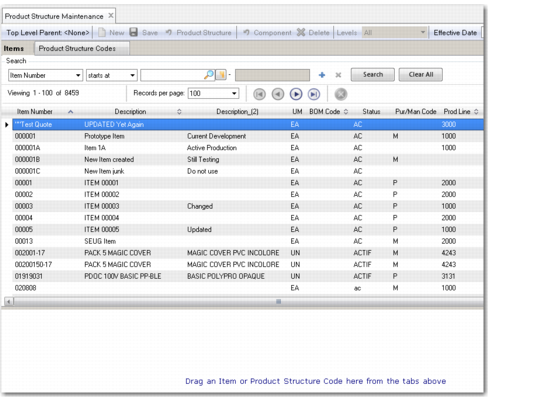
Opening Product Structure Maintenance
Note the blank workspace in the lower part of the display, located below the browses for Items and Product Structure Codes.
2 Drag a component (an item or product structure code) from a browse to the workspace.
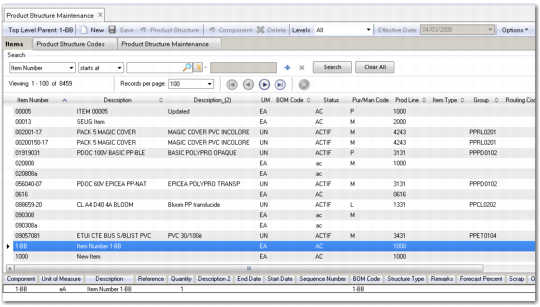
3 The component is now added to the product structure. The interface displays relevant fields along the top, including Component, Description, Unit of Measure, Quantity, Reference, Start Date, and End Date. Note that you can edit the Quantity, Reference, Start Date, and End Date fields, while the other fields are read-only.
4 To undo a component added to the product structure, right-click the component, and select Undo Add.
5 To undo changes to the product structure, click the Undo Product Structure Changes icon. Clicking this icon reverses the changes you have made to the selected component and all components under the selected component in the product structure hierarchy.
6 To undo changes to a component, click the Undo Component Changes icon. Clicking this icon reverses changes you have made to the selected component only.
7 Drag additional components to the workspace and directly position them within the product structure. Alternatively, double-click an item or product structure code.
8 New or modified components in the product structure are colored yellow. These components have been added to the product structure as displayed in the workspace but have not yet been saved to the database.
9 The system displays an error message if:
• You attempt to create a cyclical structure. For example, the system will not allow you to add an item that is a parent of itself.
• You add duplicate components to the same parent and then save the structure.
• You try to have two same components with overlapping valid periods and then save the structure.
You can alter the column views using the Show and Hide Column options, which you access by right-clicking on a column header. This lets you hide data that is not immediately relevant to maintenance, such as local variables or pre-processor commands.