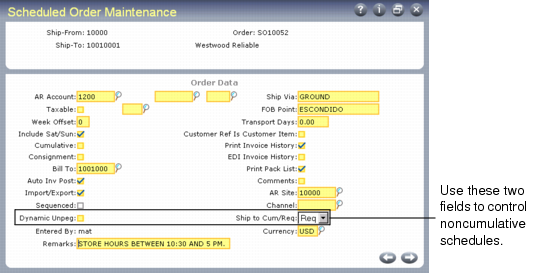
Header Frame
Some of the header fields are similar in function to the equivalent fields in Sales Order Maintenance. Fields that are unique to scheduled order processing are discussed here.
See User Guide: Distribution.
Scheduled Order Maintenance (7.3.13)
Week Offset
This field sets the weekly starting day of this scheduled order to match the customer’s work week. The default is 0 (zero), which represents Monday. If this customer’s business week begins on Tuesday, set this to 1, and so on through 6, which sets Sunday as the starting day. All reports and inquiries with bucketed quantities display the period requirements on this weekday.
Cumulative
Determines how requirements are entered on scheduled releases and displayed in reports and inquiries.
No: Net quantities are entered.
Yes: All quantities are entered as cumulative, meaning that the discrete quantity is added to the cumulative quantity of the previous requirement.
Consignment
Enter Yes if items on this scheduled order are consigned. This value defaults from Ship-To/Item Controls Maintenance (7.18.1), if used. If not used, the value defaults from Customer Consignment Control (7.18.24).
Enter No if the most items on this order are non-consigned. You can designate individual items as consigned in the Consignment Order Line Item Data frame that displays later during order entry.
See User Guide: Consignment Inventory for information on Customer Consignment Inventory.
Auto Inv Post
This field sets the default value for the Post Invoice field in Pre-Shipper/Shipper Confirm (7.9.5).
• When Post Invoice is No, invoices are not posted during shipper confirmation. You must post them manually using Invoice Post (7.13.4).
• When Post Invoice is Yes, invoices are automatically posted during shipper confirmation to the general ledger Accounts Receivable (AR) account specified in Customer Maintenance (2.1.1). You can print accumulated invoices using Closed Invoice Reprint (7.13.12).
This value defaults from the Auto Invoice Post field in Customer Schedules Control (7.3.24).
Sequenced
This field is available only when using the PRO/PLUS Customer Sequence Schedules module. It indicates whether the scheduled order is a sequenced scheduled order. If Yes, enter sequence information in the Sequence Delivery Data frame.
This value is used by EDI eCommerce, Required Ship Schedule Update (7.5.5), and Picklist/Pre-Shipper–Automatic (7.9.1) to verify whether scheduled orders are sequenced orders. It defaults from the Scheduled Order Default field in Sequence Schedule Control (7.5.4.24).
For details, see User Guide: PRO/PLUS.
Dynamic UnPeg
Set to Yes to initiate dynamic de-allocation. This affects the open quantity by letting pegged requirement quantities on unconfirmed shippers for the same order line number be included in the calculation. The pegged quantities are unpegged from unconfirmed shippers and pegged to ship lines on newly created shippers.
This activity is optional. It should only be used if unconfirmed shippers are left in the system for extended periods of time.
Transport Days
Enter the number of calendar days it takes for a shipment to arrive at the customer site. Specify a value only if your customer gives you a receipt schedule, specifying the date they want the product in-house. If your customer gives you a shipping schedule, they have already factored in the transportation time.
The schedule update functions uses this to set shipment dates.
Shipment Date = Requirement Date – Transport Days
Print Invoice History
Specify whether an invoice history can be printed for this scheduled order using Closed Invoice Reprint (7.13.12). This lets you print a paper copy of an invoice after an EDI invoice is transmitted electronically or when the advance ship notice (ASN) is used by the customer as the invoice.
EDI Invoice History
Specify whether an invoice for this scheduled order can be selected for export to the customer in EDI format using Invoice Export (35.4.3). On new orders, this field defaults from the Send EDI Invoices parameter specified for the customer in Trading Partner Parameter Maintenance (35.13.10). If that parameter is not specified, the default is No.
AR Site
Enter the site where the sales order or invoice was recorded. This can be the same as the ship-from site, but does not have to be. You can change this site for each line item.
In multisite transactions where the AR site is different from the ship-from site, you can make shipments and let a separate AR site collect the revenues. Also, the AR site can exist in a different entity or different database, or both.
Ship to Cum/Req
Specify Req (required) to indicate a noncumulative schedule. If Req, an additional frame displays. Specify Cum to indicate a cumulative schedule.
Enter Req to peg ship details out of sequence. Pegging occurs automatically during the creation of the shipper in:
• Picklist/Pre-Shipper–Automatic (7.9.1)
• Pre-Shipper/Shipper Workbench (7.9.2)
• Shipper Gateway (7.22)
For a cumulative order, you can disable automatic pegging by setting Automatic Cum Pegging to No in Container/Shipper Control (7.9.24) or Customer Schedules Control (7.3.24).
Customer Ref is Customer Item
Use this field to indicate whether the value entered in Customer Ref should be a valid customer item. It defaults from Customer Schedules Control.
You use Customer Item Maintenance (1.16) to cross-reference customer item numbers to your internal item numbers. Some customers may use more than one of their own identification numbers for your item.
If you have an internal item that correspond to more than one customer item, you can use this field, in conjunction with the Item and Customer Ref fields, to indicate which of the various customer items to use. This lets you set up more than one order line for the same combination of internal item, PO number, and ship-to address.
The effect of setting this field to Yes varies depending on what you enter in the Item field:
• When you specify a customer item number defined in Customer Item Maintenance (1.16) in the Item field, that customer item number defaults to the Customer Ref and Customer Item field (in the Order Line Item Data frame). The system replaces the value you enter in the Item field with the corresponding internal item number and displays a message to inform you of the change.
• When you enter an item defined in Item Master Maintenance (1.4.1) in the Item field and that internal item corresponds to just one customer item, the corresponding customer item number defaults to Customer Ref and Customer Item.
• When you enter a valid internal item number in the Item field that does not have a corresponding customer item number an error displays. You must change the item or set up a customer item cross-reference in Customer Item Maintenance.
• When you enter a valid internal item number in the Item field that has more than one customer item number, no default displays in the Customer Ref field. You must specify a valid customer item in Customer Ref to continue.
• When you leave the Item field blank and enter a valid customer item in the Customer Ref field, the system enters the corresponding internal item number in the Item field and defaults the value in Customer Ref to the Customer Item field.
Any values entered in Customer Ref are validated against existing customer item numbers.
Setting this field to No has the following effects:
• When you enter a valid customer item in the Item field, that customer item number defaults to the Customer Item field. The system replaces the value you enter in the Item field with the corresponding internal item number and displays a message to inform you of the change. The customer item number displays next to the Customer Ref field, but the Customer Ref field is not updated.
• When you enter a valid internal item number that corresponds to just one customer item in the Item field, the corresponding customer item displays next to the Customer Ref field and defaults to the Customer Item field; Customer Ref is not updated.
• When you enter an item number that either does not have a corresponding customer item number or has more than one customer item number, then both Customer Item and Customer Ref are left blank. Values entered in Customer Ref are not validated.