Scheduled Order Maintenance
Set up supplier schedules in Scheduled Order Maintenance (5.5.1.13). You must define several parameters that the system uses to calculate receipt, planning, and shipping schedules for individual items that have been entered on separate purchase order lines. This order provides the framework for a contract, but has no delivery dates.
After you enter an order ID and supplier code, additional detail frames display. The first contains shipping and credit information for the whole order. The next contain line-item information such as item numbers, ship-to data, line-item details, schedule details, and optional comments.
Header
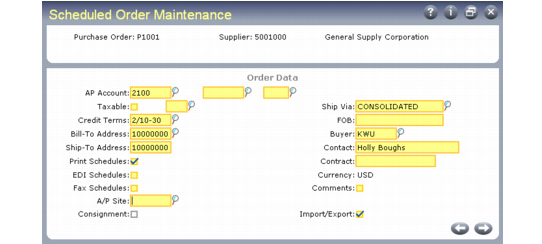
Several values in the header frame indicate how schedules based on this order are delivered to suppliers. Schedules can be printed, transmitted using EDI eCommerce, or sent by FAX, depending on the values you specify.
Scheduled Order Maintenance (5.5.1.13), Header Frame
When you are finished entering values in the header frame, press Go to display the line-item frame.
Line Items
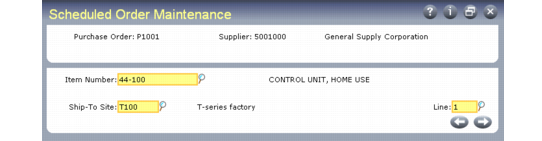
Use fields in the first line-item frame to specify an item to be ordered from the supplier and the site to receive that item. Unique line numbers enable you to enter more than one schedule line for the same item, if needed, as long as each line has a different ship-to site.
Scheduled Order Maintenance, Item and Ship-To Site
First Order Line item Data Frame
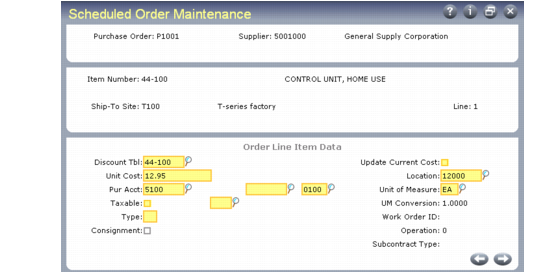
Use fields in the first Order Line Item Data frame to specify pricing and inventory data for the item referenced in the previous frame.
Use the list/discount table pricing functions in the PO/Sched/RMA Rcpt Price Menu (1.10.2) to set up price lists for scheduled orders. The price from the applicable list displays in the Unit Cost field. Effective prices can be updated in Purchase Order Receipts (5.13.1) and PO Shipper Receipt (5.5.5.11). Set Update Current Cost to Yes to update current costs for inventory items during receipt.
See User Guide: Master Data for details on price lists.
Order Line Item Data, First Frame
Type
This value determines whether the associated line item is received into inventory and considered by planning.
• When Type is blank, the associated line item is received into inventory. When the receipt is processed, inventory balances are increased and a GL transaction debits the Inventory account.
• A Type of S indicates a subcontract operation. A work order number and operation are specified on the order and on the receipt. Rather than updating inventory, the receipt updates the work order operation status and creates a GL transaction debiting the WIP account from the work order.
Item Revision
Enter the code representing the revision level of the item. This field is validated against predefined values entered in Generalized Codes Maintenance (36.2.13) for field pod_rev. This field defaults from the Revision field in Item-Site Planning Maintenance (1.4.17). If no revision exists there, it defaults from the Revision field in Item Master Maintenance (1.4.1).
Do not confuse the header order revision with the line item revision. Order revision indicates whether changes have been made to the scheduled order; it has no default. Item revision indicates changes have been made to the engineering version of the item; the level defaults from either Item-Site Planning Maintenance (1.4.17) or Item Master Maintenance (1.4.1).
When you copy a schedule line from another schedule line, the new schedule line inherits the source item revision level and date.
When you export schedule information using the following programs, the item revision level and item revision date from the schedule are included in the information:
• Supplier Shipping Schedule (35.4.8)
• 850 Purchase Order Export (35.4.9)
Second Order Line Item Data Frame
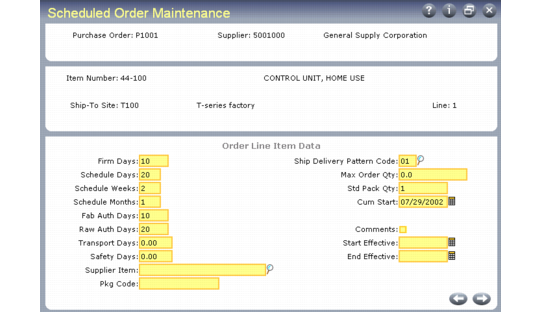
Use fields in the second Order Line Item Data frame to record data that impact the requirements and schedules generated for the associated line item.
Order Line Item Data, Second Frame
Firm Days
Specify the number of days inside the schedule update time fence for scheduled release calculations. These days should not exceed the number specified in Schedule Days.
Quantities and dates within this period are not changed by Schedule Update from MRP (5.5.3.1). Set Firm Days to zero to eliminate the update time fence. Do this when all requirements are released as planned so that the schedule update replans all dates and quantities.
See
Effect of Firm Days for more details.
Note: This value does not affect how MRP uses the Time Fence value defined for the item. Firm Days controls order releases by date and quantity. The item master Time Fence field controls planned orders by date and quantity.
Schedule Days
Specify the number of days of discrete dates and quantities to appear on printed or transmitted releases and on reports and inquiries, including intraday quantities and times. See
Schedule Bucketing for details.
Schedule Weeks
Specify the number of weekly bucketed quantities to appear on printed or transmitted releases and on reports and inquiries following any Schedule Days dates and quantities. Each quantity represents the total requirement for the Monday through Sunday week. Bucketing is for print and reporting purposes only. Internally, the system stores all requirements by discrete dates and quantities.
Schedule Months
Specify the number of monthly bucketed quantities to appear on printed or transmitted releases and on reports and inquiries following weekly buckets and discrete dates and quantities. Each quantity represents the entire month’s requirements from the first Monday up to the first Monday of the following month.
Fab Auth Days, Raw Auth Days
Raw and fabrication authorization commitments are made to give suppliers some protection against sudden and unforeseen reductions in demand.
• Raw quantity is the quantity of product you commit to covering the component costs.
• Fab quantity is the quantity of product you commit to covering manufacturing costs.
Note: Schedule Update from MRP uses these values only if scheduled requirements extend beyond the number of days in the authorization horizon. Otherwise, the authorization horizon equals the schedule days.
Transport Days
This field is normally blank. Specify a value for suppliers who do not ship or take responsibility for shipping, but from whom you pick up or schedule the pickup of orders. Entering a value in Transport Days converts all order dates from receipt dates to shipment dates.
Schedule Update from MRP uses this value to set shipment dates based on delivery dates (delivery date – transport days). It then checks the supplier’s calendar, if one exists, to verify that the shipment date is a workday for the supplier. If not, the update back-schedules to the next supplier workday.
All reports and inquiries check this field to verify whether to print or display delivery dates or shipment dates. When this value is positive, the system uses shipment dates.
Std Pack Qty
Enter the multiple in which orders for this item are shipped. This is similar to Order Multiple in the item master. It displays here because the standard shipment multiple for an item can vary among suppliers. Schedule Update from MRP rounds order quantities up to this multiple.
Order Multiple should generally be blank in the item master for items that are referenced on scheduled orders, since both values are applied to orders during different planning functions (MRP and Schedule Update from MRP).
Cum Start
Enter the date on which this order began to accumulate quantities. This may or may not be the date on which the order was created in your database.
When a line item is first scheduled, the cumulative receipt quantity is zero and the cumulative start date is set to the active start date of the schedule. As receipts are processed, the system updates the cumulative receipt quantity.
Sometimes cumulative receipt quantities must be adjusted manually, usually as dictated by policy. For example, you may reset them to zero at the start of your new fiscal year using Cum Received Reset to Zero (5.5.5.14). The affected cumulative start dates are then changed to that date.
You can also adjust cumulative receipts manually to reflect returned or defective items or losses due to theft using Cumulative Received Maintenance (5.5.5.13). For example, when defective items are returned to the supplier, you may want to process a return and credit without decreasing cumulative quantity.