Skins
>
Standard and Custom Skins
Standard and Custom Skins
A skin is a set of Web resources, including images, styles, colors, and JavaScripts. These resources contain information that specifies how the Web UI is to be displayed. A custom skin is stored in a Web Archived Resource (WAR) file. A WAR file is an archive for storing web resources. It enables you to change the UI details without interfering with the core product. All WAR files are stored in the JBoss deploy directory—typically \PRECISION\WebUI\jboss\server\ default\deploy.
Each WAR archive contains a WEB-INF folder, which contains a jboss-web.xml file. This is where you specify a unique context for your skin so JBoss can publish it and PRECISION can reference it.
<context-root>precisioncustom_cust</context-root>
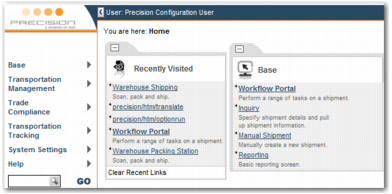
The settings in the precision.properties file specify which skin is displayed. The precision.properties file is located in the PRECISION\WebUI directory. The standard precision skin is the i3 skin. You can find this on the following line in the properties file:
precision.ui.skin=i3
i3 Standard Precision Skin
However, custom skins are also provided with the application. Two commonly used skins are QAD and P2009. If a custom skin is specified, it provides the settings for the Web UI display. By default, the P2009 custom skin is enabled.
precision.ui.custom.skin=p2009
Note: The P2009 skin is now the same as the i3 skin.
When the JBoss application server starts up, each WAR file is deployed. When the Web UI displays a page, it combines data from the core application and the skin WAR file configured by the precision.ui.custom.skin property. The value of this property must correspond to the ID (it is case sensitive), or context-root, associated with the WAR file. The WAR file name is not important.
<context-root>precisioncustom_p2009</context-root>
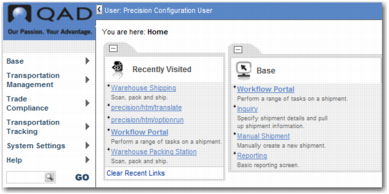
You can use another predefined custom skin to display QAD colors. To do this, change the setting in the properties file. There is a QAD EAR file in the deploy folder already, so save your changes and refresh the screen to see the QAD version.
precision.ui.custom.skin=qad
QAD Custom Precision Skin
In the precision.properties file, you can set your custom skin to be any skin provided by Precision. However, if you specify a custom skin that points to a context that does not exist, images are displayed as broken links.