Changing Colors
If you are using a custom skin, you can also use the precision.properties file to specify other custom settings to use. In the above example, you set the custom skin as follows:
precision.ui.custom.skin=company
precision.ui.custom.images=yes
This section of the property file also contains the following settings:
precision.ui.custom.css=yes
precision.ui.custom.header=no
precision.ui.custom.menu=yes
The setting precision.ui.custom.css specifies if the application displays a custom stylesheet. This stylesheet controls the colors that are displayed in the Web UI.
1 To set the css colors, open the css folder ...\PRECISION\WebUI\jboss\server\ default\deploy\precision-webui-company-skin.war\css\.
2 Open the file style.css.
3 The first three lines in file appear as follows:
TABLE.SIDEAREA { background: #294963;}
TD.SIDEAREA { background: white;}
.TOPAREA { background: #294963;}
Note: The number #294963 is a html color code.
4 Edit the three lines as follows:
TABLE.SIDEAREA { background: red;}
TD.SIDEAREA { background: blue;}
.TOPAREA { background: green;}
5 Save and close the file.
6 Save the changes to the archive.
7 In the precision.properties file, make sure it is set to use a custom stylesheet.
precision.ui.custom.css=yes
8 In the Web UI, clear the system cache and refresh the screen to display the new colors.
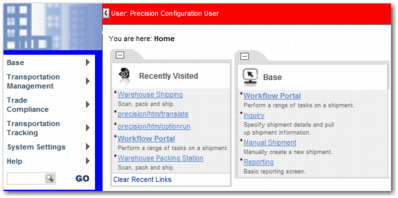
Home Page With Customized Colors
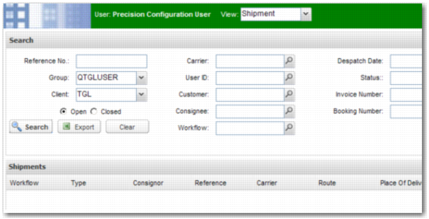
Workflow With Customized Colors
Note: If the color chosen for the top section of the page is dark, a light font color may be needed. Likewise, if the color is light, use a dark or black font. The styles that control the font color are A.TOPLINK, TD.WELCOMETEXT, and FONT.WELCOMETEXT.
The setting precision.ui.custom.header specifies if the application displays a custom header. This is a very advanced feature, enabling you to display a menu at the top of the screen. It overrides the JavaScript that usually writes the display at the top of the screen. If set to yes, the application references header.js, which is located in ...\PRECISION\WebUI\jboss\server\ default\deploy\ precision-webui-company-skin.war\js.
The setting precision.ui.custom.menu specifies if you use custom JavaScript to display the main menu. If set to yes, the application references the file menu_array.js, which is in ...\PRECISION\WebUI\jboss\server\default\deploy\ precision-webui-company-skin.war\js. In this file, you can manipulate JavaScript and change colors and other settings. However, it is recommended you contact Precision Services for assistance in doing this.
Note: You can set a skin to be applied when a user logs in with a particular ID. This is useful for demonstrations. For example, to use the QAD skin when you log in as john smith, set the following property:
precision.ui.custom.skin.jsmith=qad