Web UI 4.9
User Experience Enhancements
Compliance
Dual Use Items Check (ECLI)
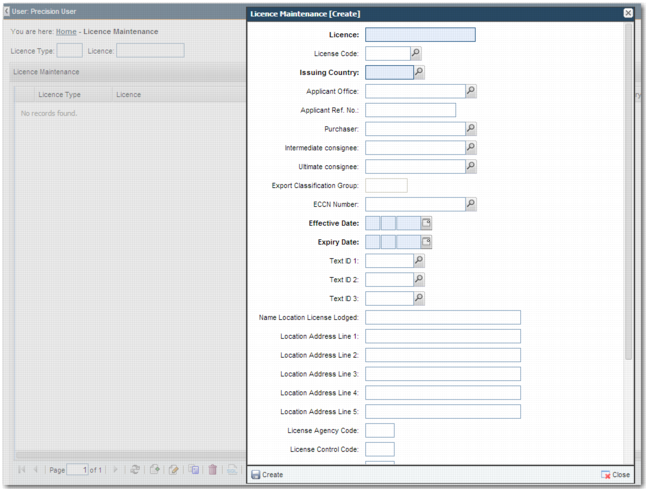
You can now maintain license information within the Web UI using the dual use items check (ECLI). This check is used to determine if a license is required to ship a product based on an Export Control Classification Number (ECCN) classification. The dual use or ECCN codes (for the US and the EU) are standard content provided by the Precision Content Group.
You can assign licenses to a specific consignee, product, or commodity code. You can associate effective dates and a maximum value and quantity with the license. To access the License Maintenance screen, use the XL Quickpath option, or choose System Settings|Trade Compliance Master Data|Licence Maintenance.
License Maintenance, Create
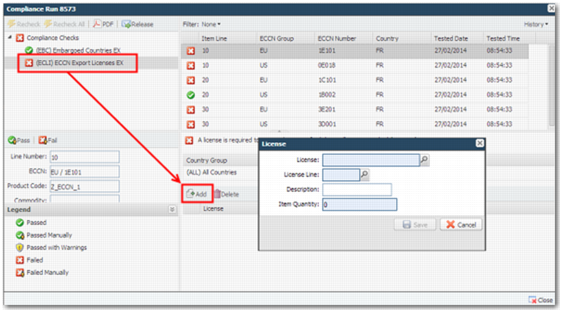
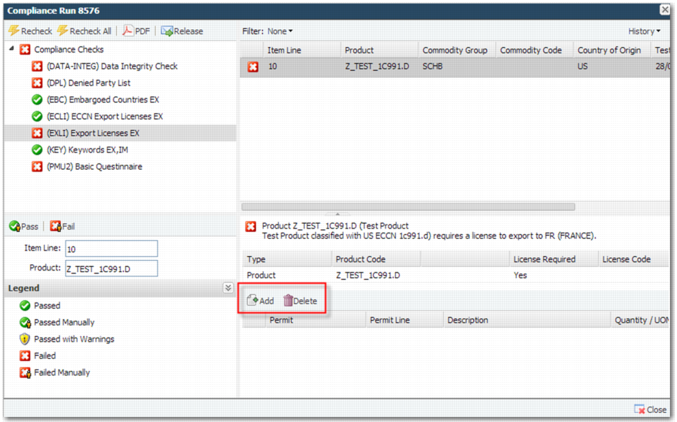
You can attach licenses to an item line from within the updated Compliance Results screen.
Compliance Results, Adding a License
Extended License Check (EXLI)
You can now maintain and verify extended license information within the Web UI.
Use the extended license check (EXLI) to manage non dual item control requirements. This facility is useful when authorities other than Export Control require a license, permit or guarantee before allowing an item to be shipped from or imported into a country.
The license rules are based on the following criteria:
• Country of Destination
• Origin Country
• Consignor
• Customer
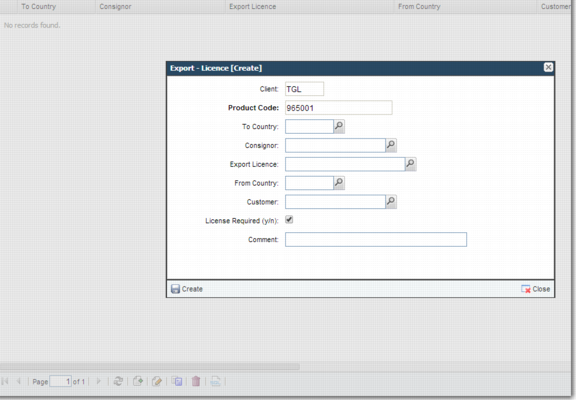
To access the Export Licences screen go to the Product screen Quickpath PR, and then choose the Export - Licence sub-option.
Product Screen, Export Licence Sub Option
You can set up a license rule at the product or commodity code level. License rules at product level take precedence over license rules at a commodity level. It is also possible to pre-assign a license to a product or commodity so that it automatically passes the check.
License Validation
Before a license is attached to an item line automatically or manually, the system checks whether it is appropriate to use the license with the transaction line. The validation is based on:
• Date range - the effective and expiry dates behind the license
• Product, commodity or ECCN validation
• Quantity and value limits
Keyword Check
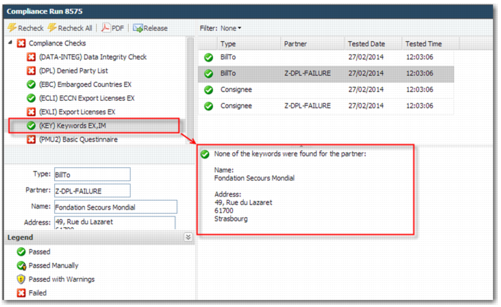
Compliance now includes a keyword check, which allows you to maintain a list of keywords within the Web UI using option CK. The compliance engine tests transaction name and address information for these keywords. Word matches cause the transaction to fail compliance.
Compliance Check Detail Screen
Questionnaires Check
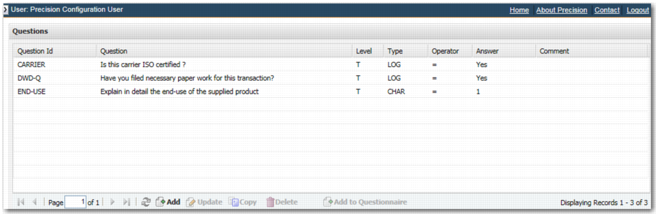
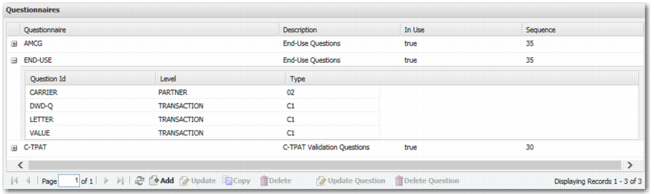
Transaction based questions have been added to the questionnaires check.
When a transaction is screened the system determines whether any questionnaires are configured for the transaction. The transaction fails compliance until all answers are complete. To set up the questions and questionnaires, use the new QE option. Use the QUESTION CHECKS system value to specify a list of valid questionnaire codes that you can use to create questionnaires in option QE.
QUESTION CHECK System Value
Category | Key | Description |
COMPLIANCE | QUESTION CHECKS | A comma-separated list of questionnaire codes for which you can create questionnaires in option QE. |
Additional Partner Roles for Denied Party and Keyword Checks
The list of partner roles that can be used with the denied party list and keyword checks has been extended.
Additional Partner Roles for the Denied Party and Keyword Checks
Partner Code | Partner Description | Database Field |
03 | Shipment bank | XMSHDR0.SHSBNK |
06 | Principal | XMSHDR0.SHPRNC |
07 | Declarent | XMSHDR0.SHDCLR |
09 | Also notify | XMSHDR0.SHANTF |
10 | Customs | XMSHDR0.SHCSTM |
11 | Sales agent 1 | XMSHDR0.SHSREP |
12 | Responsible | XMSHDR0.SHRESP |
13 | Financial | XMSHDR0.SHFNCL |
16 | Contact | XMSHDR0.SHOFCR |
17 | Deliver from | XMSHDR0.SHDLVR |
18 | Deliver to | XMSHDR0.SHDLVRT |
19 | Consignors bank | XMSHDR0.SHCBNK |
20 | Inspection by | XMSHDR0.SHINSP |
27 | Credit insurance agent | XMSHDR0.SHCINS |
38 | Insured party | XMSHDR0.SHINPI |
39 | Copied from consignor | XMSHDR0.SHCONOCPY |
44 | Settling agent | XMSHDR0.SHAGCT |
46 | Supplier | XMS2DR0 S2SUPP |
Compliance Results Screen Enhancements
You can view the results of the compliance checks in the Compliance Results screen. The results screen can be launched in the following ways:
• As a workflow task assigned to a transaction (WFTCKV).
• From the history search screen (CKHIST).
• By clicking on the URL in the e-mail alert sent after compliance runs.
• From the compliance step in desktop shipping.
Compliance Results
The Compliance Results screen has a number of enhancements.
• New icons on at the top of the screen:
Compliance Results Screen Icons
Icon | Description |
| Generate a PDF document detailing the compliance results. |
| Re-runs all the checks assigned to the transaction but will skip any previous manual override actions performed on the transaction. |
| Re-runs all the checks on the transaction including any previous manual override actions performed on the transaction. |
| Send a message with the latest compliance results to a third party system. |
| Show a history of the compliance screenings and manual actions taken. |
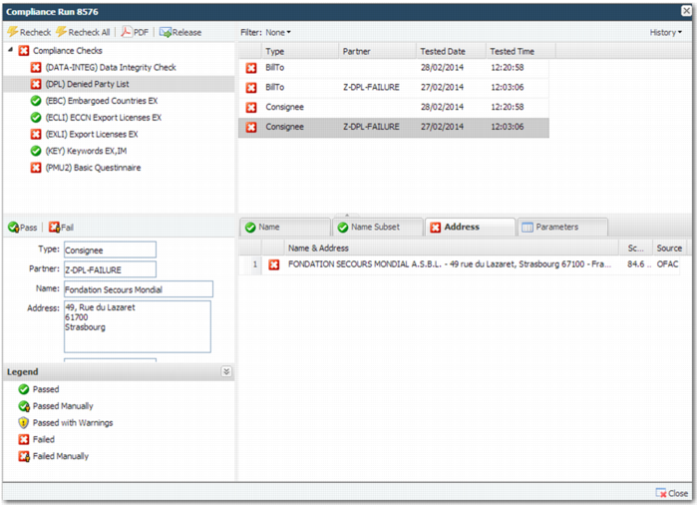
• Manually override of check results: Depending on user privileges, it is possible to manually pass or fail checks. Select the check that you want to manually pass or fail and then click the Pass

or Fail

icon.
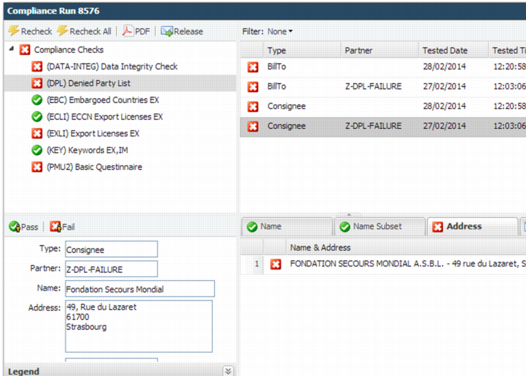
• DPL White-Listing: If a party fails the Denied Party check and, after investigation, it is determined that it is safe to ship to that party, you can add the party to the white list. Consequently, the party will not fail against the same denied party entries again. If new entries are added to the denied party list through content updates, the party could potentially fail against these new entries.
You can add a party to the white list by manually passing the DPL check on that party. Enter a comment explaining the reason for adding the party to the white list. CHECK THIS
• License Assignment: You can now assign licenses to, or remove them from, item lines. If a license is assigned to an item line, then the cumulative value and quantity on the license record update. If you remove a license from an item line, then the cumulative value and quantity for the license are reduced, and can be allocated to other item lines where applicable.
Compliance Results, Export License Check
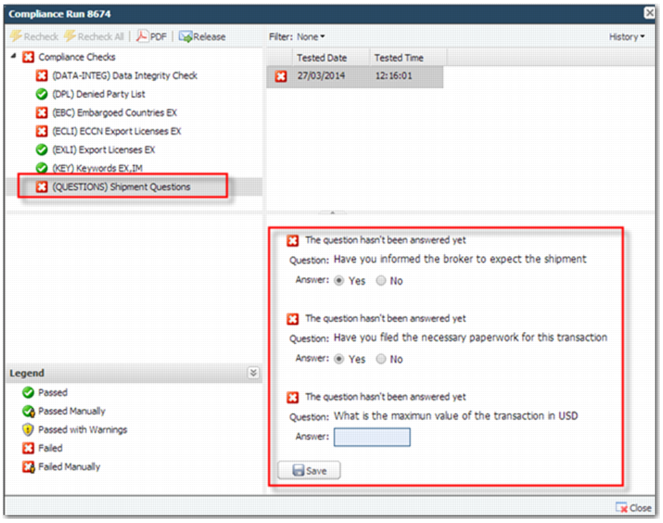
• Questions: You can now view and answer questions on this screen. The questions check fails until all questions are answered correctly. You can specify the expected answer to the question on the master question record using option QE.
Compliance Results, Questions
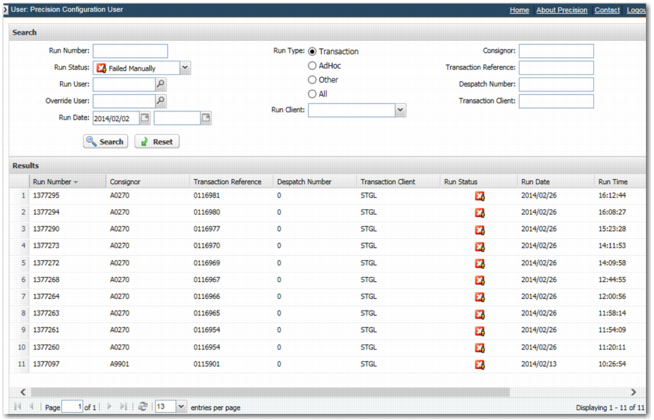
• History Search: This screen provides a complete history for all screenings that have been performed. If you are responsible for export control, and have the appropriate access privileges, you can use this screen on a daily basis to manage transactions. It has a comprehensive set of filter criteria in the search section at the top of the screen.
Compliance History Search
Notifications
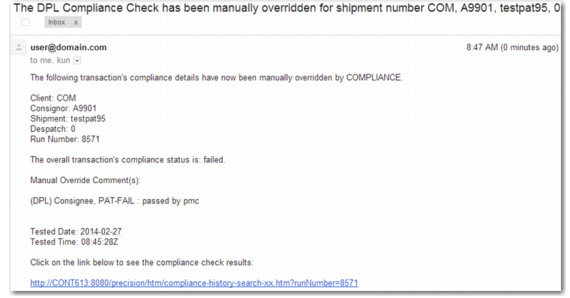
Notification alerts can now be configured for each compliance check type. If appropriate, e-mails are sent when you or another person:
• Selects the Re-check on the Compliance Results screen.
• Selects the Re-Check All on the Compliance Results screen.
• Runs the compliance workflow task.
Note: The compliance workflow task runs compliance checks; it does not display the Compliance Results screen.
• Manually overrides a result on the Compliance Results screen.
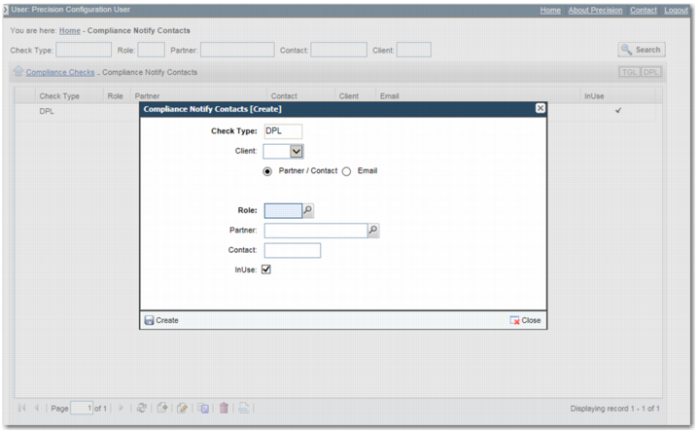
You can configure notification alerts on a partner, role, and partner contact, or individual e-mail basis.
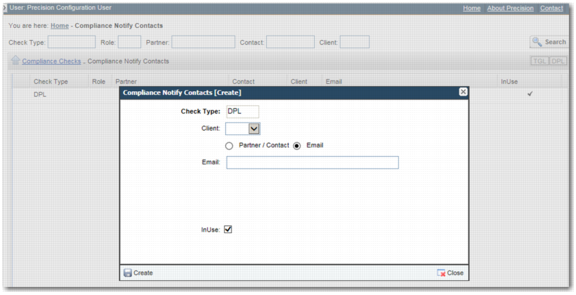
Compliance Notify Contacts Create Partner/Contact
Compliance Notify Contacts Create E-mail Address
Example Compliance Email Notification
Authorization
The authorization setup now provides greater flexibility to:
• assign compliance privileges
• override compliance results.
You can configure access at check level and at a client level. This enables division of responsibilities between regions and divisions. Additionally, the access is split into the ability to override a result and the ability to make changes to the transaction; for example, assign a license in the Compliance Results screen.
You can now assign access at the role/user group level or at user level.
Generating responses to External Systems
You can now configure the compliance engine to generate an XML message (Compliance Response message) and send it to a Highway endpoint when you:
• Run compliance (Re-Check/Re-Check All /Run the compliance workflow task).
• Manually override a compliance result.
• Attach a license to an item line.
• Answer a question.
The customer can then poll the output endpoint to pick up and parse the response message, allowing them to update their external systems accordingly.
Example: An order in the ERP system is put on hold as a result of a compliance failure. A user in PRECISION manually overrides the transaction, setting it to a pass status. This action generates a compliance response message that is sent to an output queue via Highway. The message is picked up and processed by the external system. Because the transaction has now passed compliance the order in the ERP system can be released.
The response message is only generated when the overall compliance status on the transaction changes. If the status of an individual check changes but the overall status does not change, then no response is sent.
A message is sent when the new status on the transaction exists in the GENERATE RESPONSE STATUSES system value.
GENERATE RESPONSE STATUSES System Value
Category | Key | Description |
COMPLIANCE | GENERATE RESPONSE STATUSES | A comma separated list of codes representing compliance check statuses for a transaction. Possible values: • PM - passed manually • FM - failed manually • PA - passed automatically • FA - failed automatically • PW - passed with warnings Default value: PM,FM,PA,FA,PW |
When the initial request is submitted to create a transaction and run compliance there will always be a response sent.
Note: Response messages are sent for both transaction-based (CreateShipment) and non transaction-based (ProcessCompliance) requests.
Note: For both transaction-based and non transaction-based requests, the Compliance Response message is the response message sent. The exception is the initial reply to the CreateShipment request, which returns the compliance result within the ProcessSPSResponse response message.
Literals Translation Functionality
The compliance screens now leverage the Web UI translation framework.
An updated literal data pack will be made available for Web UI to include the new compliance literals added.
Workflow
Manual Shipment Create (WFONWS)
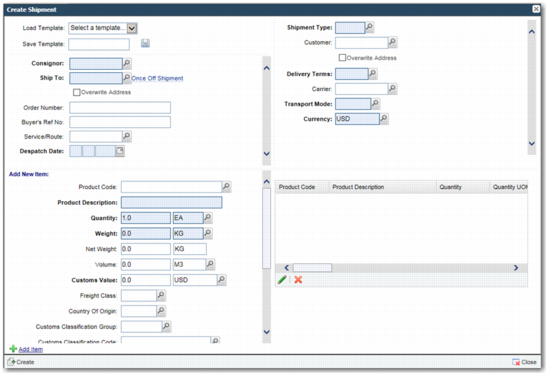
A number of enhancements and fixes have been made to the Create Shipment workflow option:
• The template functionality now allows you to save product information as part of a template. Previously, only header details could be stored in the template.
• The screen layout now displays the most important fields more clearly, with scrollbars for each section.
• When a product code is specified, other fields in the new item section populate automatically with master product and commodity information.
• Shortcut keys have been added to the Create (F2), Add Item (Ctrl+F2) and Delete (DEL) buttons.
• The Add Item button is always visible.
• The screen has an internal minimum size, which is used even when the toolbar configuration specifies a smaller size. Also, the toolbar configuration now supports a maximum width and height option, which opens the pop-up with the maximum size given the user's browser window size.
TOOLBAR - S System Value
Category | Key | Description |
WORKLOAD | TOOLBAR - S | tooltip:Create Shipment;option:WFONWS;icon:icon14;width:max;height:max |
Category: WORKLOAD
• Validation errors display in Ext JS popups rather than browser-specific alerts.
• When validation fails, item information is now preserved.
• The shipment currency is now always set to the currency specified on the screen.
Manual Shipment, Create Shipment
Web UI Customs Support for NES and ATLAS.
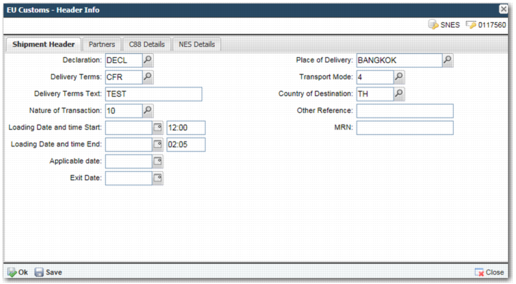
• A new Header Info workflow task (WFTCSH) enables shipment information used in NES and ATLAS customs integrations to be reviewed and maintained.
EU Customs - Header Info Task
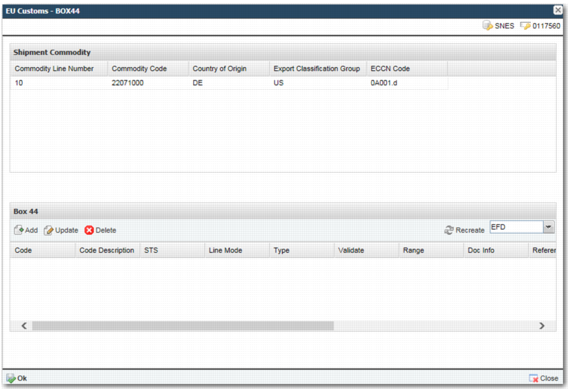
• A new Box44 workflow task (WFTB44) enables customs integration with ATLAS and NES.
EU Customs - BOX44 Task
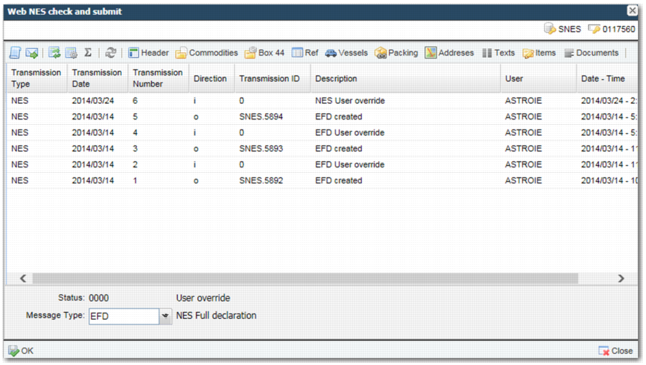
• A new Web NES Check and Submit task (CSTSH) enables customs integration with ATLAS and NES. The task allows you to
• Review previous transmissions made to customs
• Make new submissions.
Web NES Check and Submit Task
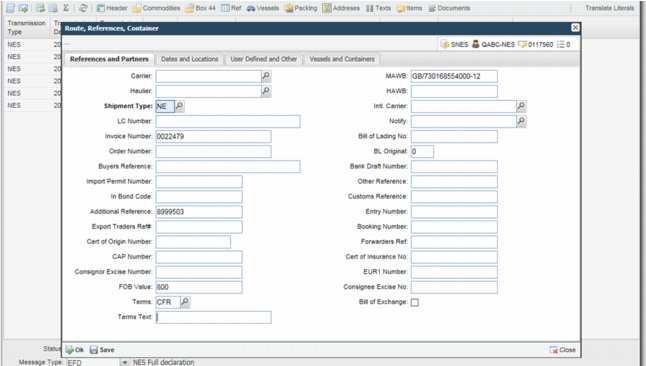
The task also supports jumping out to other tasks to maintain data that is sent to customs.
Routes, References, Container Task Accessed from Web NES Check and Submit Task
Enhanced AES Customs Support
There are a number of changes to the US Customs AES Task (WFTAES):
• Origin state field added.
• EIN number added to the partner selection list grid.
• Issues with saving license and commodity information within the AES task resolved.
• Previously, AES status updates did not complete after a Validate And Transmit action. This issue is resolved.
Standard Packing Task
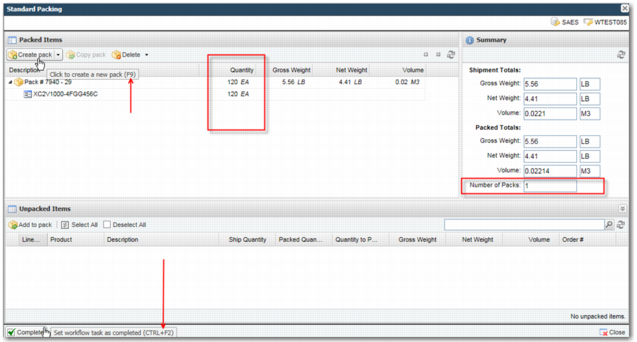
There are a number of changes to the Standard Packing task (WFTSPK):
• The task now shows the total number of packs in the summary section.
• The packed items grid includes a new quantity column detailing the line and pack quantity.
• When creating a new pack, after the pack type is specified the information is used to default pack weight, volume, and dimension information.
• Shortcut keys have been added to the Create Pack (F9), Save (F2) and Complete (Ctrl+F2) buttons.
Standard Packing Task
Documents Task (WFTDOC) and Document Text ID Task (WFTDTI)
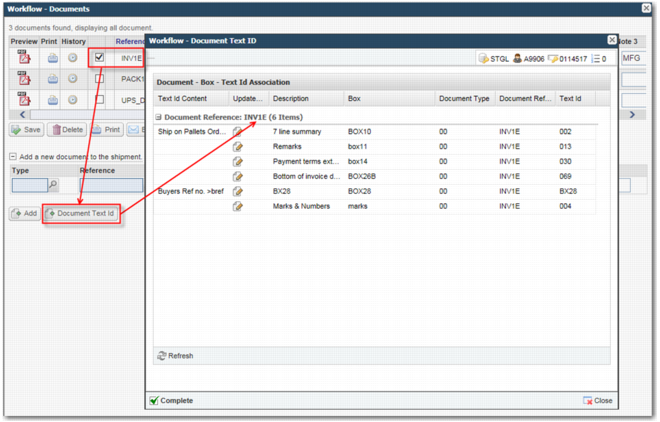
• You can now jump to the Document Text ID task from the Documents task. When the Document Text ID task is opened from the Documents task it now only shows the text ids for the documents that are selected. The button is only shown if a task with option WFTDTI is found on the workflow.
Documents Task
Consolidate Shipments Task (WFTCST)
• Fixed a number of issues with updating a consolidation. The consolidation is now unlocked when the update task is completed.
Reset Close Shipment Task on Shipment Re-open
• Re-Open Shipment Option (OPENSH): When a shipment is re-opened, the close workflow task is now reset so that it reflects the open status of the shipment. The logic looks for the workflow task with option "BBSCLS" and clears the completed flag.
Manifest Task
• Added shortcut keys to the Process (F2) and Complete (Ctrl+F2) buttons.
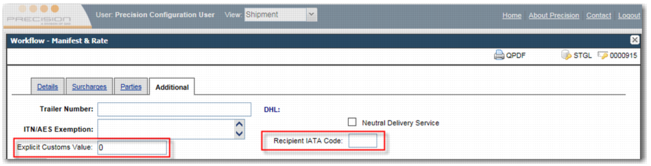
• Added Recipient IATA Code and Explicit Customs Value fields to the Additional tab panel. The IATA code only displays when the shipment has a DHL service assigned.
Manifest Task
Shipment Details Task (WFTSDE)
• Error text is now merged together so that descriptions are no longer split based on how they are stored in the database.
Partners - Trading Internal and Transport Customs
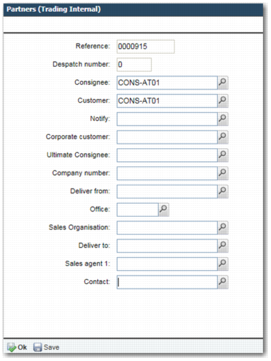
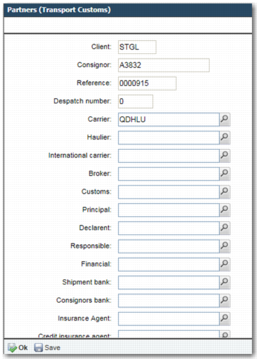
• Added support for shipment partner sub option workflow tasks - Trading Internal and Transport Customs.
Partners (Trading Internal)
Partners (Transport Customs)
General
Desktop Shipping
• The Compliance step now uses the updated results screen available to other compliance options.
Note: Denied party and embargoed country checks remain the only checks available to desktop shipping.
• The Compliance step can now perform a denied party check on the Ship To contact name.
Scan Pack Ship
• You can now recall the information bubble using the key shortcut CTRL+Y.
Scan Pack Ship Information
• You can control the duration of time for which the information bubble displays using the INFO_DISPLAY_PAUSE system value.
INFO_DISPLAY_PAUSE System Value
Category | Key | Description |
SNPKSH | INFO_DISPLAY_PAUSE | The duration, in seconds, for which the information displays. Default value: 3 |
Routing Guide Rules
• Cosmetic enhancements to the Routing Guide Rule screen.
• Fixed issue where the screen did not load under certain circumstances.
User Maintenance (US Option)
• Fixed issue where some user field values were not being validated.
Rate Shop
• Added logo support to rate shop screens for the new FedEx web service carrier (FDW).