How QAD helps you standardize processes
Sales Order
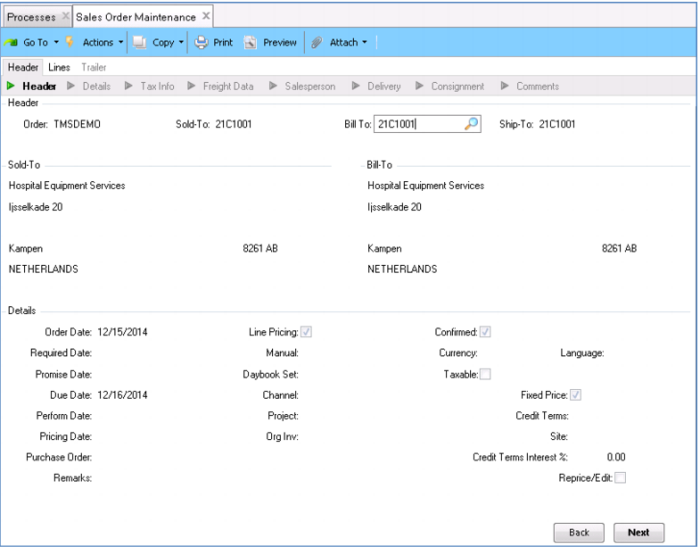
Let’s start with the customer order. There is no special procedure, just enter the order. In this case, we’ll take an order to ship internationally.
Note that you can use TMS prior to taking an order to verify compliance – for example, if you have a new customer, you can verify they aren’t only any restricted party list. Some companies will do this prior to taking the order or during order entry, and then check compliance again when they process the shipment just in case rules change. This demonstration checks compliance only once, as the first step in the shipping process.
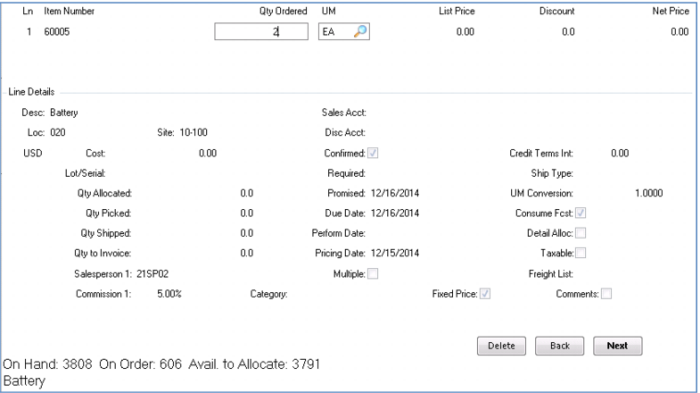
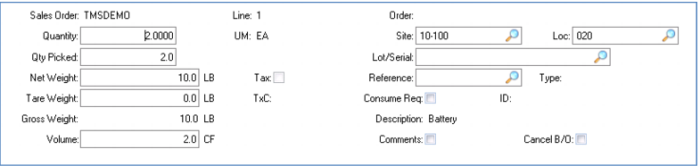
This customer ordered some special batteries, to be shipped immediately and delivered next day. Notice the weight per battery is 5 LB. You will see this again as you build the container for shipment and determine the transportation cost.
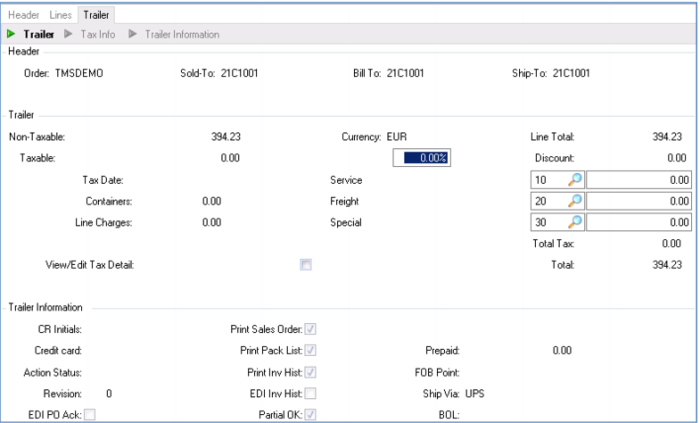
When you finish entering the order, notice that there is no freight charged (Trailer code 20 / Freight). This will be updated from TMS once you rate and route the shipment.
Additionally, notice the Ship Via. This defaults from the customer. If you are like most companies, you probably have a standard shipping option – maybe a contract with FEDEX or UPS, or a standard process for sending everything 2nd day air. But do you ever check the rates, comparing other carriers to your contract carrier? Or do you check the due date to see if you might save a bit by shipping 3 day instead of 2nd day?
That is what TMS is going to do for you!
Demo
Key Points
• Standard order entry processes; admin doesn’t have to rate or route
• Optional compliance screening prior to entering a new order
Shipper
The next step in the process is to create a pick list and initiate a shipper. Most important to note is that your warehouse staff do not need to know anything about compliance or freight selection, nor do they care where the shipment is going. When the ordered products are available, they use the standard procedures to generate the paperwork to pick and pack the order.
In QAD there are all sorts of ways to process this - print a pick list, create a pre-shipper/shipper, or set up a confirmed shipper. It is up to you at what stage in the process the order gets picked up by TMS to initiate the shipping process. We’ll comply with your standard procedures – that’s part of the implementation.
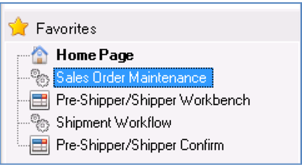
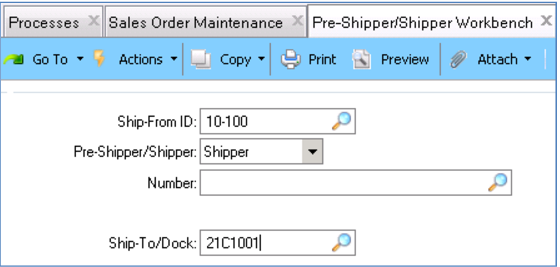
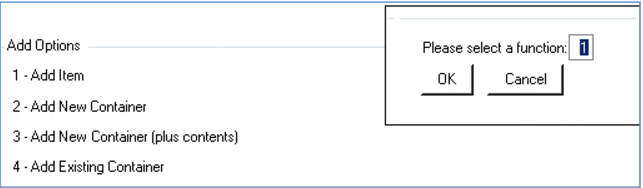
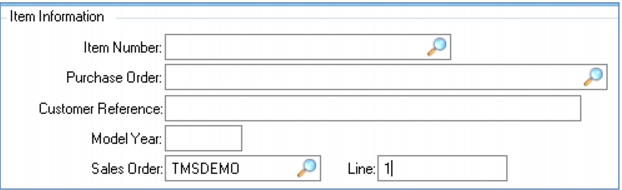
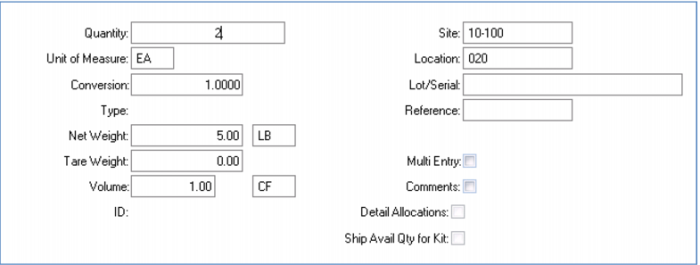
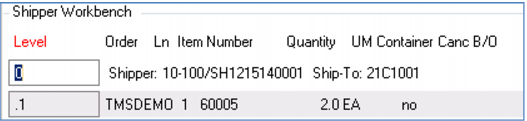
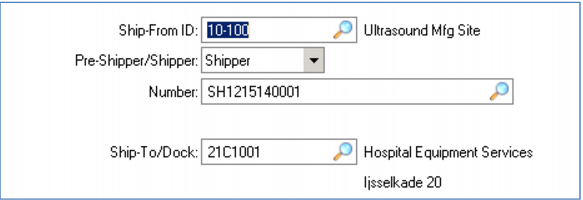
In this example, we will initiate the shipping process by entering a confirmed shipper using the Pre-Shipper / Shipper Workbench. Set up the shipper and then flag the items as picked.
Demo
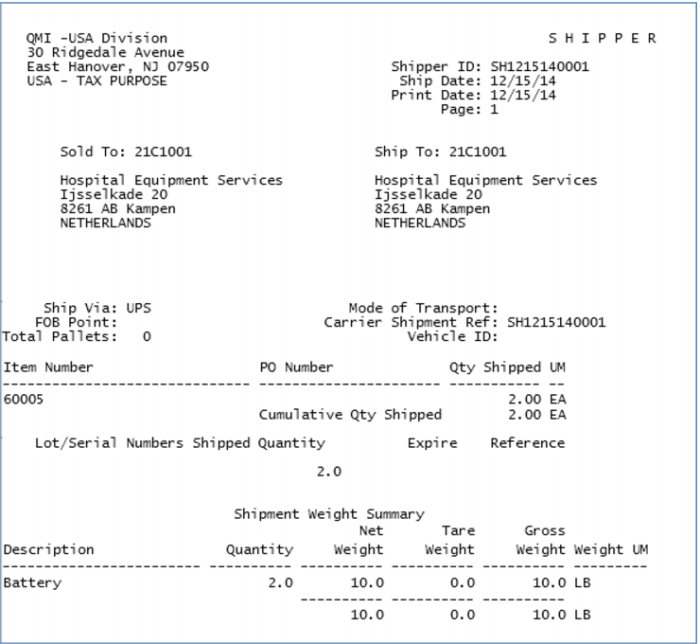
Note Pick quantity and weight
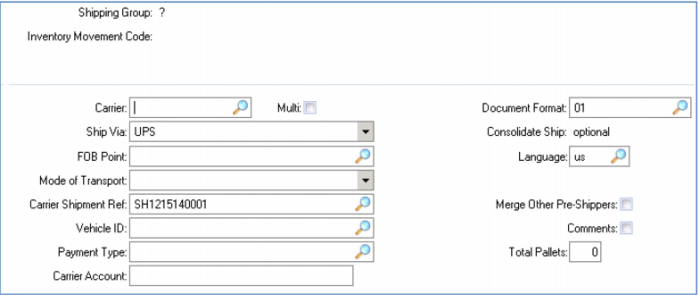
Note the shipper number
Key Points
• Multiple options, demonstration shows only one