How QAD streamlines shipping processes
Shipping Workflow
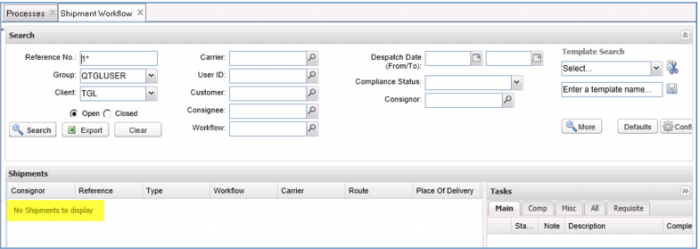
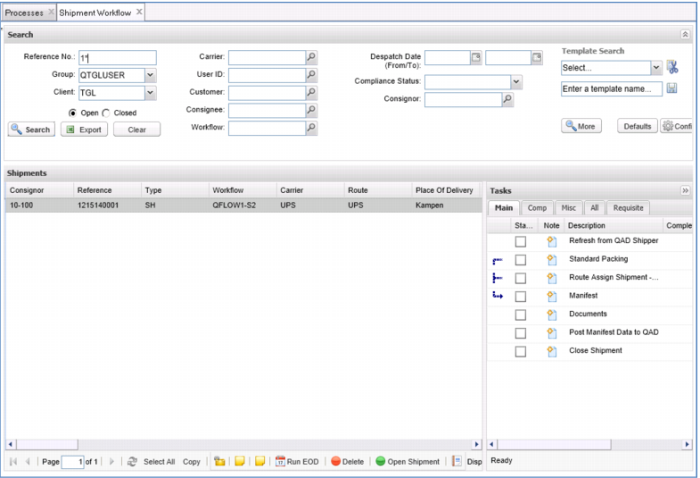
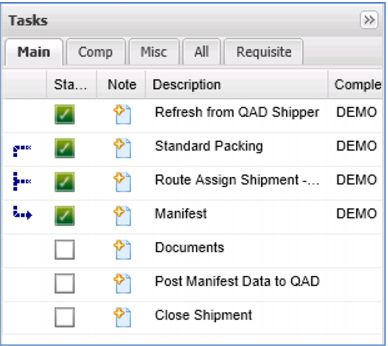
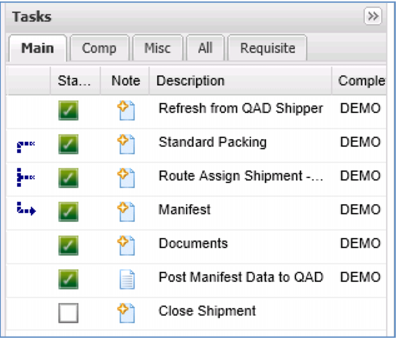
Your shipping department immediately sees this order in their work queue along with the steps required to process this shipment. This is the central dashboard for all shipping activity; optionally sorted and filtered to show the subset of orders that are this person’s responsibility.
Each order will have its own workflow attached, determined using your business rules with tasks based on the customer, shipping address and type of product. For example, the steps involved in an international shipment of hazardous materials will differ greatly from a domestic shipment of electronics.
Some tasks are mandatory. Others are optional. Others are included only for some products or ship-to locations, for example, you would not need to do a customs invoice for a domestic shipment. This rules-based workflow eliminates unnecessary activities, while ensuring that you complete everything you need to before finalizing the shipment.
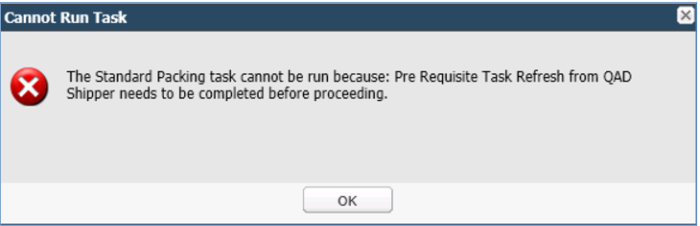
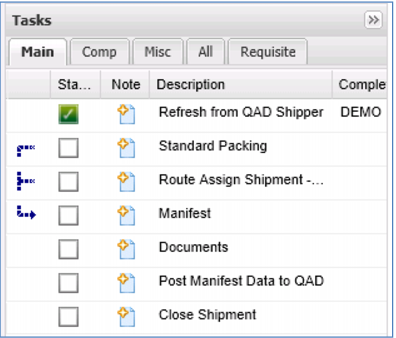
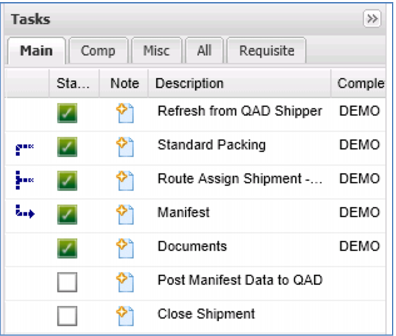
In this example, the first step in the workflow is Refresh from QAD Shipper – although the order is there, we want to make sure there haven’t been any updates. This shows how you can make some tasks mandatory. If you try to do the next task (Standard Packing), it will tell you to update from QAD first – a simple example that shows you the type of control you have over the process.
Demo
Note that this does not let you do this!
Note task turns green to show it has been completed
Key Points
• Orders ready to ship automatically appear in queue
• Attached workflow based on business rules
• Defines pre-requisites and required/optional steps
• In this case, makes sure you have up-to-date information before continuing
Standard Packing
There are several ways of managing the packing process. You can configure TMS to adapt to your preferred way of business. You may choose to manage the packaging in QAD – setting up containers or using Serialization - and then pass the packed shipment to TMS for processing, or you can pass the shipment unpacked, like we are doing here.
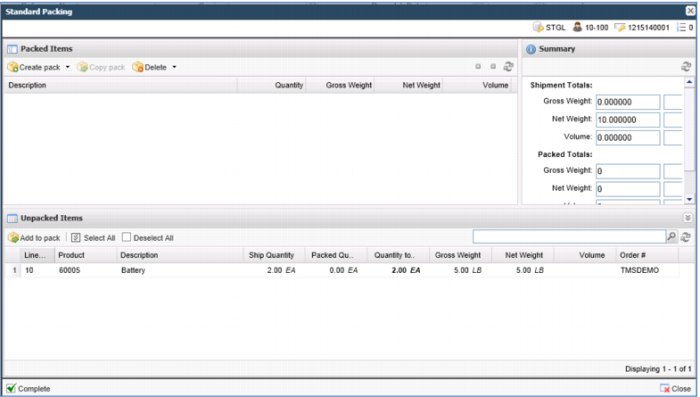
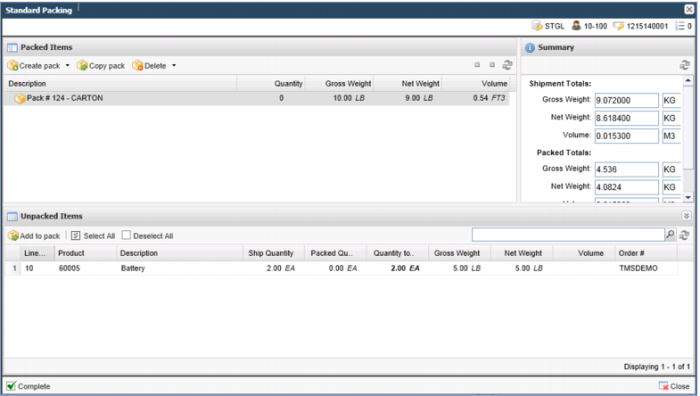
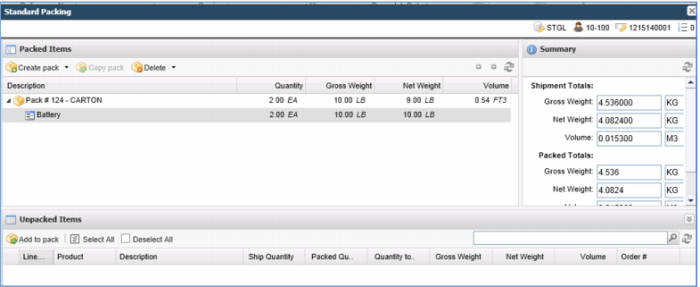
In this example, we create the container and pack it as part of the TMS workflow. Workflow tasks can be designated to automatically pack shipments based on predefined pack criteria, package weights, and dimensions. You can build cartons using standard pack quantityand create packages with several smaller cartons inside a larger carton. All of this can be done manually, using drag and drop, or using a bar-code scanner.
TMS will also help you consolidate multiple orders into a load. For example, if you have a truck heading from Los Angeles to Denver, you can look up all the orders due to ship to anywhere on this route and select them for the load. As you select orders, there is an icon that shows you percent fill, and they will be loaded onto the truck in reverse drop order – Las Vegas then Denver. Once the full load is built, then you tender the load to find the best rate.
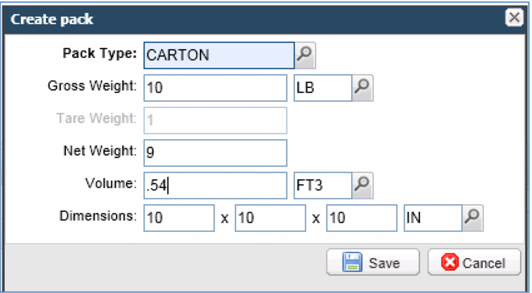
Let’s pack this order. As it walks through the packing process, you can see how it uses the standard pack size, calculates weight and volume, and creates the packs. Notice how all of the information comes from the original order, no re-keying is necessary – eliminating costly errors and greatly increasing productivity.
Demo
Key Points
• Multiple ways to handle packing
o Containers / Serialization in QAD
o Pack in TMS
• Build pack manually or using scanner
• Consolidate multiple orders on load
Route & Manifest
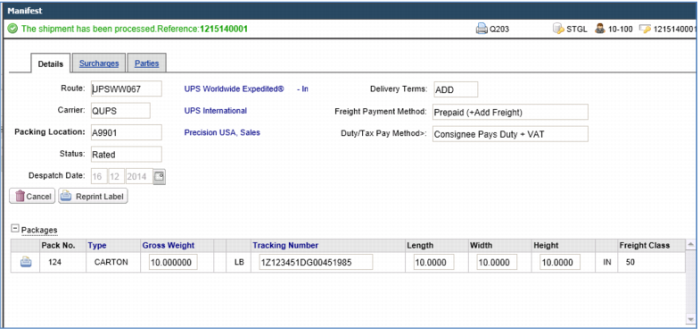
When this is complete, our sample workflow proceeds automatically through the next two steps – first it does the carrier and service selection and then it proceeds to the manifest step.
This is an example of how the workflow just takes you naturally from step to step making sure that all of the required steps are done, in the desired sequence.
In this demonstration, the best carrier and service is chosen automatically based on pre-defined business rules. You can set it up this way, or you might give your shipping personnel more leeway to review various rates and make the best choice. For example, they may review options for least cost, fastest delivery or some combination and then manually decide which routing is best. That’s up to you.
This sample workflow automatically moves from rate shopping to manifesting, showing how TMS Workflow automates and streamlines the process.
It is also an example of how some steps can be set up as pre-requisites – you need to select a carrier and service before you can do the manifest. Although that is only logical, you can set up the system so that it makes sure tasks are done in the right sequence, eliminating the possibility of errors.
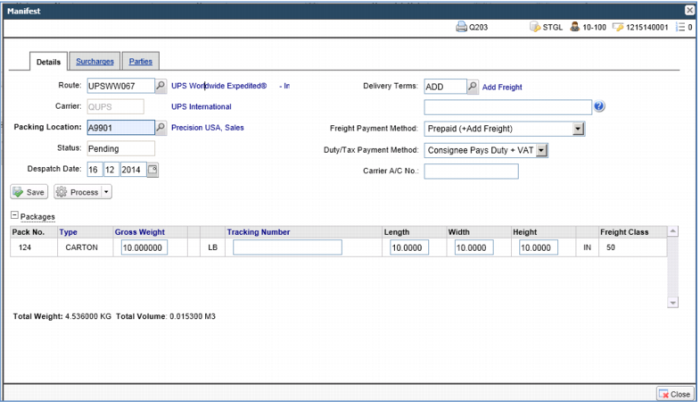
Notice on this manifest the total weight, volume and calculated freight charges both in EURO and USD. This is the amount that will be posted to the customer invoice when you complete the shipment.
Demo
Note: Route and Carrier
Key Points
• Automated workflow – required steps, in desired sequence
• Option to manually select services
• Calculates weight, volume and freight charges
• Supports multiple currency
Documents
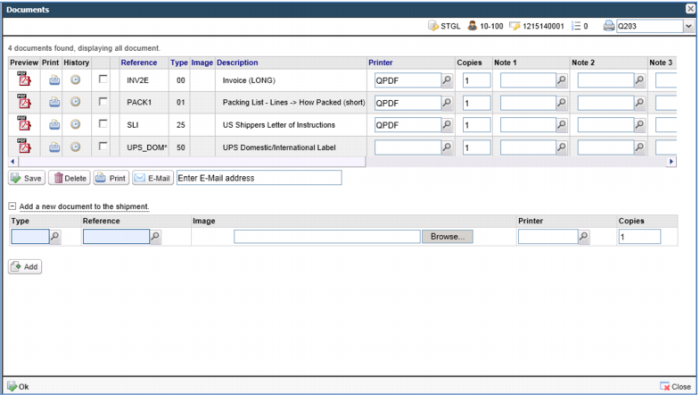
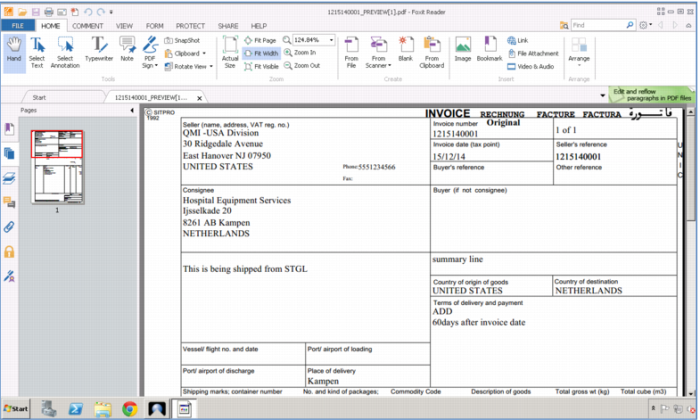
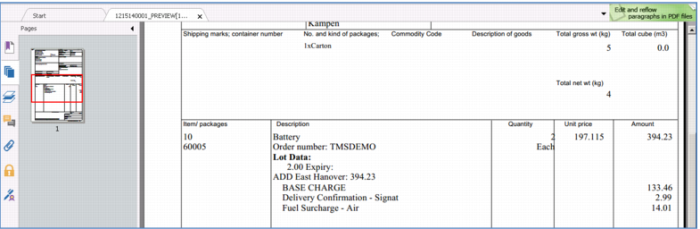
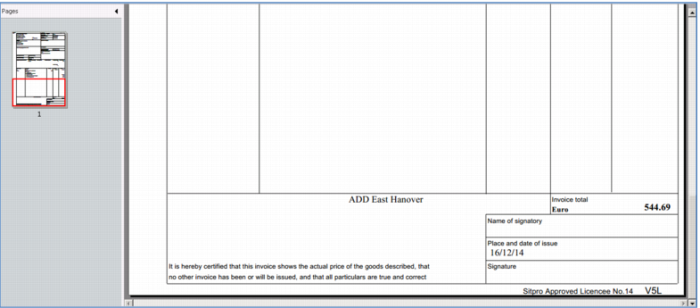
The system uses rules to automatically generate all required documents based on the ship-to country, value of the shipment, type of product, the carrier, and more. In this example, the system generated a Commercial Invoice for Customs, Shipper’s Letter of Instruction and Packing List.
TMS draws upon a library of standard domestic, international and multi-lingual documents, including Hazmat documents, carrier specific requirements like shipping labels, and e-reporting functions such as those needed in the US and EU.
Required documents are automatically generated as pdf’s and attached to the shipment. You can print, fax, or email; and they are available online for reprinting and inquiry. Standard documents are easily customized to meet your needs – moving labels and markers, add new fields. It’s equivalent to Jetform functionality, at no additional cost.
This ability to automatically create required documents, in the right language, significantly speeds up the shipping process, eliminates errors and reduces manpower. You’ll not only see process improvements and efficiency gains with automatic generation of export documents, you’ll see the same improvements with domestic shipments that require documents like bills of lading, packing lists, certificates, and product labels.
And no more delays due to inadequate or incorrect documentation; that translates into more on-time customer deliveries!
Demo
Key Points
• Comprehensive document library, international & multi-language
• Automatically creates documents based on rules
• Eliminates manual data-entry errors
Update QAD and Close
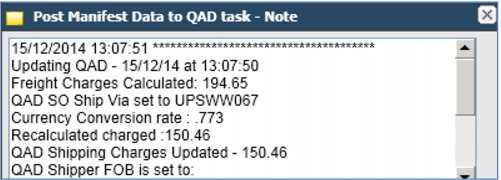
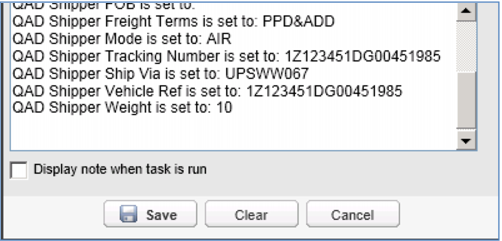
Once the shipment is ready to, the next workflow step is Post Manifest Data to QAD. This updates inventory for the products shipped and records the freight charge and Bill of Lading (BOL) on the customer order.
When you are done with all the steps in the workflow, the final Close step flags the shipment as closed and removes it from the shipping department’s queue.
Of course, complete history is available and all shipment information is available for track and trace.
Demo
Key Points
• Returns tracking number, carrier and service, and cost to QAD
• Closes shipment to remove from queue
• Maintains complete history



 icon
icon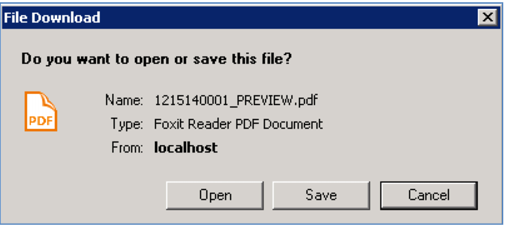

 icon beside Post Manifest Data to QAD