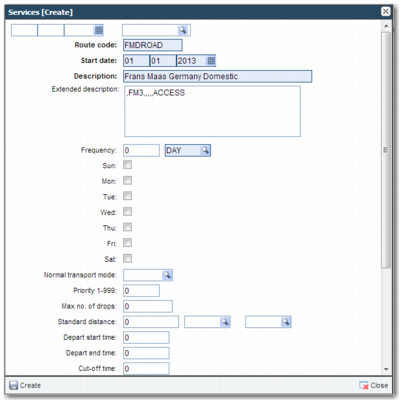
Configuring a Service
After you have uploaded a Charge Table, you can now configure a service based on it. To configure a carrier service in the Web UI, use the RT option. Create, configure, and maintain services from this screen.
1 In option RT, click Create.
2 Complete the following fields to create the service:
Route Code
Enter the code for the carrier Service.
Start Date
Enter the Effective Start Date for the carrier Service.
Description
Enter a description for the service. The description is displayed for this service in the Manifest and Rate Shopping tasks.
Extended Description
Most information in this field is now included elsewhere. The only position in the comma-separated list that needs a value is the second position. Specify the name of the applicable Charge Table to associate the rate structure with the service. If a service is associated with more than one Charge Table, such as an accessorial Charge Table, the seventh and subsequent positions can be used to enter the additional Charge Table.
Alternative Code
This field is not currently used by the rating, tracking number, and labeling programs for non-parcel carriers. However, these programs validate this field, so it must not be blank. You can enter any value.
Carrier
Enter the carrier to associate with this service.
Program
The legacy rating engine program is XTLTLSHP.
Frequency UOM
Although this field is not used, it must contain a value due to legacy issues.
Services Create