Documents Task
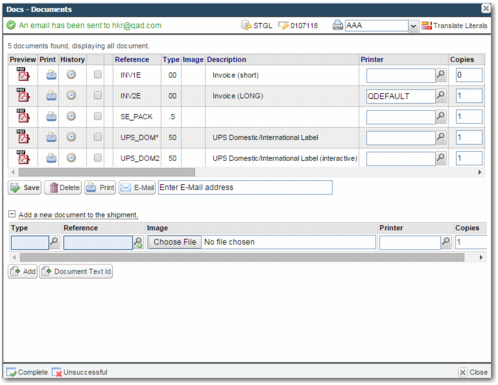
The Documents task enables you to view any documents associated with the shipment and to add new documents. You can select documents from the list and e-mail them.
Documents Task
To send e-mails through PRECISION, you must adjust the settings in Highway. For more information on this process, see Base Web UI Administration Guide.
There are a number of system values that affect the Documents task.
System Values Related to the Documents Task
Category | Key | Description |
WORKLOAD | DOCUMENT EMAIL SUBJECT | Enter the text that you want to appear in the subject line of the e-mail. |
WORKLOAD | DOCUMENTS EMAIL BODY | Enter the text that you want to appear in the body of the e-mail. |
ITRAX | COLLATE PDF LOCALES | This system value lists the locale or locales that are used to generate PDF versions of the document. When the user is using a locale in the list, the system combines all the documents into one PDF document that can then be previewed or e-mailed. |
ITRAX | DOCUMENT TASK - HIDE BUTTONS | This system value allows you to hide buttons from this page; add a comma-separated list of values. Each entry in the list represents a button that you want to remove. Possible values: PRINT, DELETE, SAVE, EMAIL, GRID_PRINT, GRID_PREVIEW, GRID_HISTORY, ADD. |
ITRAX | AUTO-OPEN-PDF | If this value is set to Yes, then any PDF documents produced open automatically in the browser. The user may have to set the security settings of their browser to ensure that the PDF opens. |
Associating External Files with a Shipment
The user can associate external files with a shipment in PRECISION by using the Add a new document to the shipment section in the Documents task. Each document that is uploaded to PRECISION is stored in a table, and has a folder and name associated with it. The table also contains information about the state of the shipment at the time that the document was uploaded. A query can be run on the shipment at a later stage, or exported to an external area for storage.
Configuring Image Classes
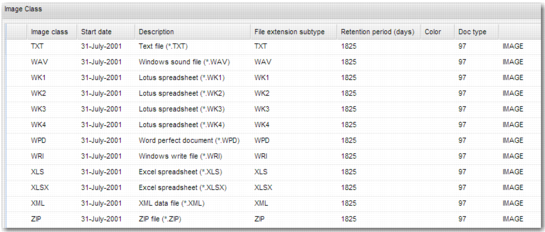
To configure the system to store these documents, use the Image Class screen. The D2 QuickPath option opens the Image Class screen. In this context, an image class is a file type that can be stored in PRECISION. Each entry in the Image Class table contains information about a particular file type.
Image Class
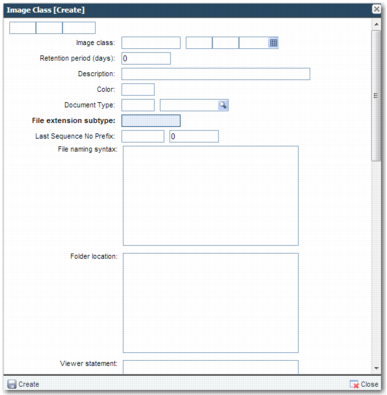
Your PRECISION installation already has the most common file types listed in this table. You can add any other file types that you need. Click the Add icon at the bottom of the table to display the Image Class Create window.
Image Class Create Window
There are a number of important fields to complete on this screen:
Image Class
A code to identify the class. In the date fields next to this field, specify the date from which the image class can be used in the system.
Description
A description of the file type.
Document Type
In the first field, enter the number 97. Use the lookup icon in the second field to select IMAGE. This document type identifies the file as being different from other PRECISION shipping documents.
File extension subtype
A code to associate the image class with a windows file type; for example, DOCX.
Rename imported files?
Set to yes or no. If you set it to yes, specify the File Naming Syntax in the relevant field.
File Naming Syntax
If you set the Rename imported files? field to yes, then you can specify how to rename the files using this field. There are a number of tokens that you can use to specify the format of the name. The tokens are given a run time value. For example, <month> is 1 in January, and 12 in December.
Filename Tokens
Token | Run Time Value |
<month> | Month number Example: 12 |
<year> | Year number Example: 2000 |
<day> | Day number Example: 31 |
<date> | Date Example: 311201 The date format is set on the user profile. Use the QuickPath option US to set the date format preference for a user |
<today> | Session date Example: 311201 |
<time> | Session time Example: 121559 |
<client> | Current transaction client |
<user> | Current user |
<drive> | Drive location where the file originated Example: C:\ |
<drive-letter> | Drive letter where the file originated Example: C |
<path> | The path where the file originated, without the <drive> |
<full-path> | <drive><path> |
<file> | File name of the original file without the full path |
Move or Copy imported files?
Set this field to Copy.
Folder Location
The folder location for the copied files. This folder location must be visible to the JBoss application server.
Viewing Stored Images
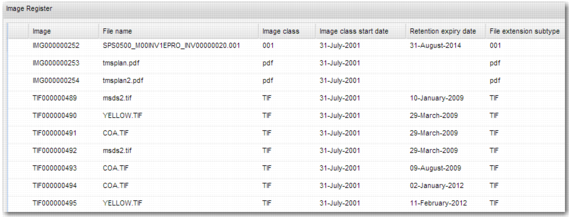
When users add documents to a shipment using the Documents task, an entry is added to the Image Register. This table is accessible through the D1 QuickPath option.
Image Register
Each entry in the Image Register has a unique image identifier. The format of the identifier is controlled by the NEXT SEQUENCE NUMBER system values.
Image Identifier Format
Category | Key | Description |
IMAGE | NEXT SEQUENCE NO: | Specifies the format of the image identifier stored in the Image Register. Enter a value of the format [prefix,number,length] where prefix is a three-letter code, number is the sequence number, and length is the number of digits in the identifier. The sequence number fills from the right of the identifier. Example: IMG,207,9 results in the identifier IMG000000207. |
IMAGE | NEXT SEQUENCE NO: <FILE_EXTENSION> | If the file that you are uploading has the extension <FILE_EXTENSION>, then this system value is used. IT works in the same way as NEXT SEQUENCE NO: |