Installing QAD BI > Configuring BI Modules > Install Metadata Language Translation Files
  
Install Metadata Language Translation Files
Install the metadata language translations files, if any are required.
1 In the BI DWD tool, choose Tools|Options.
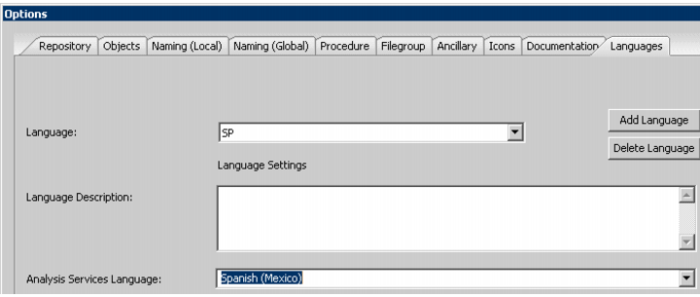
2 Click the Languages tab and add the following codes for the language files you want to install:
 
Language
Code
Czech
cs
German
de
Spanish
es
Spanish (Mexico)
es_MX
French
fr
Italian
it
Japanese
ja
Korean
ko
Dutch
nl
Polish
pl
Portuguese (Brazilian)
pt_BR
Chinese (Simplified)
zh
Chinese (Traditional)
zh_TW
3 The complete set of files is in the metadata package, under metadata/translations. The file names are in the format lang_<code>.wst. For example, the file for traditional Chinese is lang_zh_TW.wst.
Note: The UI can be a little misleading here because you must click Add Language and then type in a language or abbreviation in the Language drop-down menu. The code you enter helps you find language options in the Analysis Services Languages drop-down list, but the language that displays in the drop-down list may not be the language you want. The code you enter for the Language is used for reference purposes in later steps. For example, if you enter es, the language code for Spanish, the Analysis Services Language drop-down list displays Estonian, because that starts with es. If this happens, click the Analysis Services Language drop-down list, scroll down, and select the Spanish option.

Language Install
4 After adding the language codes, launch the QAD BI Data Warehouse Setup Administrator.
5 Select Languages|Change Languages Directory. Navigate to the directory metadata/translations directory of your package.

Language Install 2
6 Choose Languages|Load Languages. Right-click on the language file you want to install and choose Install Language.
7 Select the Data Warehouse’s ODBC DSN. Then choose the language to which you want to map this language file. You are allowed to choose one of the language codes you entered in the QAD BI DWD in step 2.

Language Install 3
8 Repeat these steps for each language you want to install.

