Rollup Fact Columns
The columns for a rollup fact table are typically the dimensions, and only those key measures that are added. For example in the sales world, measures may simply be quantity, kilograms, $value, forecast_quantity, forecast_$value, budget_quantity, budget_$value.
See the second tutorial for an example of rollup fact table creation.
KPI Fact Tables
Key Performance Indicator (KPI) fact tables share a lot of similarities with the rollup fact tables in that they are typically at a monthly level of granularity and they combine information from multiple detail fact tables. They differ in that they provide specific sets of pre-defined information (KPIs). Such KPIs are often difficult to answer and require the implementation of some form of business rule. Also they often provide pre-calculated year-to-date, same month last year, and previous year-to-date values for easier comparisons. They will have a KPI dimension which provides a list of all the specific statistics or performance indicators we are tracking.
An example from our previous sales examples may be a set of KPIs dealing with customer acquisition and loss. We may have a specific KPI that records the number of new customers during the period and the $value of their business during that period. Another KPI may record the percentage growth of all customers over the last six months. Another may show the number of customers who closed their accounts in the period, and the value of their business over the preceding 12 months.
KPI fact tables require the specific definition of each KPI.
It is strongly recommended that the KPI tutorial be undertaken. This tutorial will give an understanding of what can be achieved via a KPI fact table.
Creating the KPI Dimension
The KPI dimension essentially provides a record of each KPI or statistic we are tracking. There should be one row in this table for each such element. The KPI fact table requires that this dimension contain at the least an artificial dimension key and a business key. We will refer to the business key as the KPI Identifier.
The following example covers the manual creation of a basic KPI dimension:
1 When positioned over the Dimension object group use the right mouse menu and select the 'New Object' menu option.
2 Give the new dimension a name for example dim_kpi.
3 Select a Normal dimension and click OK on the properties screen to define the dimension table.
4 Position on the dimension name in the left pane and using the right mouse menu to 'Add Column', add the three columns defined in the following table.
|
Field
|
Column 1
|
Column 2
|
Column 3
|
|
Column Name
|
dim_kpi_key
|
kpi_identifier
|
kpi_name
|
|
Business display
|
kpi artificial key
|
kpi unique id
|
kpi name
|
|
Datatype
- Oracle
- SQL Server/DB2
|
integer
integer
|
varchar2(12)
varchar(12)
|
varchar2(256)
varchar(256)
|
|
Nulls
|
Clear
|
Clear
|
Checked
|
|
Key Type
|
0
|
A
|
Clear
|
|
Artificial Key
|
Checked
|
Clear
|
Clear
|
|
Primary Business
|
Clear
|
Checked
|
Clear
|
The first two columns are required, and should be set up as shown above, although a different data type can be used for the second column, and the names can be chosen to suit the requirements.
Creating KPI Fact Tables
A KPI fact table is normally created manually.
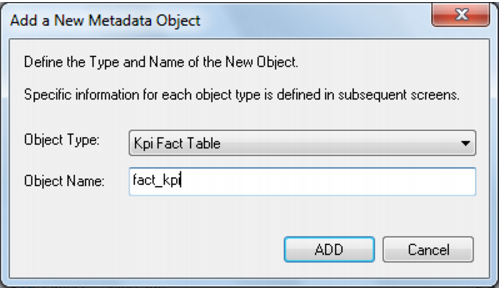
1 Position the cursor on the Fact Table object group. Use the right mouse button to display a menu.
2 Select the New Object option. A dialog displays as shown below.
Note: The default object type is Fact Table. This must be changed to KPI Fact Table and a table name entered.