Fact Tables
>
The partitioned fact table update procedure
The partitioned fact table update procedure
The generated procedure will handle the creation of new partitions as required. Any data for periods prior to the first partition is placed in the first partition. If data is received for a period after the last partition then new partitions are created. Empty partitions are created if necessary to skip periods where no data is present. For example, if we have a table partitioned by month and the latest partition is 200204 (april/2002). If data is then received for say september 2002 the update procedure will build partitions for may, june, july, august and september. There is a variable at the start of the update procedure called v_max_skip_periods. This variable is by default set to 12. This defines the maximum number of continuous partitions we will leave empty. From our previous example if our latest partition was april 2002 and we received data for july 2003 with no interim data then the update procedure will fail as it would have to skip 14 partitions. This check is present to prevent erroneous data from creating hundreds of partitions into the future.
Fact Table Column Properties
Each fact table column has a set of associated properties. The definition of each property is defined below:
If the Column name or Data type is changed for a column then the metadata will differ from the table as recorded in the database. Use the Tools/Validate table create status menu option to compare the metadata to the table in the database. A right mouse menu option of 'Alter table' is available when positioned on the table name after the validate has completed. This option will alter the database table to match the metadata definition.

TIP: If a database table's definition is changed in the metadata then the table will need to be altered in the database. Use the Tools/Validate table create status to compare metadata definitions to physical database tables. The option also provides the ability to alter the database table, through a pop-up menu option from the validated table name.
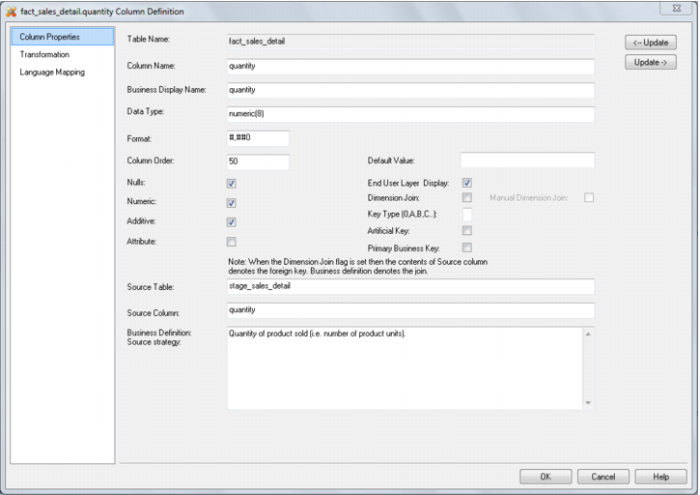
A sample property screen is as follows:
The two special update keys allow you to update the column and step either forward or backward to the next column's properties. ALT-Left Arrow and ALT-Right Arrow can also be used instead of the two special update keys.